
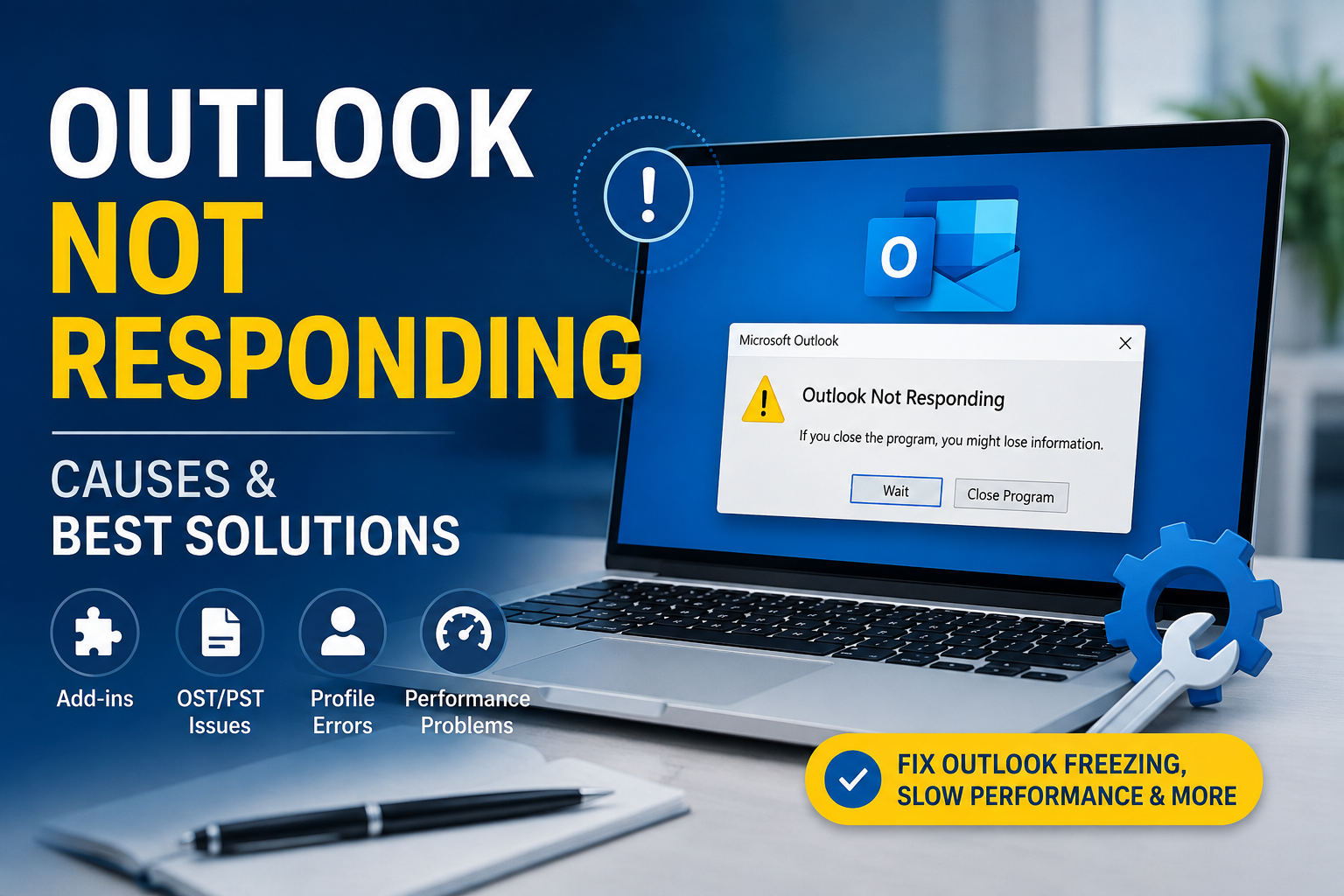
Microsoft Outlook is widely used to manage emails, calendars, contacts, tasks, and other business communications. However, users may sometimes encounter the “Outlook Not Responding” error. When this happens, Outlook might freeze, become extremely slow, fail to respond to clicks, or hang while opening emails or sending messages.
This issue can arise due to various reasons, such as a large mailbox, oversized OST/PST files, problematic add-ins, corrupt Outlook data files, a damaged profile, outdated Office applications, conflicts with antivirus software, or other background processes utilizing Outlook.
Microsoft also identifies factors such as large PST/OST files, third-party add-ins, corrupt profiles, indexing issues, antivirus interference, and improper data file closure as causes for Outlook performance problems.
This guide explains the common causes of the ‘Outlook Not Responding’ issue and manual methods to fix it. It also outlines an advanced solution for cases where the problem is linked to a corrupt or oversized OST file.
What does “Outlook Not Responding” mean?
The “Outlook Not Responding” error indicates that Outlook is temporarily unable to process user commands. You might see a message like this:
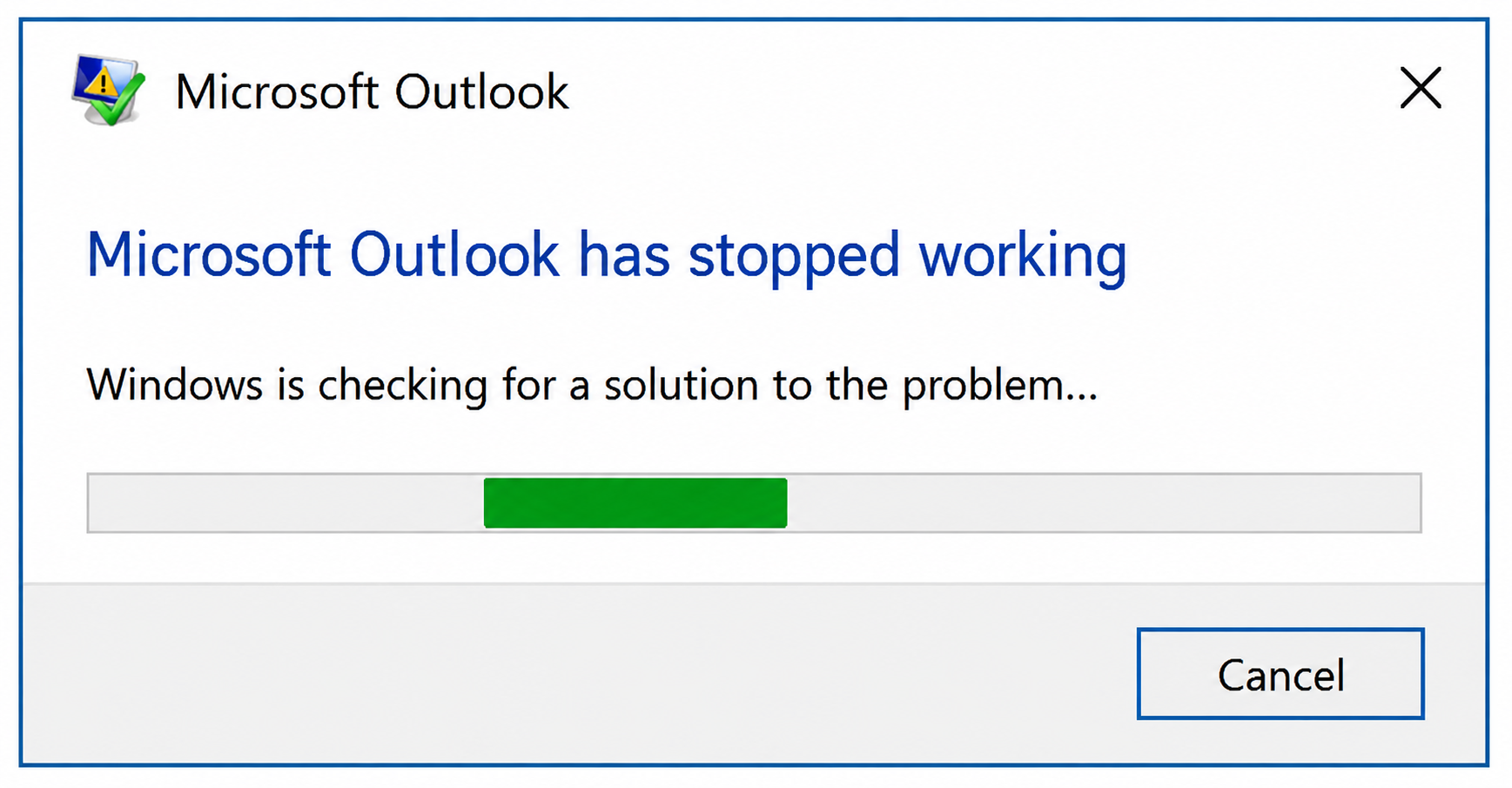
The application may stop working (stop responding) in situations such as:
- Opening Outlook
- Switching between folders
- Searching for emails
- Opening attachments
- Sending or receiving emails
- Moving a large number of messages
- Syncing the mailbox
- Loading a large folder
- Closing Outlook
In some cases, Outlook may recover on its own after a few seconds. However, if it freezes repeatedly, the root cause should be identified.
Common causes of the “Outlook Not Responding” error
1. Large mailbox
A mailbox containing thousands of emails, attachments, or folders may require Outlook to process a large amount of data. Large OST or PST files can also cause the application to stall during routine tasks like reading, moving, or deleting emails.
2. Problematic Outlook add-ins
Add-ins enhance Outlook’s functionality, but incompatible or outdated add-ins can interfere with its normal operation. Microsoft recommends starting Outlook in Safe Mode to determine if an add-in is causing the issue.
3. Corrupted OST or PST file
Outlook relies on data files to store and sync mailbox information. If the OST or PST file becomes corrupted, Outlook may slow down, freeze, or stop working.
4. Corrupted Outlook profile
A corrupted Outlook profile can prevent the application from correctly loading mailbox information, leading to frequent freezing issues.
5. Outdated Microsoft Office
Older Outlook installations may have bugs or compatibility issues that affect the application’s performance.
6. Background process conflicts
Other applications or processes can interact with Outlook. Antivirus software, Windows Search indexing, synchronization utilities, and other Office components can sometimes impact Outlook’s performance.
7. Lack of system resources
Insufficient RAM, low disk space, high CPU usage, or a slow storage drive can cause Outlook to become unresponsive, especially when processing large mailbox files.
How to manually fix the Outlook ‘Not Responding’ error
Try the methods below in order. Start with the simplest solutions before attempting to fix issues related to data files or profiles.
Method 1: Wait for Outlook processes to complete
Sometimes, Outlook stops working (becomes unresponsive) while performing background operations.
For example, Outlook might be:
- Syncing the mailbox
- Indexing messages
- Processing large attachments
- Updating folders
- Syncing or repairing OST/PST files
Wait a few minutes to see if Outlook resumes normal operation. If the problem persists, try the methods below.
Method 2: Terminate Outlook processes running in the background
If Outlook has completely frozen, you can close the Outlook process via Task Manager.
- Press Ctrl + Shift + Esc.
- Open Task Manager.
- Locate Microsoft Outlook or OUTLOOK.EXE.
- Select it.
- Click End Task.
- Wait a few seconds.
- Restart Outlook.
Before using this method, give Outlook some time to recover, as forcibly closing the application during data processing can interrupt file operations.
Method 3: Start Outlook in Safe Mode
Safe Mode is one of the best diagnostic methods to determine if an add-in is causing Outlook to freeze.
Steps:
- Press Windows + R.
- Type: outlook.exe /safe and press enter.
- Select your Outlook profile if prompted.
- Check if Outlook works normally.
Microsoft specifically recommends Safe Mode for troubleshooting “hang” issues caused by add-ins. If Outlook works in Safe Mode
The issue might be related to an add-in.
Go to:
- File → Options → Add-ins
- At the bottom: Manage: COM Add-ins → Go
- Disable non-essential add-ins and restart Outlook.
You can also enable them one by one to identify the problematic add-in. Microsoft recommends this method (checking one by one) when troubleshooting add-in conflicts.
Method 4: Disable non-essential add-ins
If Safe Mode confirms that Outlook is working correctly, disable third-party add-ins.
Common examples include add-ins installed by:
- PDF applications
- CRM software
- Meeting applications
- Security software
- Email management applications
- Other Office-integrated applications
Do not disable organization-critical add-ins without verifying their purpose. Method 5: Update Microsoft Outlook
An outdated Office installation can cause compatibility and performance issues.
To update Microsoft 365 apps:
- Open Outlook.
- Go to File.
- Select Office Account.
- Click Update Options.
- Select Update Now.
Restart Outlook after the update completes.
Microsoft includes installing the latest updates as a recommended step for fixing Outlook crashes and hanging issues.
Method 6: Repair Microsoft 365
If Outlook keeps freezing, repair the Microsoft 365 installation.
Steps:
- Open Control Panel.
- Select Programs and Features.
- Select your Microsoft 365 installation.
- Click Change.
- Select Online Repair.
Follow the on-screen instructions. When Outlook repeatedly crashes or stops responding, Microsoft recommends repairing Office as a solution.
Method 7: Reduce the size of your Outlook mailbox
A large mailbox can negatively impact Outlook’s performance.
Microsoft states that large PST/OST files can cause the application to stall, especially during routine mailbox operations.
You can improve mailbox performance by:
- Deleting unnecessary emails
- Emptying the ‘Deleted Items’ folder
- Removing large attachments
- Moving old emails to archive folders
- Reducing the number of items in individual folders
- Using mailbox archiving
- Separating old data from active mailbox folders
If you have important old emails, back up your mailbox data before deleting or moving it.
Method 8: Create a new Outlook profile
A corrupt Outlook profile can also cause freezing issues.
To create a new profile:
- Close Outlook.
- Open Control Panel.
- Search for ‘Mail’.
- Open ‘Mail (Microsoft Outlook)’.
- Select ‘Show Profiles’.
- Click ‘Add’.
- Enter a name for the new profile.
- Add your email account.
- Set the new profile as the default.
- Restart Outlook.
Microsoft lists creating a new Outlook profile as a solution for persistent crashing and hanging issues.
Method 9: Check the Outlook data file
If Outlook freezes while opening folders, searching messages, or synchronizing email, the OST/PST file may require attention.
For PST files, Microsoft provides the Inbox Repair Tool (SCANPST.EXE) for repairing certain data-file problems.
However, an OST file works differently because it is generally a synchronized local copy of mailbox data. If the OST is corrupted, orphaned, or inaccessible, rebuilding the OST may be more appropriate in some Exchange/Microsoft 365 configurations.
Before deleting an OST file, make sure important mailbox information is available on the server or has been backed up.
Method 10: Check available disk space
Outlook requires significant disk space for temporary tasks and local mailbox data.
Check your system drive and ensure there is sufficient free space.
You can do this by:
- Deleting unnecessary temporary files
- Emptying the Recycle Bin
- Removing unused apps
- Moving large personal files to another drive
- Cleaning up unnecessary Windows files
Low disk space can lead to performance issues for both the app and the system.
The best solution if Outlook still freezes
If you have tried Safe Mode, disabled add-ins, repaired Microsoft 365, created a new profile, and managed the mailbox, yet Outlook continues to freeze, the issue might be caused by a corrupt, inaccessible, orphaned, or oversized OST file. In such cases, converting OST to PST can be an effective method for recovery and data management.
Use MailsDaddy OST to PST Converter
This software can convert OST mailbox data into the PST format compatible with Outlook. According to the product documentation, it supports large, orphaned, encrypted, offline, and corrupt OST files while preserving folder structure and mailbox properties. It also offers an option to split large OST data into smaller PST files.
The vendor’s guide outlines this same general workflow and includes options for filtering mailbox data and splitting large output files.
Important Note: OST-to-PST conversion is not a guaranteed solution for all types of Outlook freezing issues. If the problem stems from an add-in, the Office installation, network issues, or a Windows process, you should first try the manual troubleshooting methods mentioned earlier. Conversion is most useful when the local OST/data file is corrupt, inaccessible, or orphaned, or when you need to extract data for recovery or archiving purposes.
Conclusion
The ‘Outlook Not Responding’ error can occur due to various reasons, such as large mailboxes, oversized OST/PST files, problematic add-ins, corrupt data files, a damaged profile, outdated Office components, or conflicts with background processes.
Start with basic troubleshooting steps, such as restarting Outlook, checking background processes, running Outlook in Safe Mode, disabling unnecessary add-ins, updating Microsoft 365, and repairing Office. If the issue is caused by mailbox size, archive or reorganize old data and reduce the number of items stored in active folders.
If the problem persists and the OST file appears damaged, inaccessible, orphaned, or excessively large, an OST-to-PST recovery or conversion method can help extract mailbox data into a usable PST file.
For users needing to recover and export data from problematic OST files, MailsDaddy OST to PST Converter offers specialized OST recovery and conversion features, including support for large and corrupt OST files.