
Microsoft Outlook is one of the most popular and business-oriented application that stores mailboxes in OST file and PST file format. But maintaining an overloaded inbox may not be easy, particularly if you get so many emails per day. Important emails might easily shift downwards in the inbox, making it hard to locate them whenever you require them.
However, in case you always must go through an important email in your inbox. Often, you could consider using the function to pin the important email, which would place it at the top of your inbox. This helps you to avoid spending much time looking for the same email.
This article helps you to understand how to pin an important email in Outlook, unpinning it, and other ways to do the same thing.
How to Keep an Email at the Top in Outlook Web
To pin an important email in Outlook web is useful for users who get hundreds of emails every day. Here, we explain the process of pinning an email in Outlook.
Step-by-step guide to pin email:
- Go to outlook.office.com and login with your credentials.
- Locate the email message which you want to pin.
- Right-click on it or hover over the email and select the Pin option.
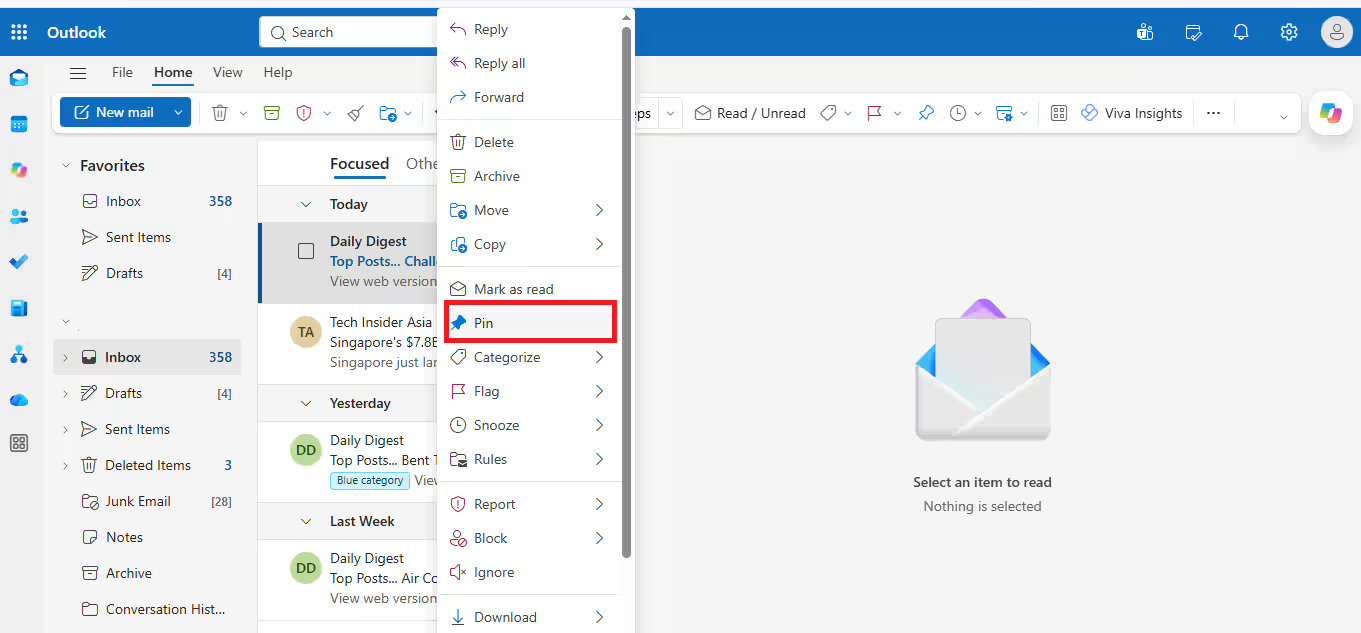
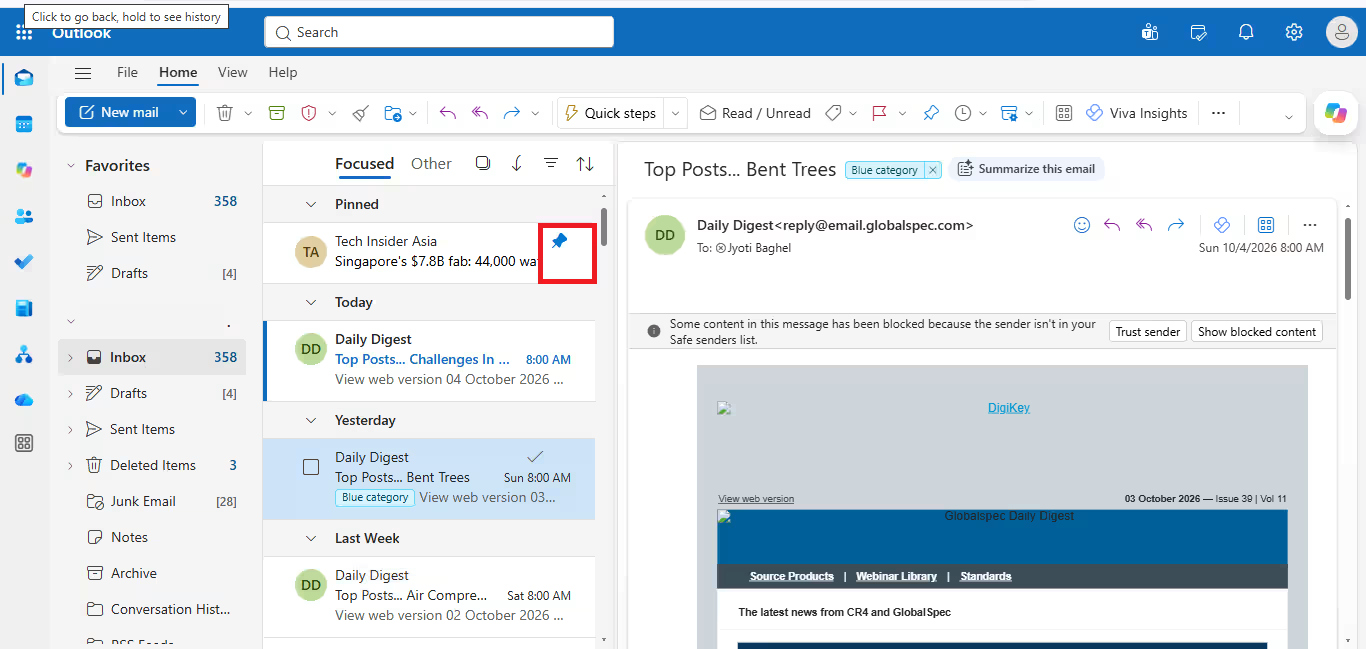
- Now, your email is pinned and it stays at the top of the inbox.
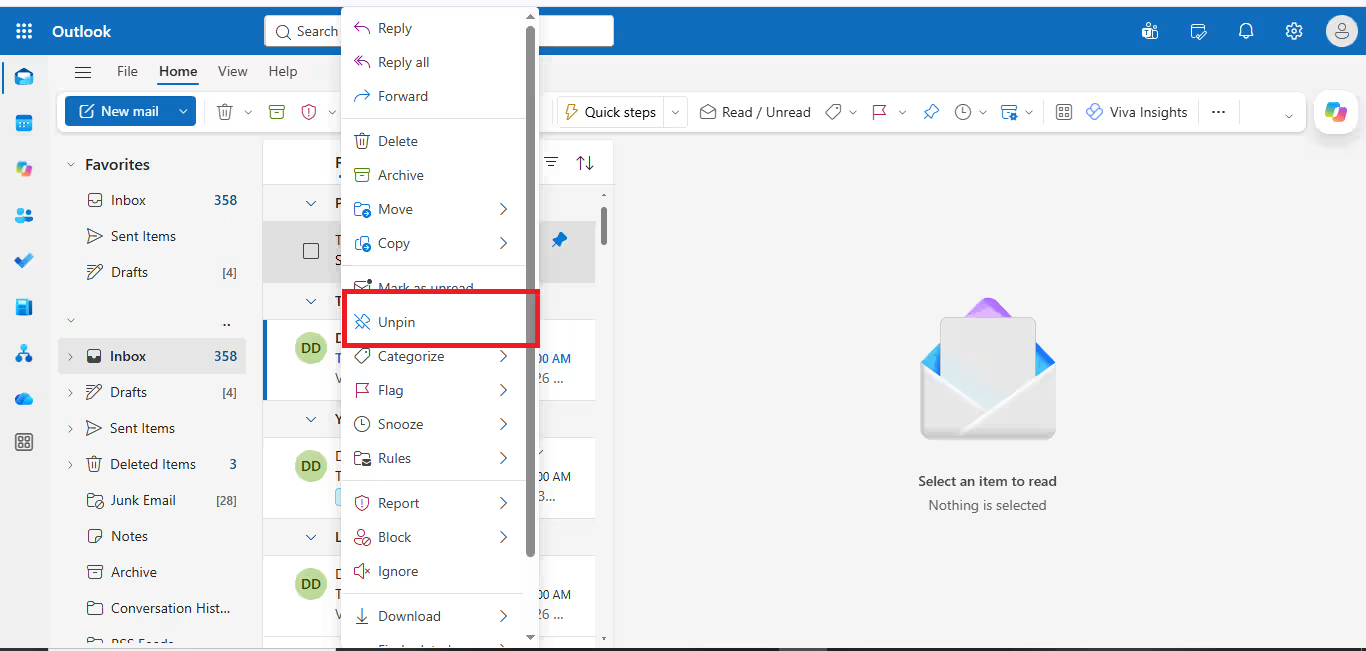
Unpin the email.
- Just right-click on Pinned email and press on the Unpin option.
Note: You can pin multiple email messages, and it will appear in order at the top of the inbox folder.
How to Pin an Email in Microsoft Outlook Desktop (Classic and New version)
Pinning an important email in Outlook desktop application depends on the versions of MS Outlook for Windows. New Outlook for windows provides the Pin feature to the users while Microsoft classic outlook didn’t support the Pin option.
So we can use different methods to highlight emails in classic Outlook.
Step-by-step working process:
- Open the Outlook application on your windows system.
- Find the email you want to pin.
- Hover over there or right-click on it and select the Pin feature.
- After pinning an email, your email shows at the top of the Inbox folder in a few seconds.
Unpin an email:
- Again, hover on the pinned email and click on the Unpin icon.
Different methods to highlight an important email in Classic Outlook
There are many ways to instantly recognize emails in Classic Outlook because it didn’t provide Pin option. You can use Flag and Color-categories to organize your emails in Inbox and other folders.
For Flag option:
You can use this feature for follow-up messages, and these emails automatically show in Tasks and To-Do lists.
Working process:
- Launch MS Outlook on your windows desktop.
- Go to the email you want to highlight.
- Hover over the email and click on the Flag icon.
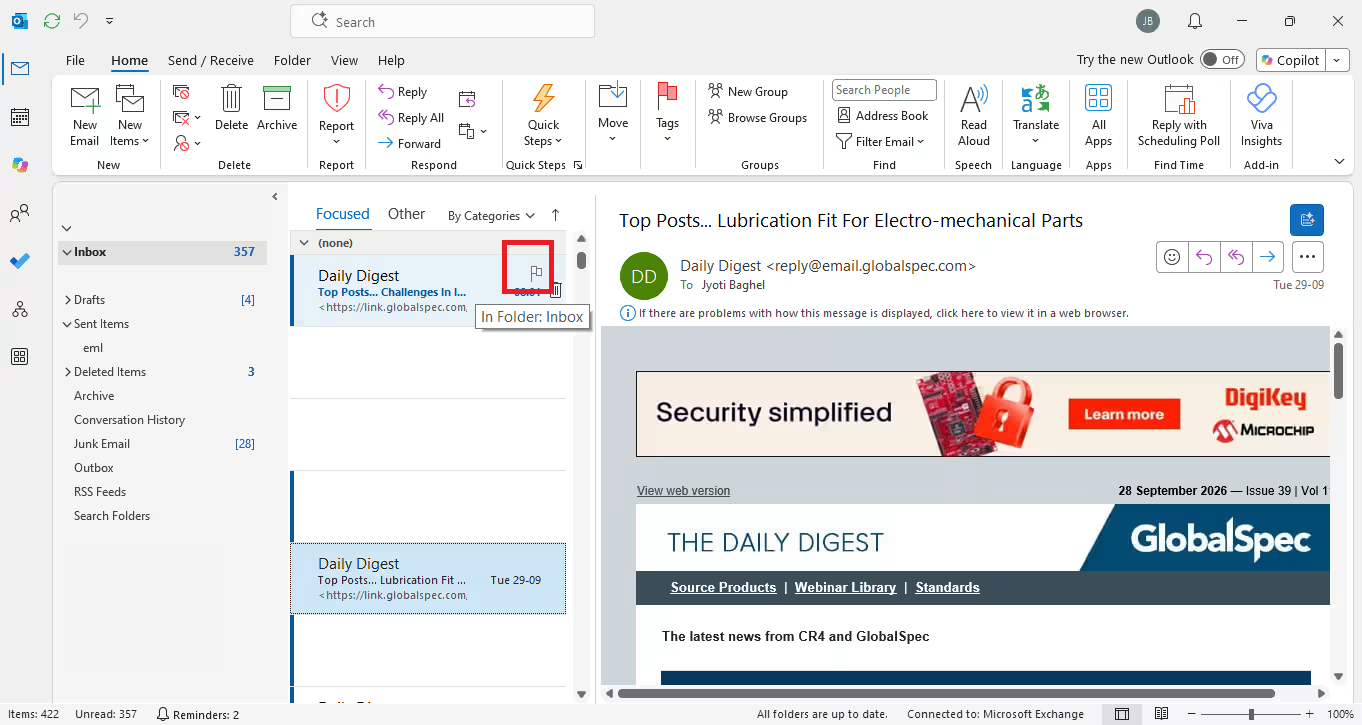
- Now, your email is shown with a red flag, and it appears in your To-Do list.
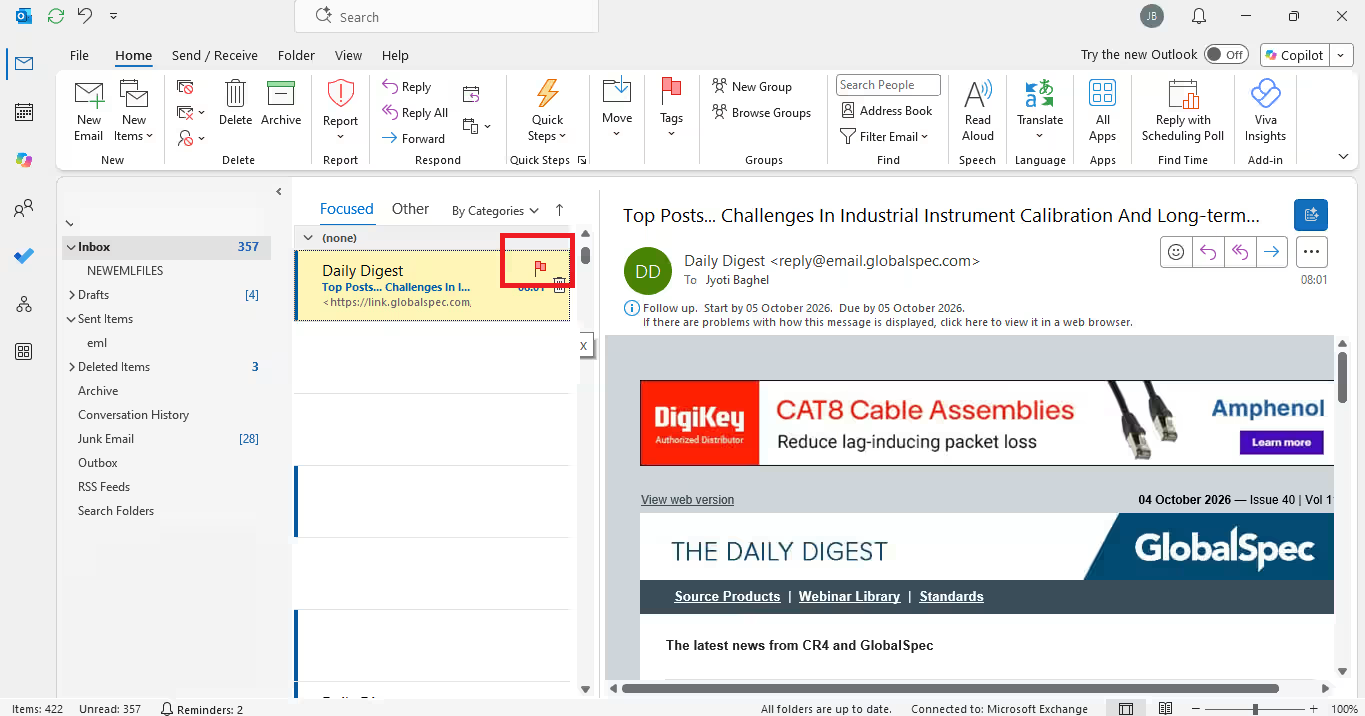
Unflagged the email.
- Go to the flagged email and again click on the flag icon or right click on that email and select the follow ups then clear flag option to unflag the email.
For Color- categories option:
You can use the Color categories option to highlight the emails in outlook. This option comes with color and tag name, which helps you to manage the emails based on projects and people. Change the naming of the color name and choose the different colors according to yours.
Working process:
- Go to the Outlook desktop app.
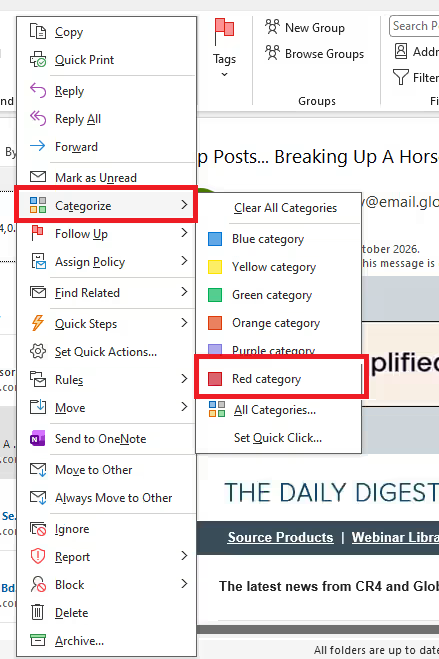
- Select the email and right-click on them.
- Next, click on the categorized option and choose the color.
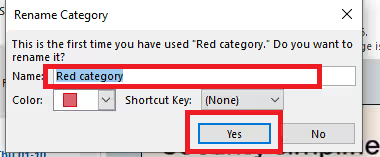
- Give the name of the category and click on Yes.
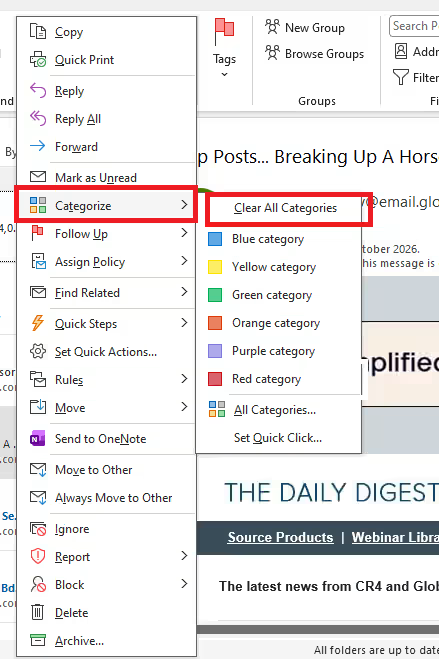
Remove Category:
- Right-click on the email from which you want to remove the category.
- Go to the categorize and click on the clear all categories option.
Conclusion
Pinning an email is an important feature for Outlook users who have a busy inbox. Such users are looking for a simple way to keep emails at the top of the Inbox instead of scrolling the whole inbox. So. pinning is the best option to stay emails at the top of the folder. Pin features are available in your Outlook version is good otherwise use the flags and categorize feature to highlight the emails in your inbox.
More Helpful Article: How to Export MBOX to PST Free

Jyoti is a digital marketing professional specializing in search engine optimization, content marketing, email management software, data migration, Microsoft Outlook, and cloud solutions. She also creates informative content and tutorials covering email migration, data recovery, Outlook, PST, EML, Office 365, and emerging trends in technology and online marketing.