

Microsoft Outlook and Mozilla Thunderbird, both applications are widely used for email communication and data management. Sometimes, due to some reasons, users need to migrate PST contacts and calendar data to Thunderbird, which is one common challenge.
There is no direct way to import Outlook contacts and calendars to Thunderbird. For this migration we need to export the required data from Outlook and import them into the Mozilla Thunderbird. Like export contacts into a .csv file and calendars into the iCalendar ( ICS) format into the local system.
In this guide, you’ll understand what are the reasons for importing contacts and calendars from Outlook to Thunderbird and practical ways for this migration.
Why Migrate Outlook PST Contacts and Calendar to Thunderbird?
You’ll find several reasons to migrate Outlook contacts and calendars data to Thunderbird, like:
- Mozilla Thunderbird is a free and open-source email application.
- The Thunderbird export data into MBOX format is simple unlike MS Outlook.
- Migrating from Outlook to Thunderbird.
- Quickly accessing contacts in Thunderbird.
- Thunderbird provides a useful feature like installing helpful plugins.
- Down the dependency on Microsoft Outlook.
Method 1: Using Thunderbird Email application to Import Outlook Contacts.
This method is useful when you have configured one account in Microsoft Outlook.
- Launch Mozilla Thunderbird application on your windows.
- Press the alt button on your keyboard to see all the menus.
- Go to the Tools tab then Import option.
- Choose the “Import from Outlook” option and click on the Continue button.
- Now, tick only the Address Books option and click on Continue.
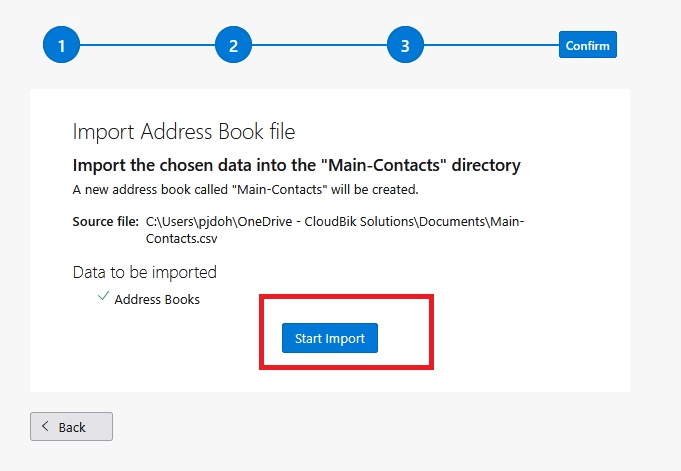
- Press Start Import button to start the import process.
Method 2 : Export Contacts from Outlook and Import to the Mozilla Thunderbird.
This approach is divided into two parts: Export contacts from Outlook and Import them into the Thunderbird. Follow below steps to export or save Outlook contact data into the .CSV file format on your system and then import to Thunderbird and others.
Part A:
- Open Microsoft Outlook » go to the File tab.
- Click on Open & Export, Import/Export.
- Select the Export to a file » Next.
- Choose the Comma Separated Values (CSV) » Next.
- Select the Contacts folder » Next.
- Browse the CSV file where exported data is saved and click Next then Finish button.
Part B
- Launch the Mozilla Thunderbird email client.
- Navigate to Contacts » click Import.
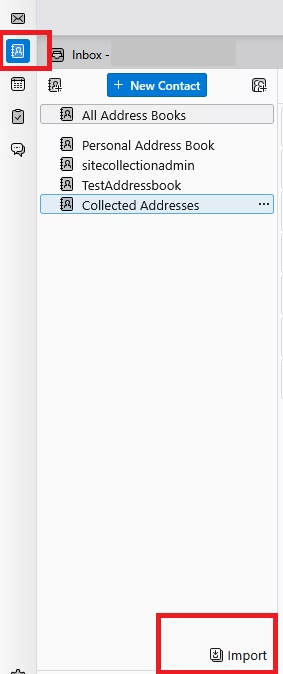
- Choose the Comma or tab separated file (.csv, .tsv) » click on Continue.
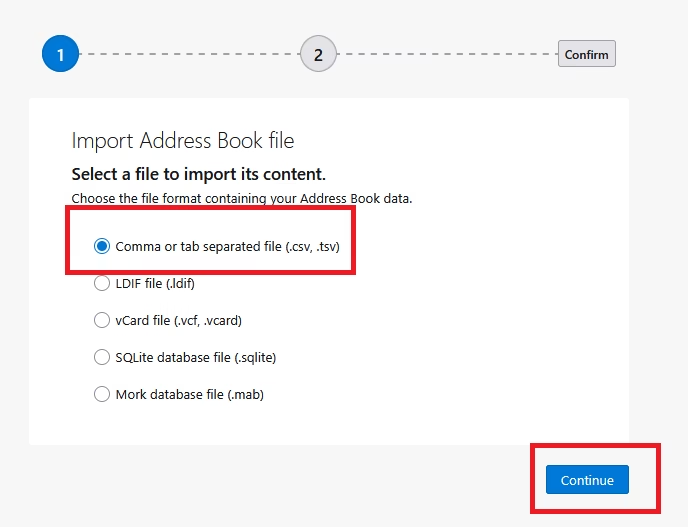
- Select exported CSV file.
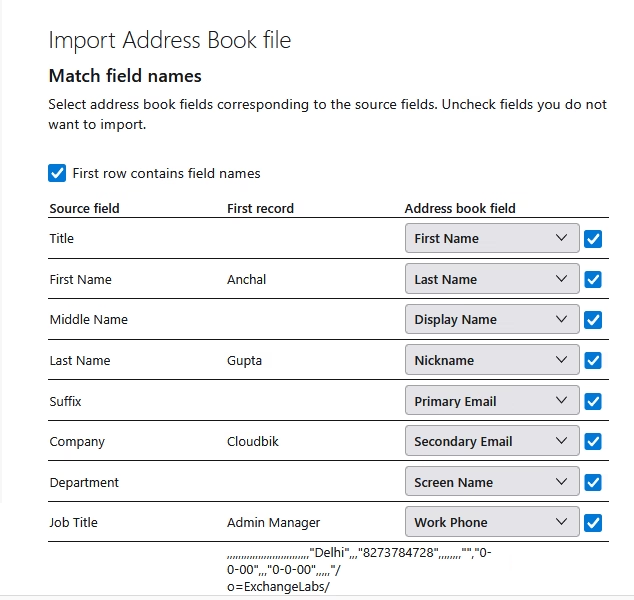
- Choose the fields and click on Continue.
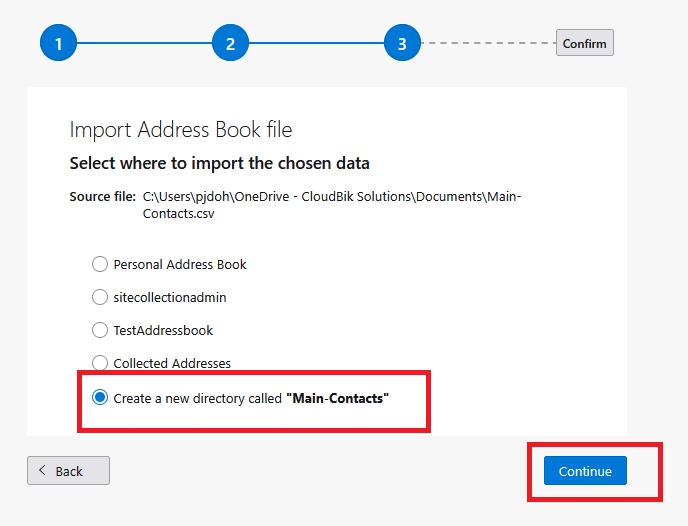
- Select the folder and press Continue.
- Click on the Start Import button to start the process.
Method 3: Export Outlook Calendar and Import it into Thunderbird.
Migrating Calendars from Outlook to Thunderbird is a slightly different method. Because Microsoft Outlook manages calendar data within PST while Mozilla Thunderbird uses ICS/iCalendar formats for calendar.
This method will also be completed in two parts.
Part A:
- Open the Outlook desktop application and go to the Calendars tab.
- Before exporting calendars, analyze your appointments, meetings, and events list.
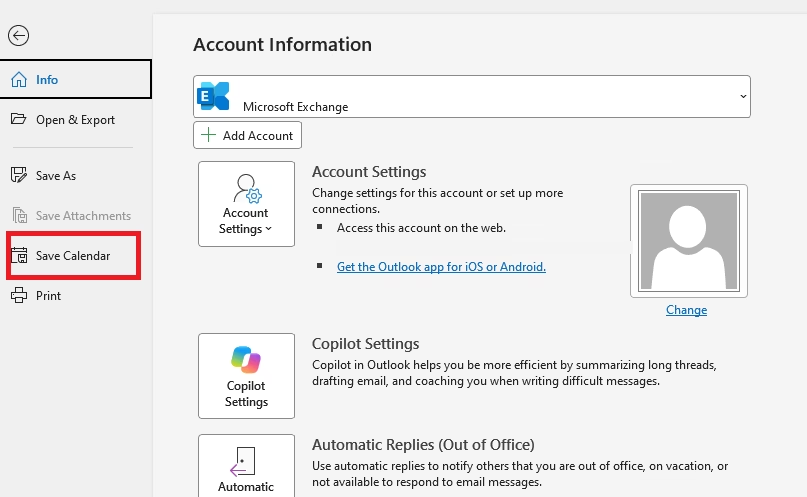
- Go to the File tab and click on Save Calendar option.
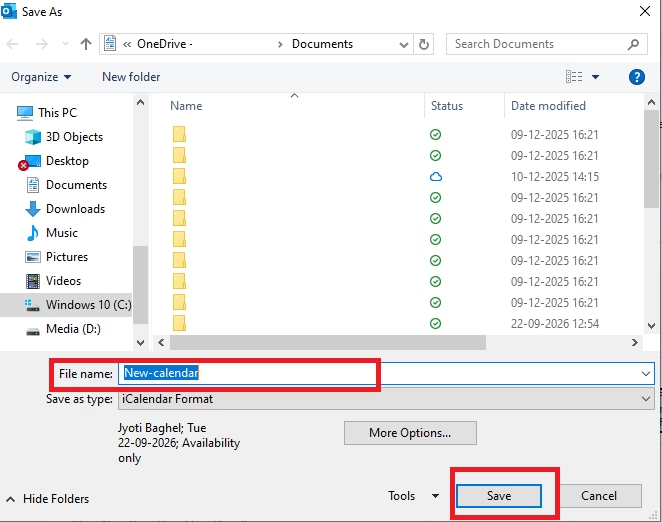
- Now, enter the File Name and click on Save.
Part B:
- Open Mozilla Thunderbird application and press alt on your Keyboard.
- After pressing the alt button, you can see all the menus.
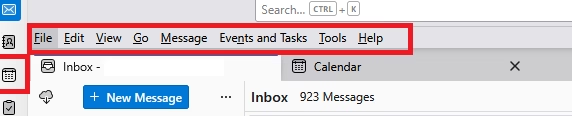
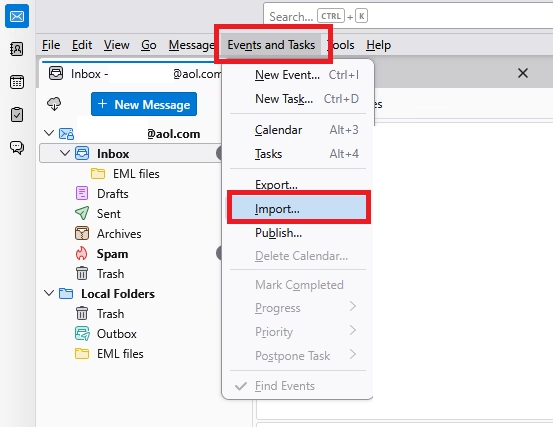
- Click on the “Events and Tasks” tab then select the Import.
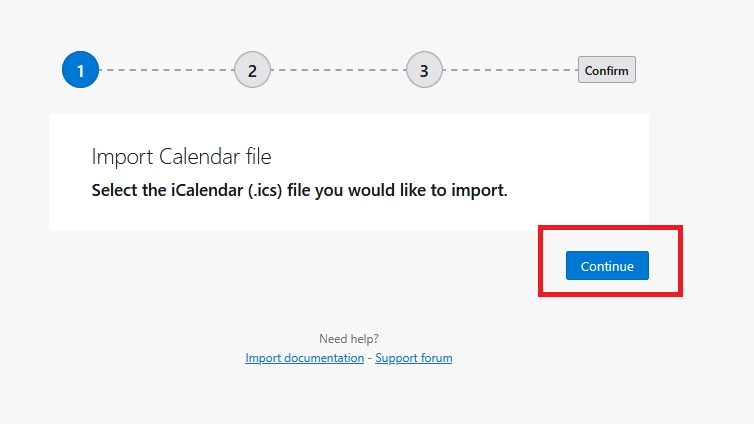
- Now, click on Continue and add the saved Outlook Calendar file.
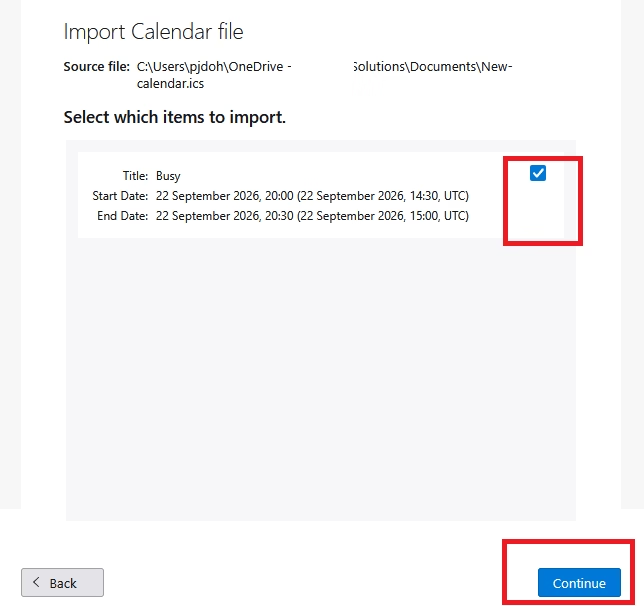
- Choose the items which you want to import and click Continue.
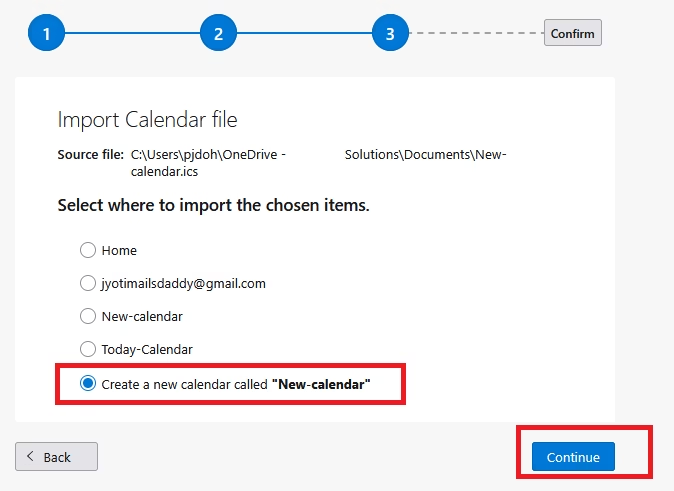
- Select the folder and press Continue.
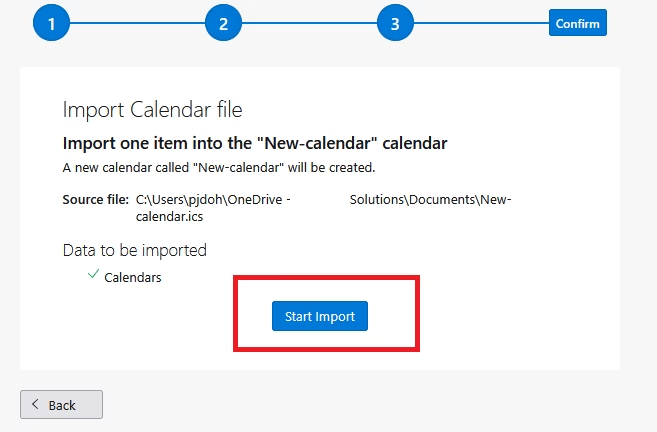
- Click on the Start Import button and the process will begin.
Method 4: Export PST Email, Contact and Calendar using an Automated tool
For large and multiple data files, individual and organization users prefer MailsDaddy PST to MBOX Converter ( also known as PST file Converter). With this software, users can migrate PST files to MBOX along with contacts and calendars in just a few clicks.
Working guide to Convert PST files to MBOX format
- Download and install the MailsDaddy PST to MBOX Converter ( aka PST file Converter).
- Click on Open File to add the PST file.
- Preview of complete mailbox data.
- Click on the Export button and select the folders which you want to migrate.
- Select the MBOX option as the Output.
- Choose the designation location where MBOX files are saved.
- Start the conversion process by clicking on the Export button.
With these steps, organizations migrate PST emails into MBOX & Contact and Calendar in CSV & iCal formats respectively. Once the conversion is done, user/admin can directly open into Thunderbird profile.
Migrate Only Outlook Contacts and Calendar to Thunderbird :
To move Outlook contact and calendar individually, choose “only Contact” and “only Calendar” option in Export window of the software. This will helps organizations to migrate multiple profile data at once without any manual step.
Conclusion
Moving contacts and calendars from Outlook PST to Thunderbird involves a bit of a difference because Thunderbird doesn’t natively import PST files. Contacts exported into appropriate formats like CSV and calendars are moved to Thunderbird through ICS format.
To migrate complete PST files or only contacts and calendar in one go, use reliable third-party tools like MailsDaddy PST to MBOX Converter. The tool allows you to convert a PST mailbox into the MBOX or many other formats without losing any data.

Somit Vishwakarma is a technology writer specializing in email management, data migration, Microsoft 365, Outlook, cloud technologies, & software solutions. His areas of expertise include email migration, data backup, recovery, and cloud data management. He also writes informative tutorials covering Python, programming, & emerging technology trends.