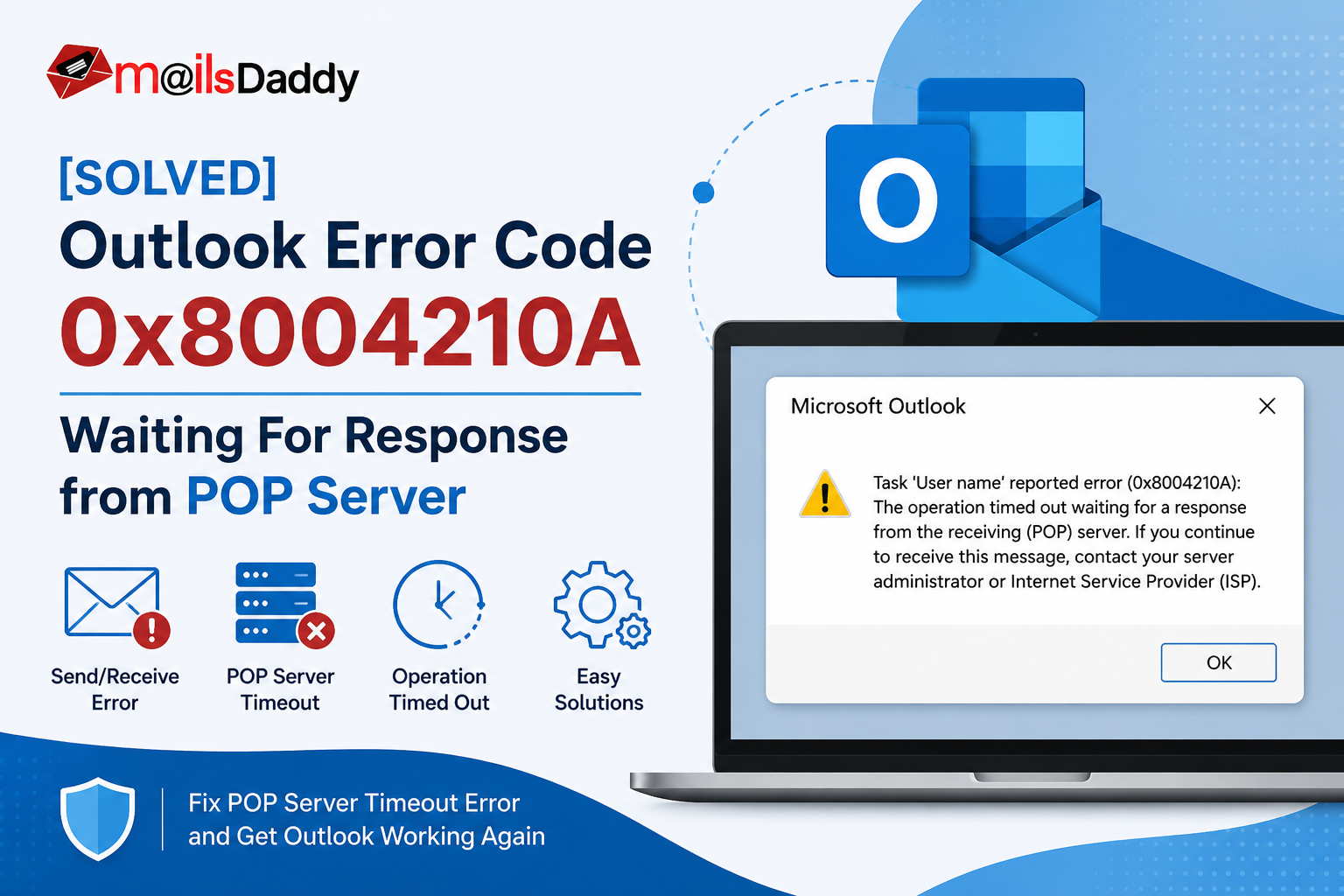
Microsoft Outlook is a reliable email client used by millions of individuals and organizations for managing emails, contacts, calendars, and tasks. Despite its robust features, Outlook users may occasionally encounter send/receive errors that interrupt email communication. One such issue is Outlook Error Code 0x8004210A, which usually appears when Outlook cannot establish a timely connection with the POP server.
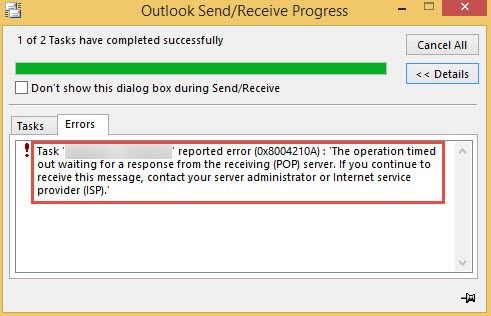
Reasons behind Outlook error code 0x8004210a
There are many reasons behind MS Outlook error 0x8004210a such as-
- Incorrect POP email account settings.
- Slow or unstable internet connection.
- Firewall or antivirus software blocking Outlook.
- Corrupted Outlook profile.
- Damaged Outlook data file (OST/PST).
- Large mailbox causing synchronization delays.
- Faulty Outlook add-ins.
- Slow or temporarily unavailable mail server.
How to resolve Outlook error code 0x8004210a?
Follow these simple steps, the user can easily fix the MS Outlook error 0x8004210a-
1: Verify POP Account Settings:
ncorrect server settings are one of the leading causes of this error. For this:
- Open Outlook and go to File.
- Visit Account Settings >> Account Settings.
- Select your email account and click Change.
- Verify:
- Incoming POP server
- Outgoing SMTP server
- Port numbers
- SSL/TLS settings
- Save the changes and restart Outlook.
2: Increase Mail Server Timeout Interval:
- Firstly, Open MS Outlook and go to the File menu then open Account Settings.
- Then select the email account and click on Change option, then click on More Settings option.
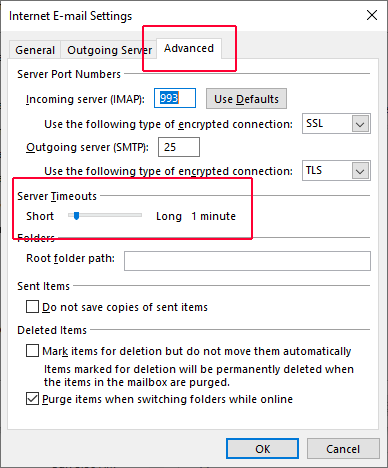
- In open new Internet Email Settings dialog box selects the advanced tab.
-
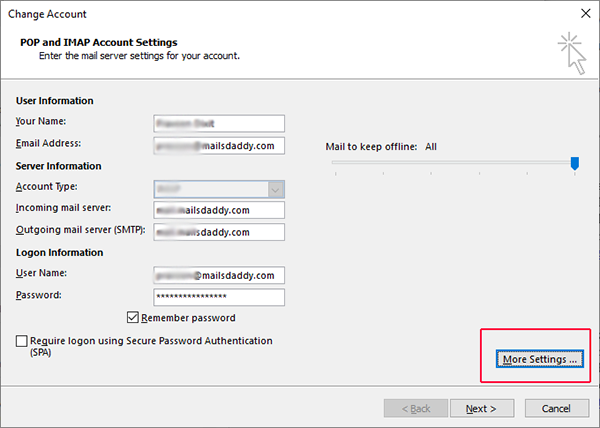
Increase the server timeout time according to the requirement and then lost click on the OK button.
3: Start Outlook in Safe Mode
Sometimes Outlook add-ins interfere with the send/receive process.
Steps:
- Press Windows + R.
- Type: outlook.exe /safe
- Press Enter.
- Try sending or receiving emails.
If Outlook works correctly in Safe Mode, disable unnecessary add-ins one by one to identify the problematic extension.
4: Configure Antivirus and Firewall
Some antivirus programs and Windows Firewall settings may block Outlook from connecting to the email server.
- Temporarily disable antivirus protection.
- Allow Microsoft Outlook through Windows Firewall.
- Retry the Send/Receive operation.
If Outlook works afterward, update the antivirus configuration to permanently allow Outlook.
5: Create a new profile in MS Outlook-
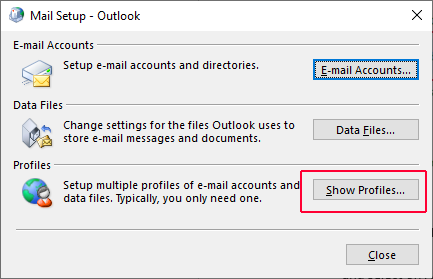
- Firstly, open Control Panel then select the Mail
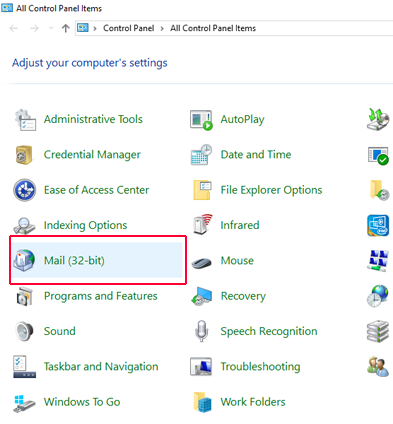
- Click on Show Profiles option.
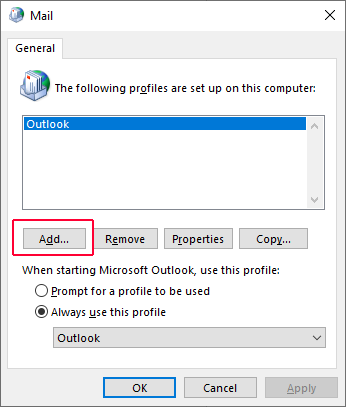
- Select on Add option to create a new Outlook profile.
- Fill all the details and click on Finish tab after complete the things.
- Now, again open Control Panel go to Mail and click on Show Profiles option.
- Select the profile which the user just created and select Always use this profile option to set this profile as default.
6: Repair the MS Outlook Application-
Follow these steps to repair Microsoft Outlook applicaiton:
- Open Control Panel and select on uninstall programs option.
- After the click, a new screen appears then select Microsoft Office and click on Change option.
- A new dialog box will appear. Here select the Repair option and click Continue.
Professional Solution for Corrupted Outlook Data Files
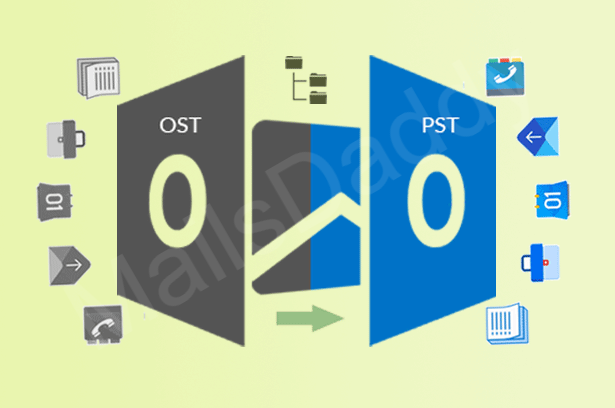
If the issue persists due to a damaged or inaccessible OST file, MailsDaddy OST to PST Converter offers a reliable solution. The software is designed to recover corrupted, orphaned, or inaccessible OST files and convert them into healthy PST files without requiring an Exchange Server connection. Using a professional OST recovery tool helps ensure that valuable mailbox data remains accessible even when Outlook cannot repair the original data file.
Conclusion
Outlook Error Code 0x8004210A usually occurs when Outlook times out while waiting for a response from the POP server. The problem can result from incorrect account settings, network issues, Outlook profile corruption, firewall restrictions, or damaged data files. In most cases, verifying server settings, increasing the server timeout, creating a new Outlook profile, or repairing Microsoft Office resolves the issue.
However, if the error is caused by a corrupted or inaccessible Outlook data file, a professional solution like MailsDaddy OST to PST Converter can help recover mailbox data and restore access to emails without risking data loss. Following the methods outlined in this guide will help you troubleshoot the error and restore normal Outlook functionality.
Also Read: Resolve OST File Internal Error 0000000E