
Email is still one of the most powerful tools for professional communication, and it’s the best way to get things done at work. But really, writing the same message for everyone? It’s a hassle and time-consuming. Whether you’re talking to clients, sharing news with your team, or sending invites, you want people to feel like you actually wrote to them, not just sent a generic note.
That’s why mail merge is essential. It lets you combine Microsoft Word with Outlook and send multiple personalized emails at once. No more copy-and-paste hassles. In this guide, I’ll show you the right way to set up mail merge with Word and Outlook, so you can save time, avoid mistakes, and connect with people the way you really want to.
What is Mail Merge, and why use it?
Mail merge lets you send personalized emails to multiple people without having to type same message to everyone. It lets you compose a message and then automatically fill in details like names or email addresses from a list, usually in Excel. So instead of making changes to each email, all you have to do is set up your document, link your list, and Word will do the rest. This really saves time and keeps your messages consistent and well-rounded. It’s great for things like newsletters, announcements, invites, or client outreach.
Now, if you connect Mail Merge to Microsoft Outlook, you can send a whole batch of personalized emails at once. Each one feels special, even though you don’t need to write them one by one.
What You Need Before Starting?
Before you begin the mail merge Outlook process, make sure you have:
- A properly formatted Excel file with recipient details
- Microsoft Word installed
- Microsoft Outlook is set as your default email client
- The same Microsoft account is configured in both Word and Outlook
Your Excel file should look like this:
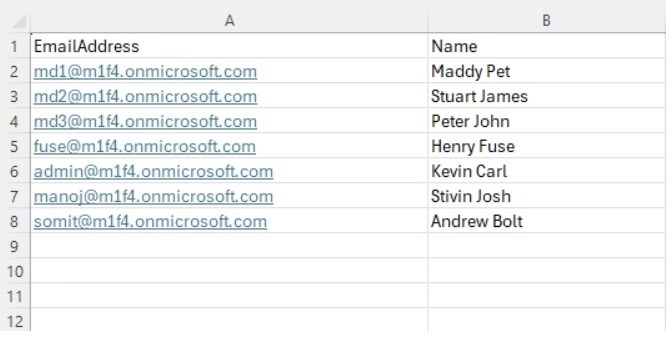
Make sure:
- Column headers are clear and unique
- There are no empty rows
- Email addresses are correct
How to Mail Merge from Excel to Word?
If you’re searching for how to mail merge from Excel to Word or how to do a mail merge from Excel to Word, follow these steps:
- Open Word and go to the Mailings tab.
- Now, click Start Mail Merge, then select Email Messages. This activates mail merge mode for the email.
- Now we need to select recipients. To do this, click Select Recipients, then choose Use an Existing List, then select the Excel file you created.
- Now type your email message in Word.
This is the core of the mail merge Word process.
- Before sharing, click Preview Results to preview the results so you can see how your email will appear to each recipient.
- After previewing, go to Finish and click Finish and Merge, then select Send Email Message.
- Select the email address field, add your subject line, and choose HTML (recommended).
- Click OK.
Word will now use Outlook to send individual personalized emails automatically.
How Mail Merge from Excel Works with Outlook
When you perform a mail merge from Excel, Word acts as the document editor, and Outlook handles the actual sending of emails.
Important:
- Outlook must be open during the process.
- It will send emails one by one, not as CC or BCC.
- Each recipient receives a personalized message.
This method is perfect for:
- Client outreach
- Business announcements
- Event invitations
- Newsletter distribution
- HR communication
Common Issues and How to Fix Them
- Make sure Outlook is set as the default mail client.
- Keep Outlook open when sending.
- Check column names in Excel.
- Don’t overspace headers.
- Check that there are no duplicate rows in Excel.
- Always choose HTML format.
- Avoid heavy images.
Advantages of Using Mail Merge
- Saves significant time
- Reduces manual errors
- Sends personalized emails at scale
- Maintains professional communication
- Easy to manage using Excel data
Whether you are a business owner, HR manager, marketer, or student, knowing how to do a mail merge can dramatically improve your productivity.
Final Words
Mail merge is one of the most powerful productivity features in terms of saving time between Word and Outlook. All you have to do is link your Excel sheets, set things up in Word, and then send everything through Outlook. No special software is required. Once you get the hang of it, connecting Excel, setting up the merge, and sending the emails, you’ll see how easy it is to send bulk messages that also feel personal. Done right, a mail merge not only saves you hours; your emails look like you wrote each one by hand.