Working Guide Of EML to Office 365 Migration Tool
Working Guide of the EML to O365 Migration Tool
How to Import EML to Office 365? (8 Steps)
Click on any screenshot to view full resolution.
Download, Install & Launch Tool
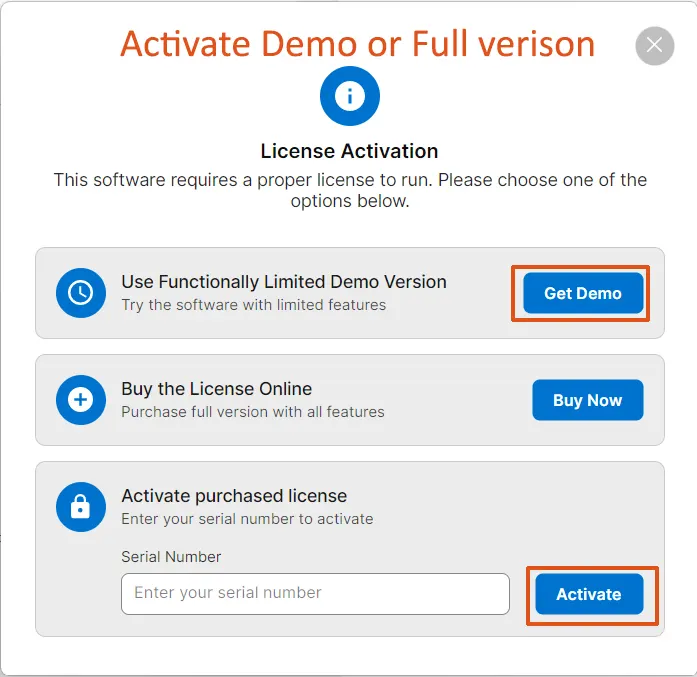
Download EML to Office 365 Migration tool, click on Get demo or activate it (if the license key is available)and launch it.
Browse & Add Mailbox
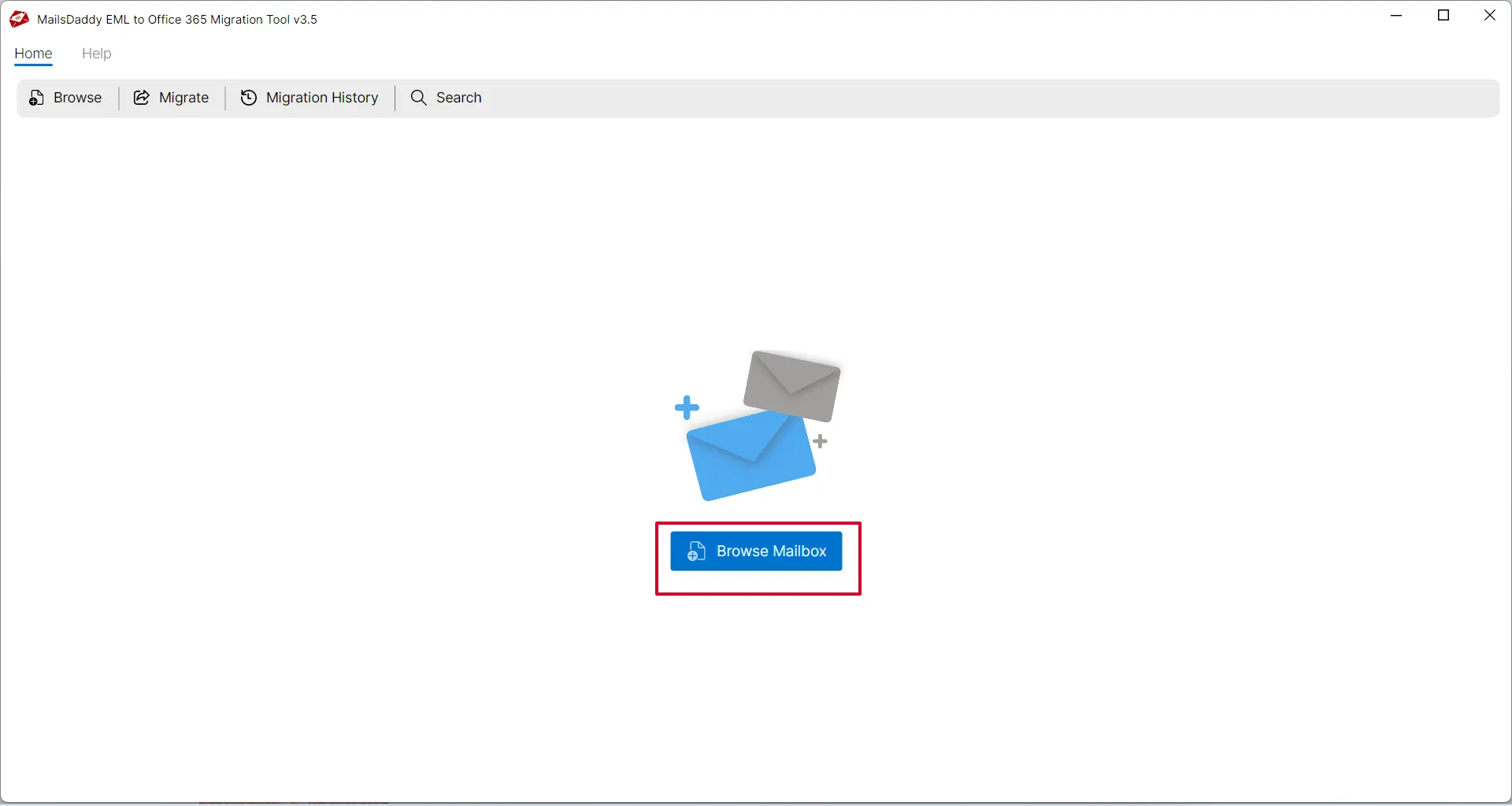
Click on Browse mailbox button to add a file from the local machine.
Select the folder where EML files
have been saved.
Preview Mailbox & Email Contents
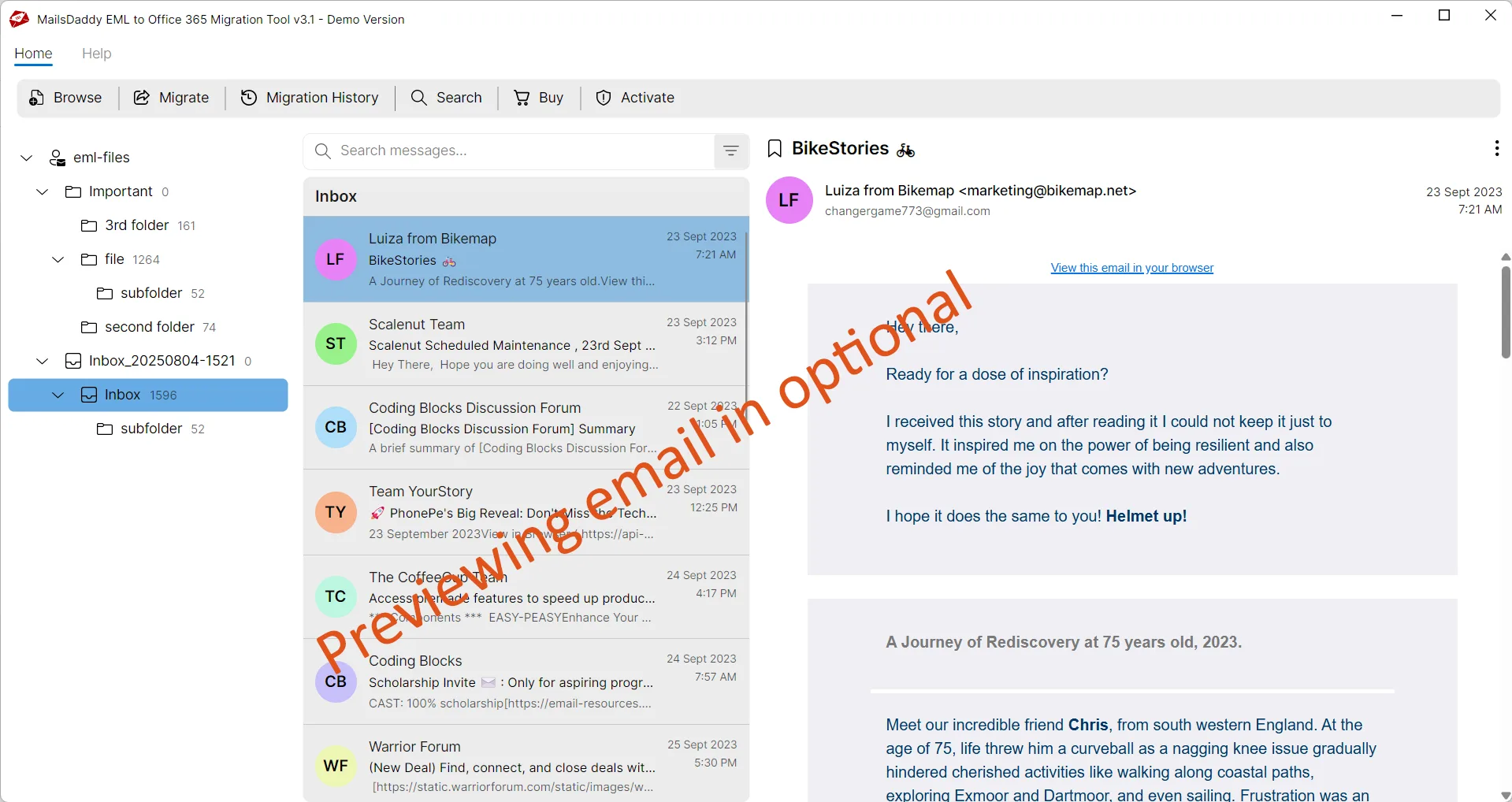
The software generate a Preview of the selected email file.
Select Export Options & Format
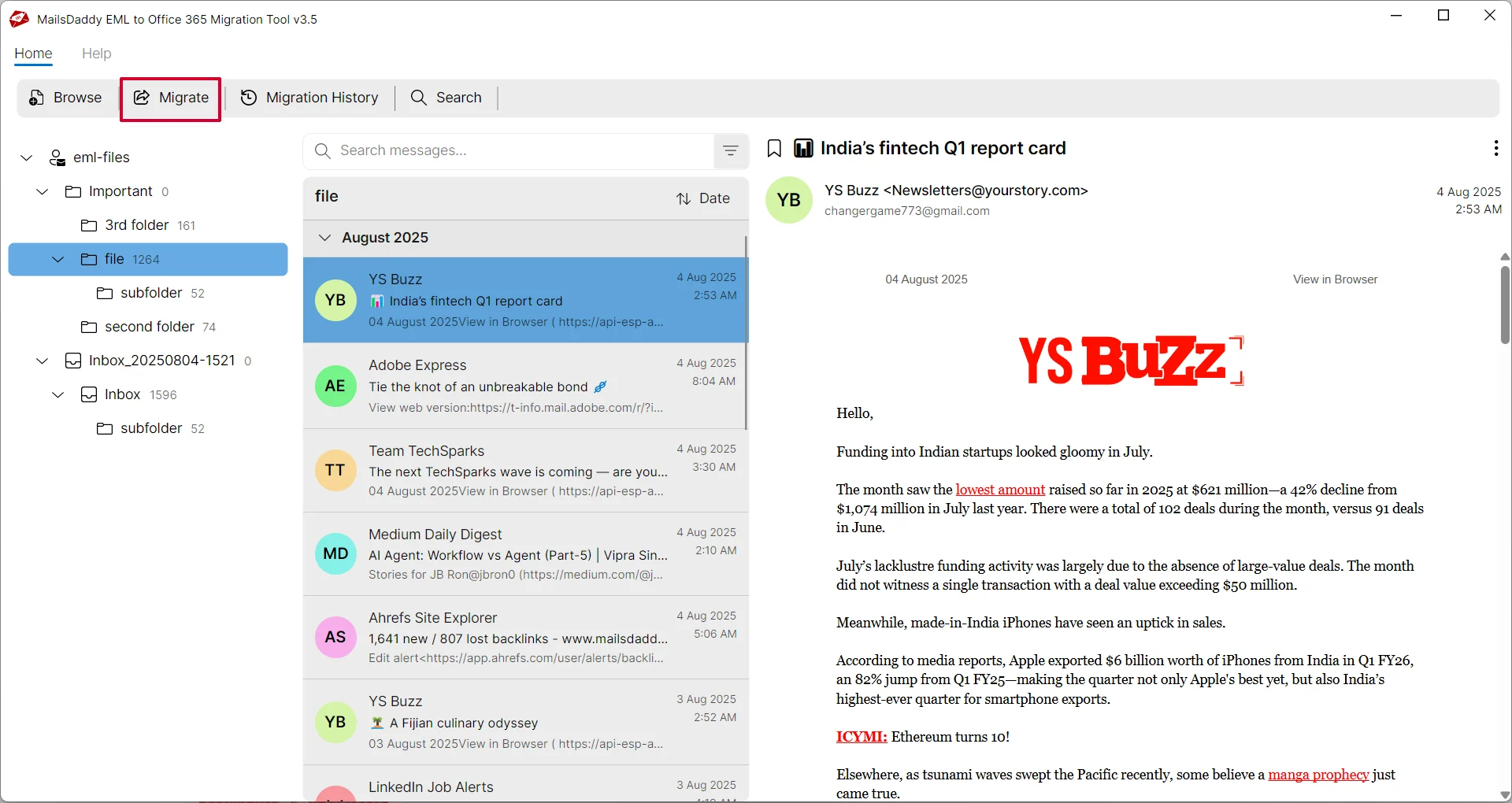
Click Migrate button to go the export window.
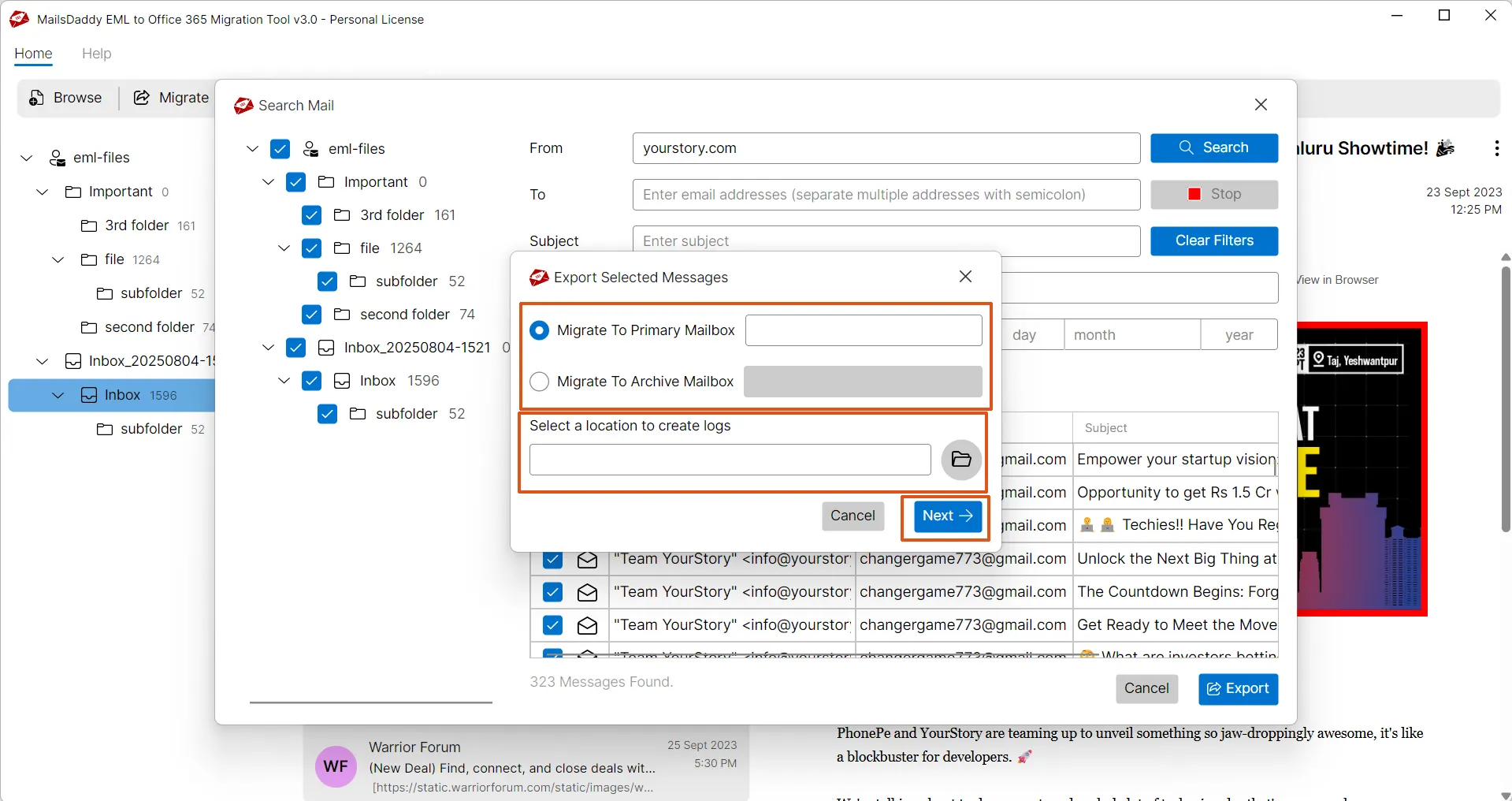
Choose mailbox types: Primary , In-Place Archive , Shared , or Group
Users can migrate data to the root folder or assign a new folder for the migration. Folder naming is optional. You can also enable or disable incremental migration and specify the log file location before authenticating the Office 365 account.
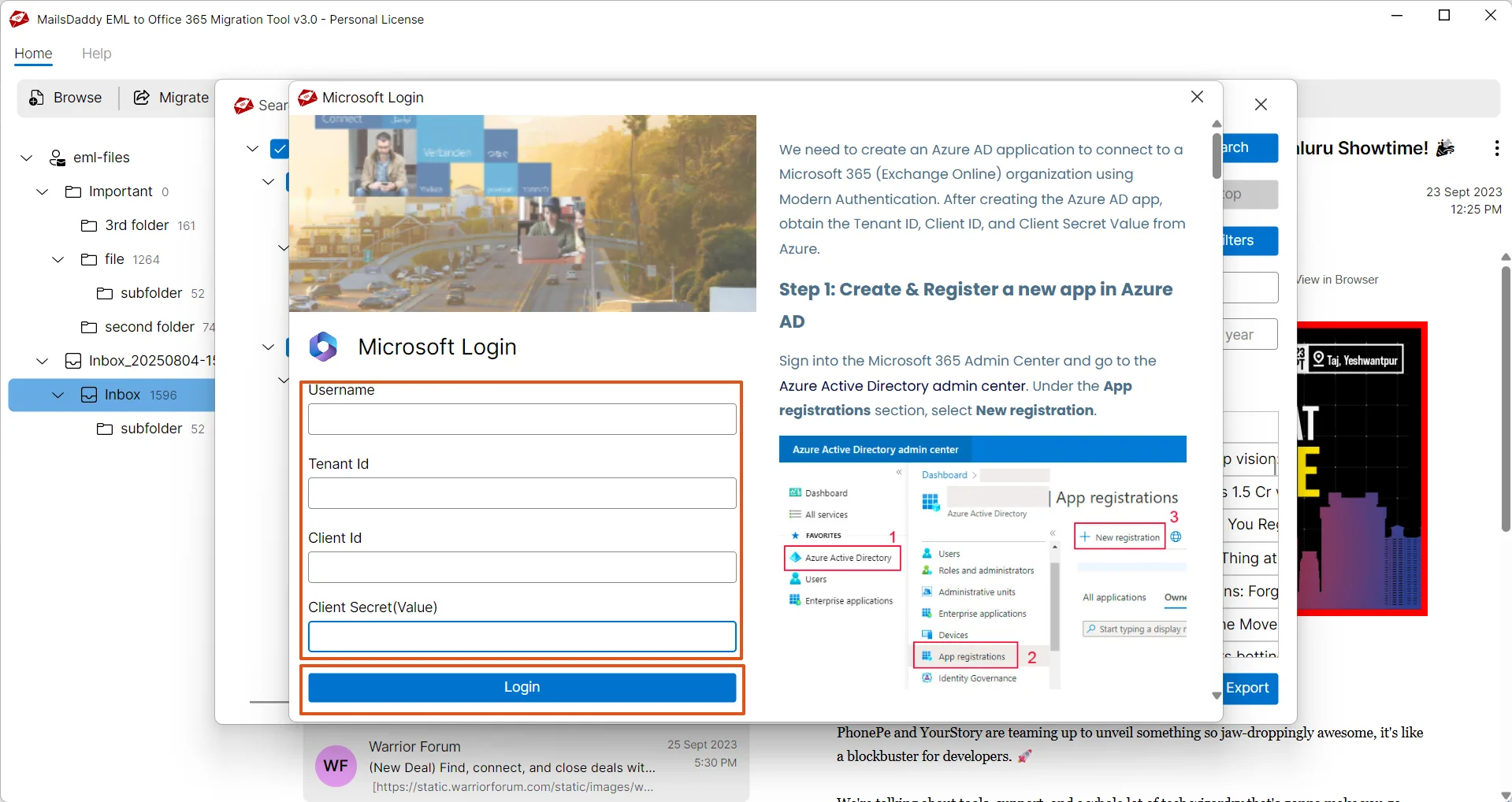
Choose an authentication type: Automated or Manual
Both are safe options for authentication and migration to the Office 365 cloud.
Complete Process & Confirmation
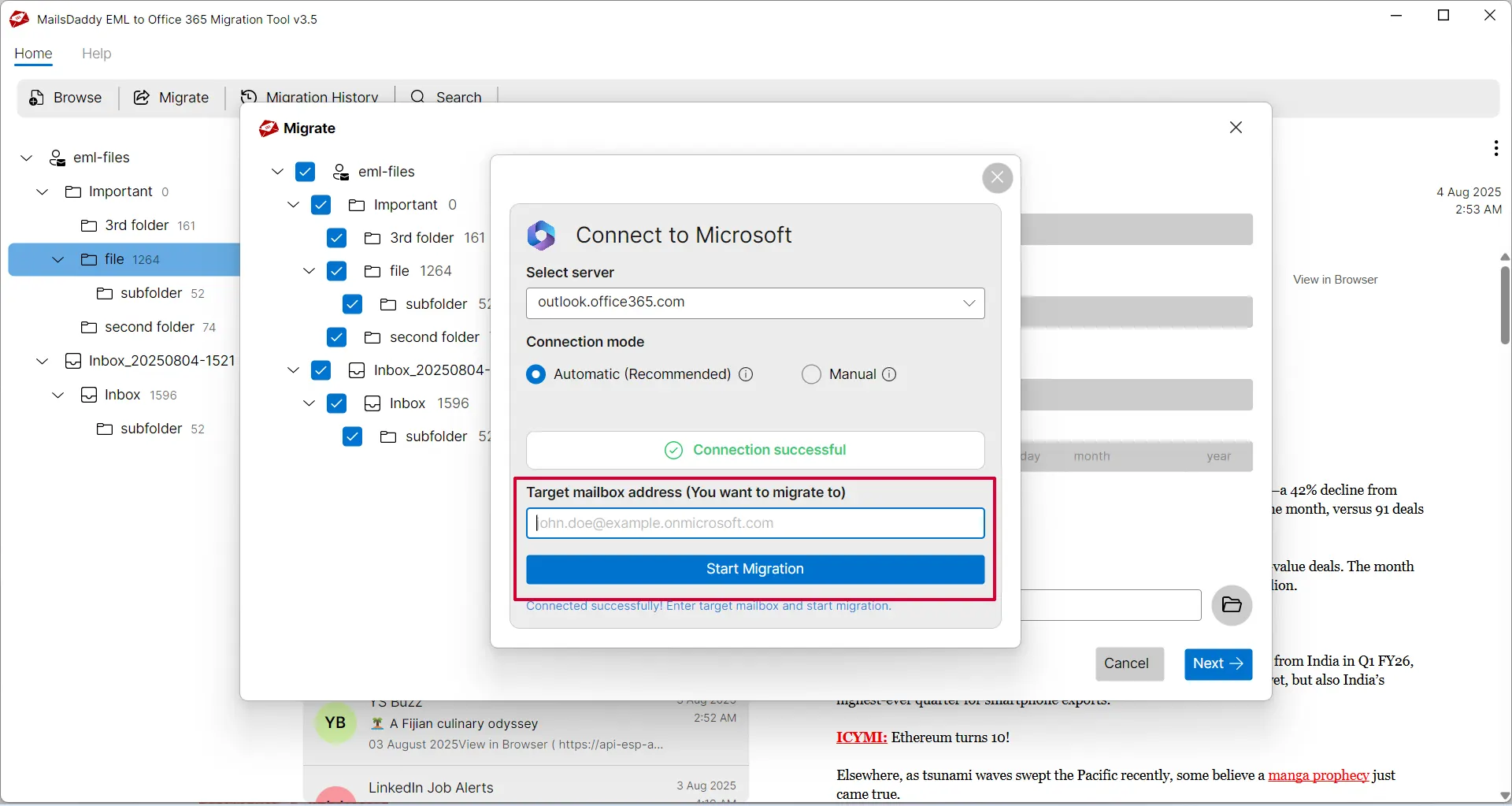
After successful authentication, provide the target email address to start the migration That's it. Wait for the confirmation window.
Ready to Start with EML to Office 365 Migration?
Download the free trial version to preview all mailbox items or buy the full license for unlimited conversion.