Step By Step Working Guide Of MailsDaddy PST File Converter
Working Guide of the Outlook PST Converter software to perform conversion of Outlook data files to other formats.
Step-by-Step Walkthrough (12 Steps)
Click on any screenshot to view full resolution.
Note
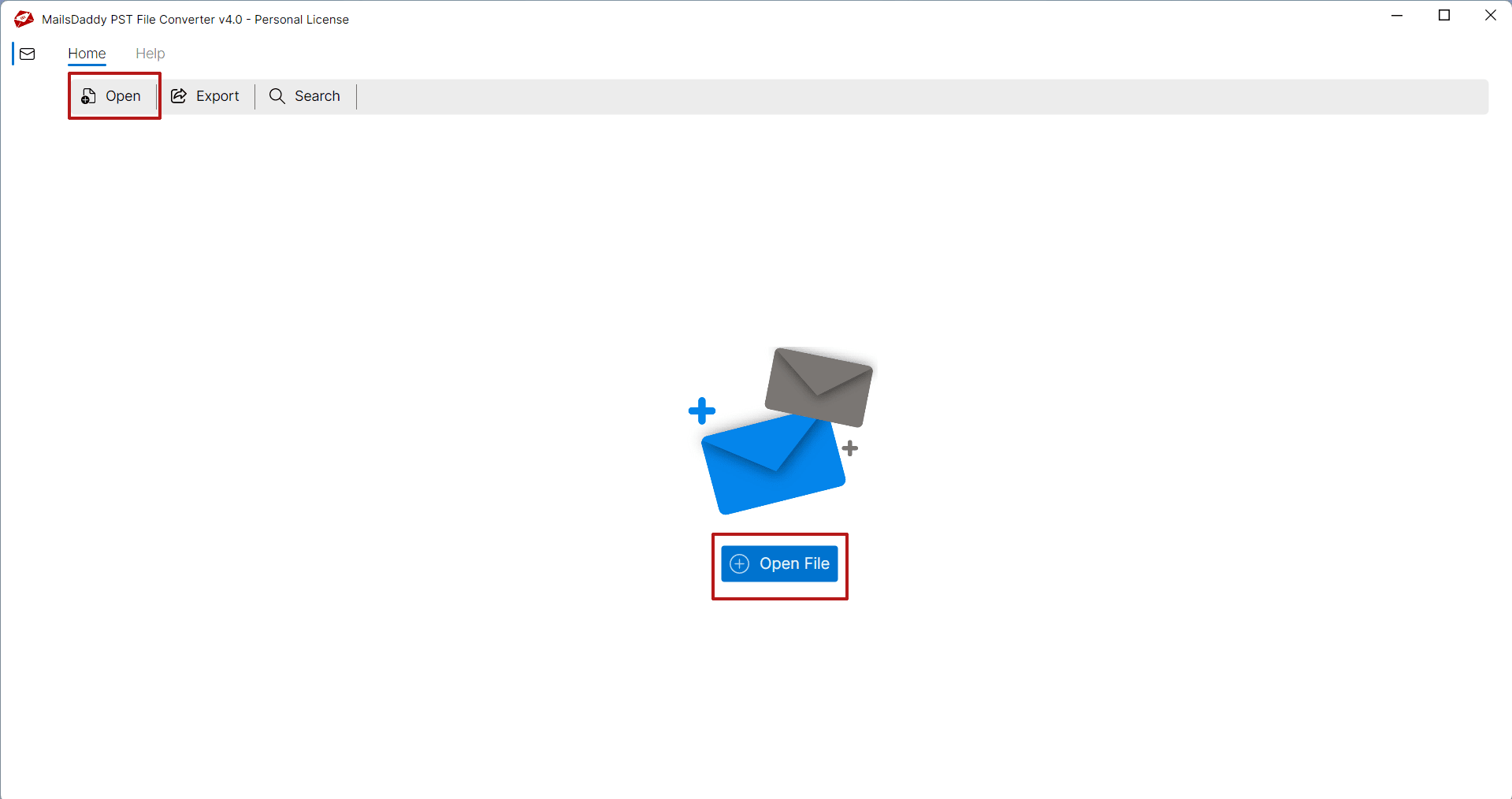
click on the 'Open' button to browse Outlook PST in local system.
Click on 'Open'
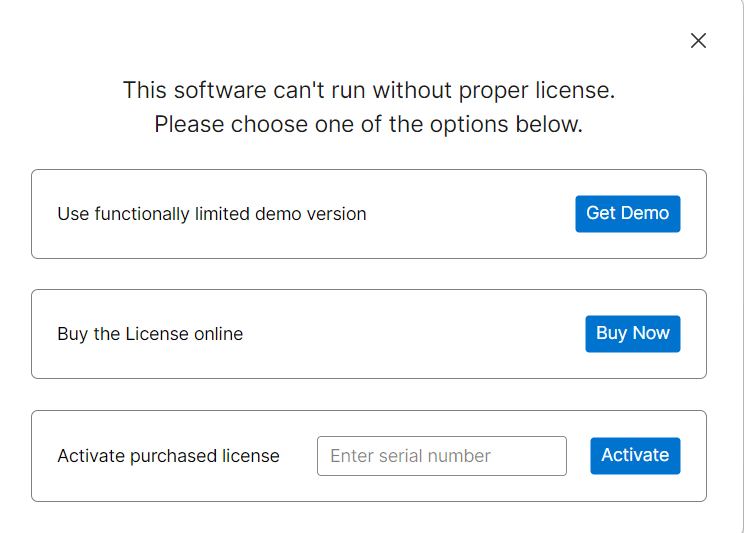
Launch MailsDaddy PST File Converter software and activate full or demo version. Note : Demo version exports only 20 items/folder.
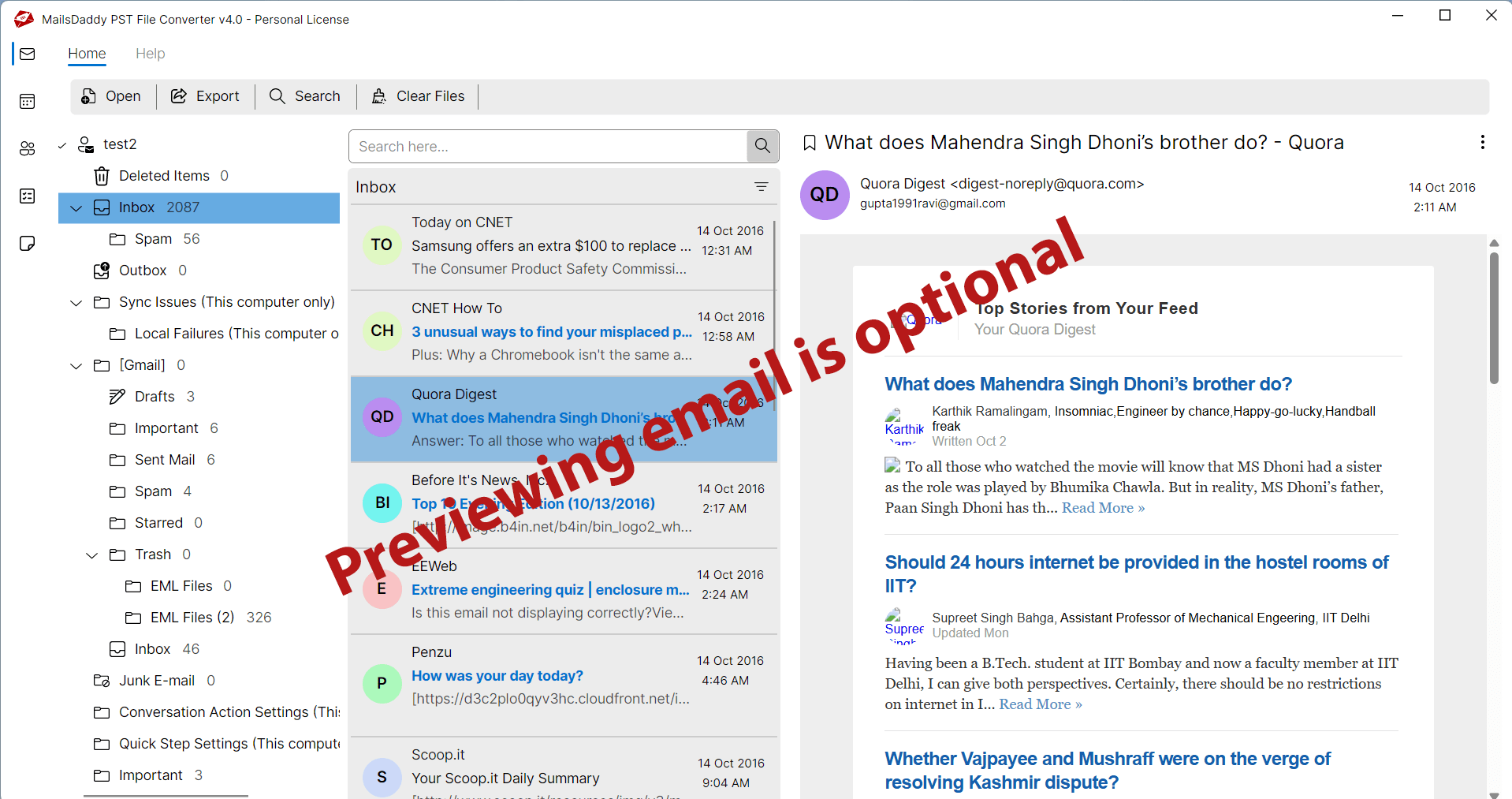
After loading mailbox, user can check the preview
click on the 'Open' button to browse Outlook PST in local system.
Export
After loading mailbox, user can check the preview of emails, contact, and calendar. Previewing item is optional choice.
Export
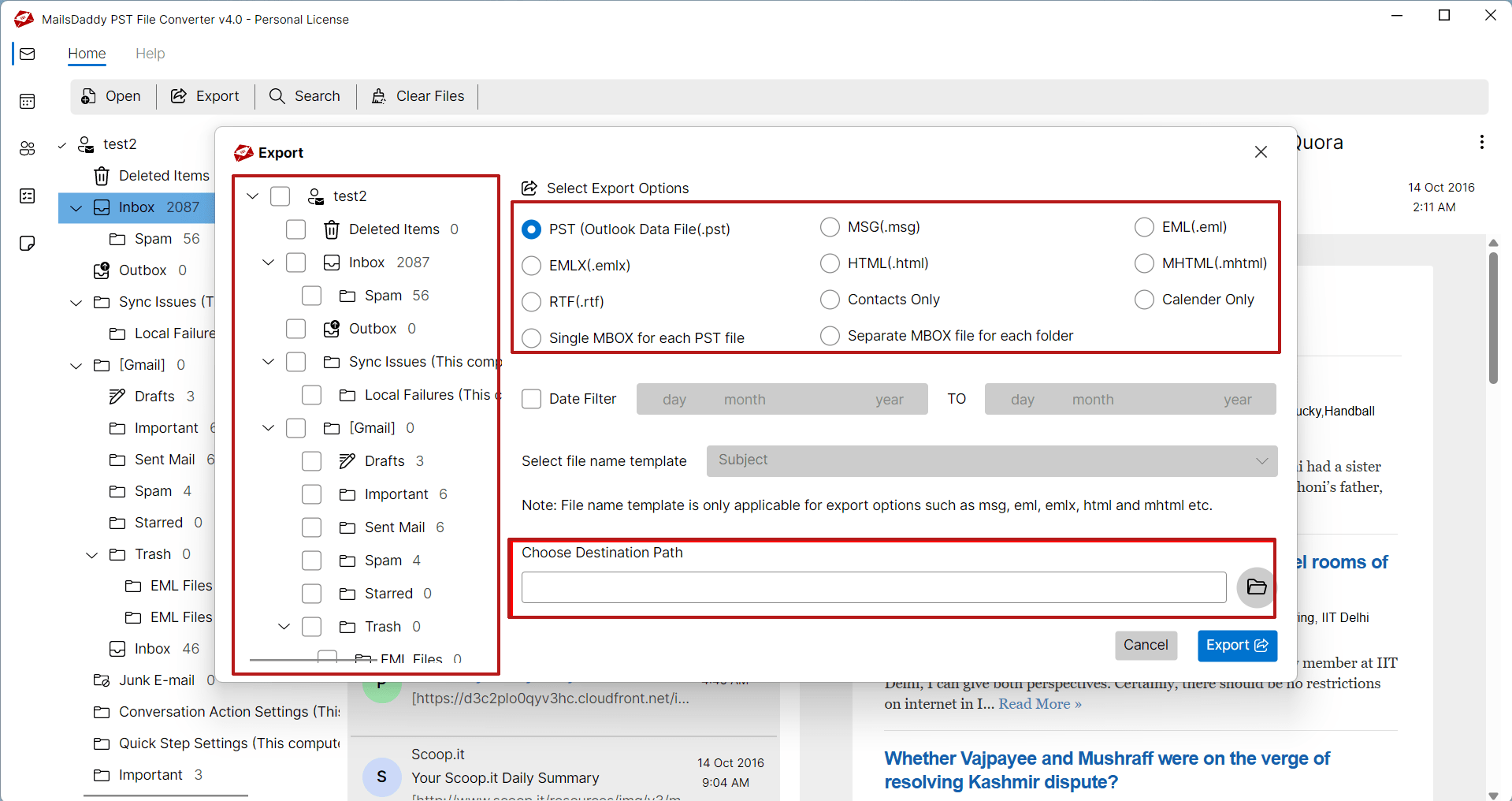
Press on Export button to go to the conversion window.
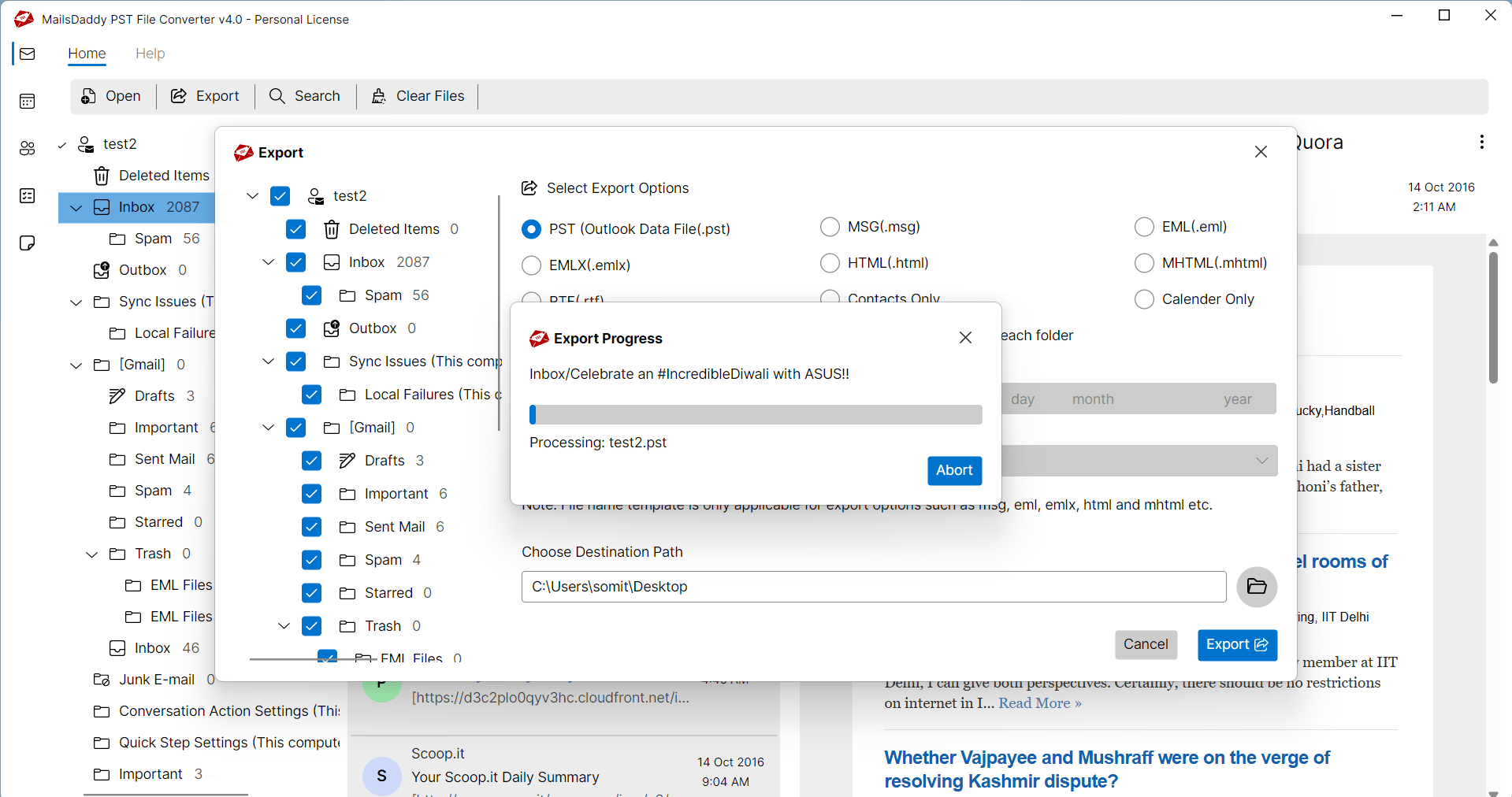
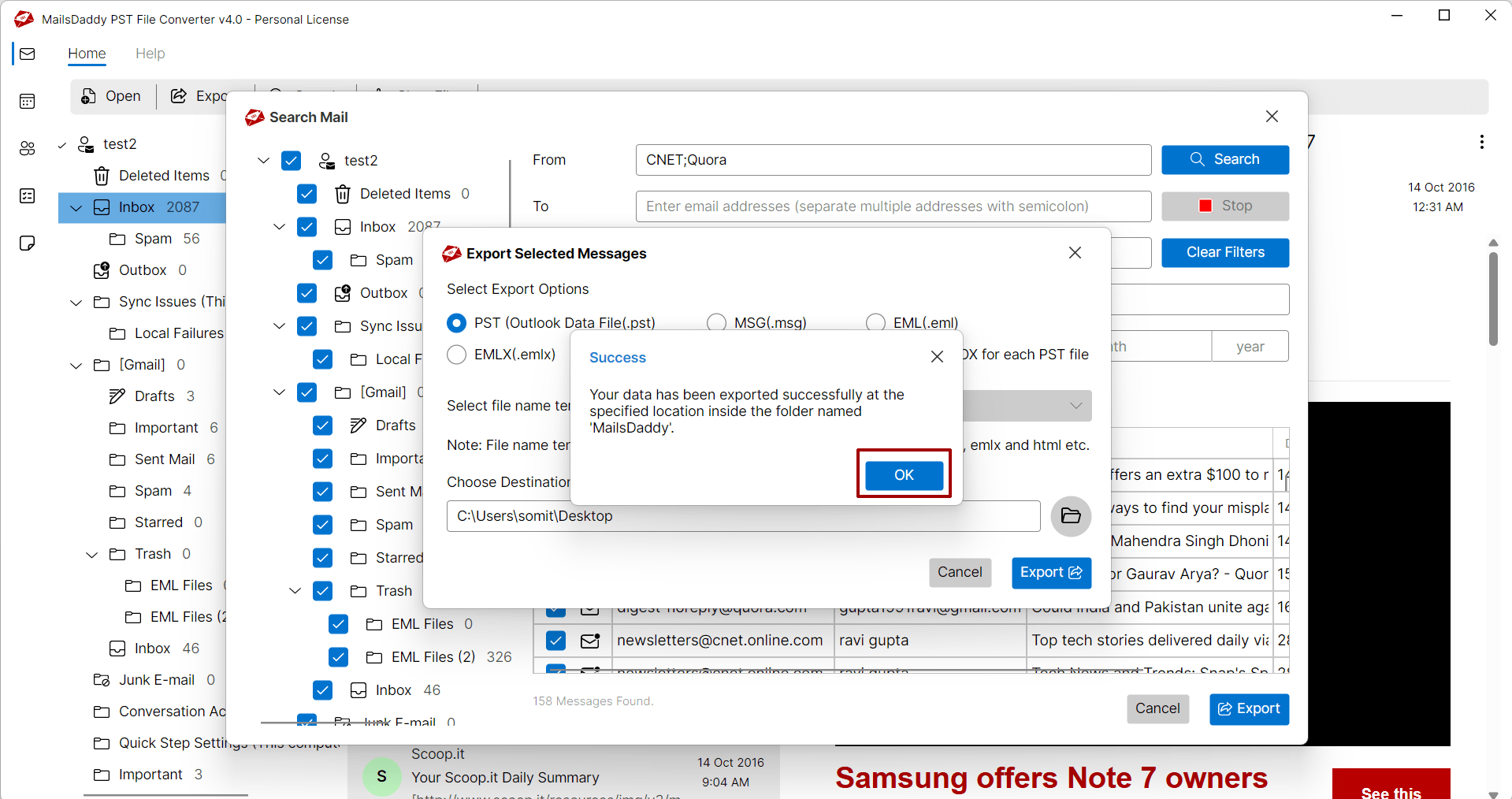
According to the size of the PST file, it will take some time to process and deliver the desired output to the destination. Now click on Ok
According to the size of the PST file, it will take some time to process and deliver the desired output to the destination.
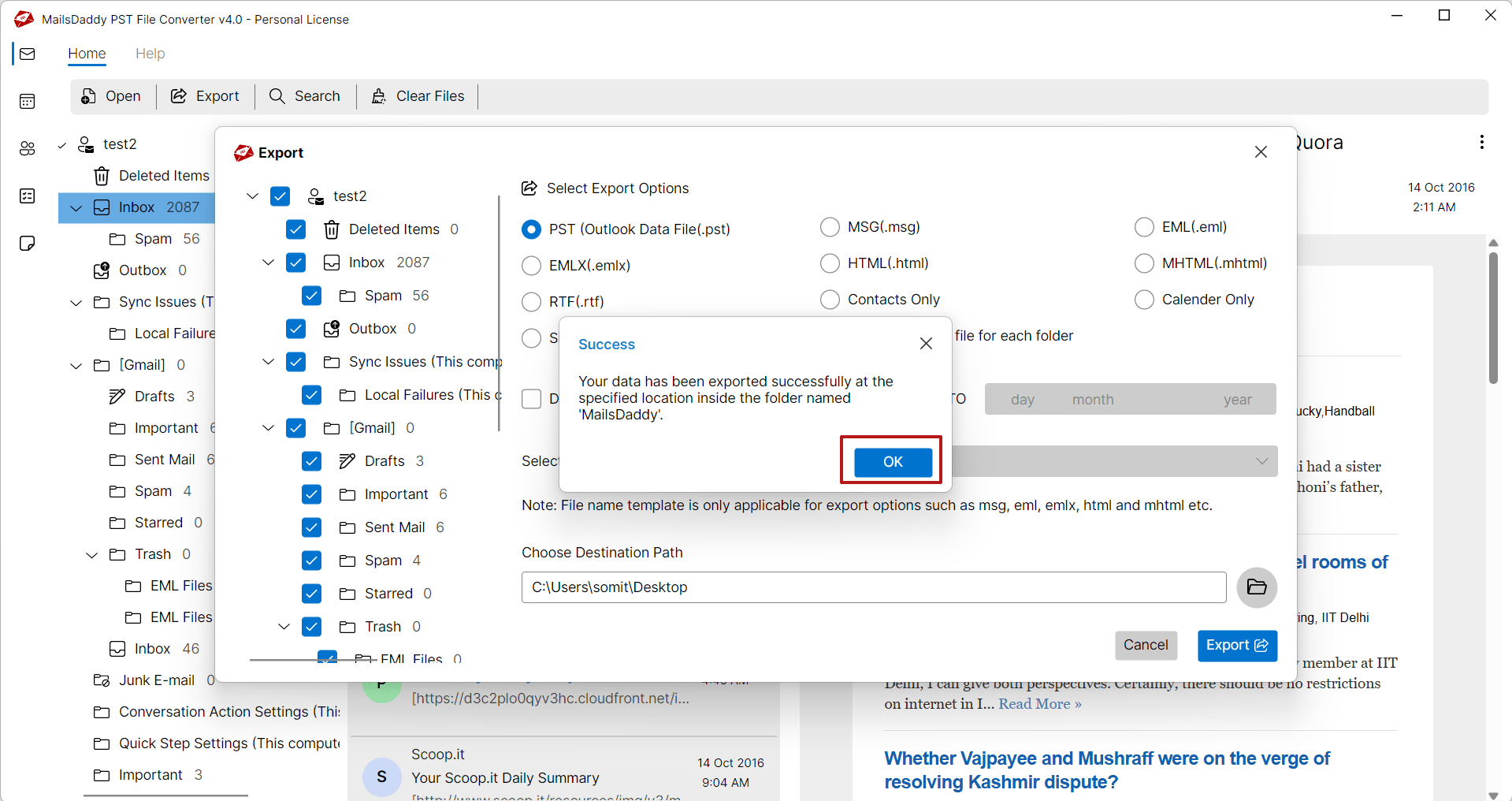
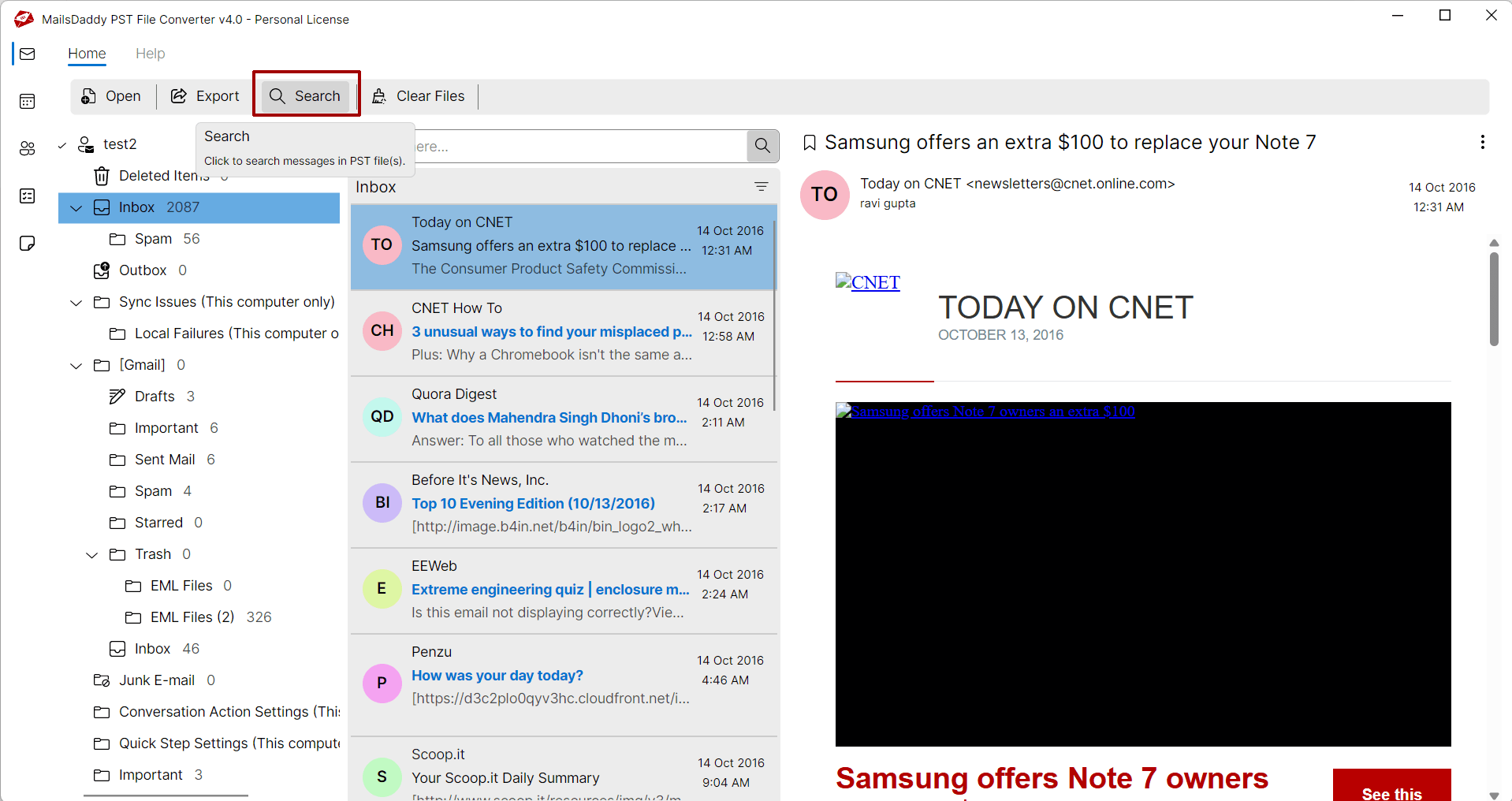
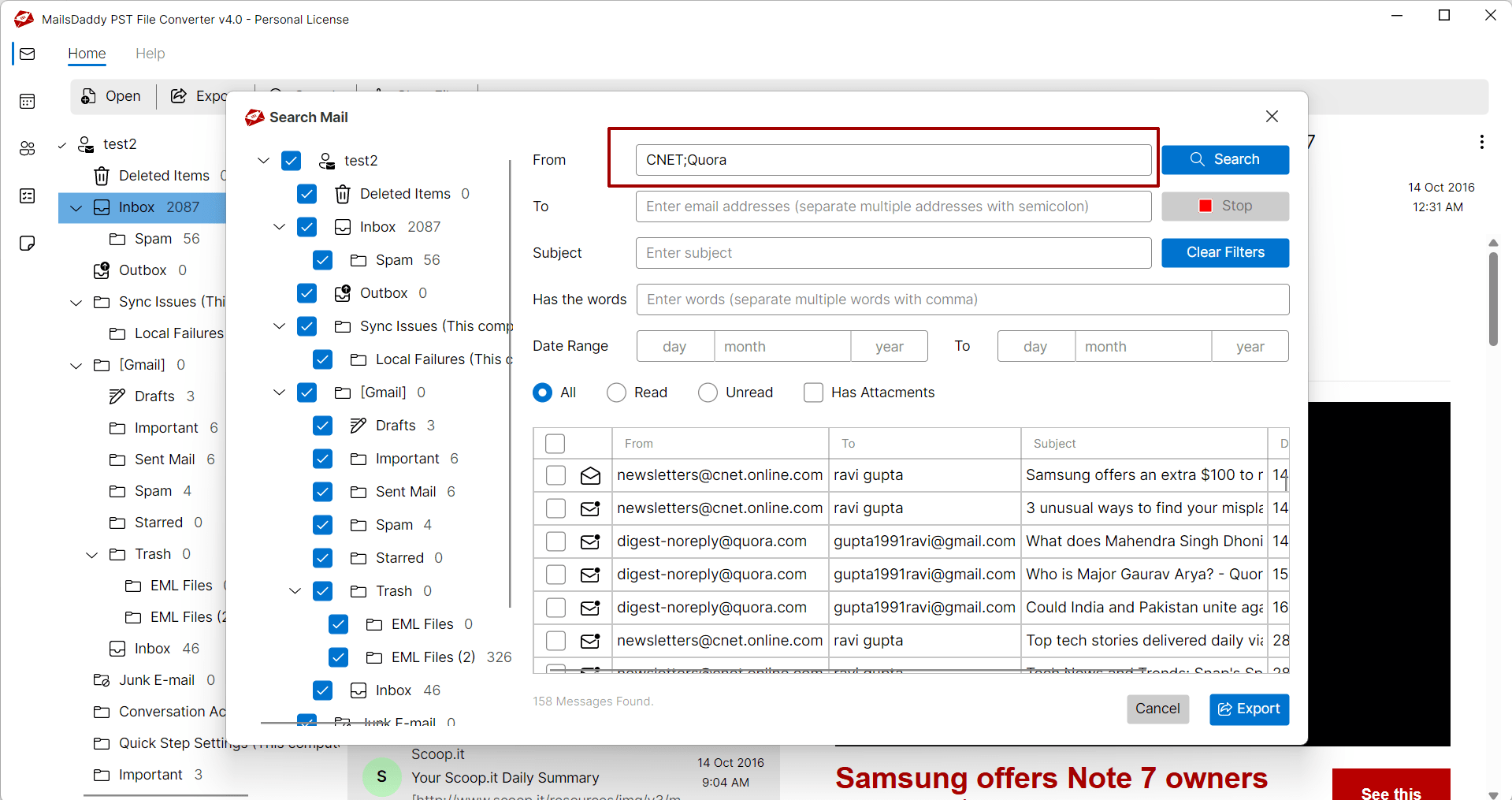
Click on Search
Now click on Ok button to navigate to destination to import or open PST file into desire email client or browser.
Export
Now choose PST or any other desire mail format.
Export
Now choose PST or any other desire mail format.
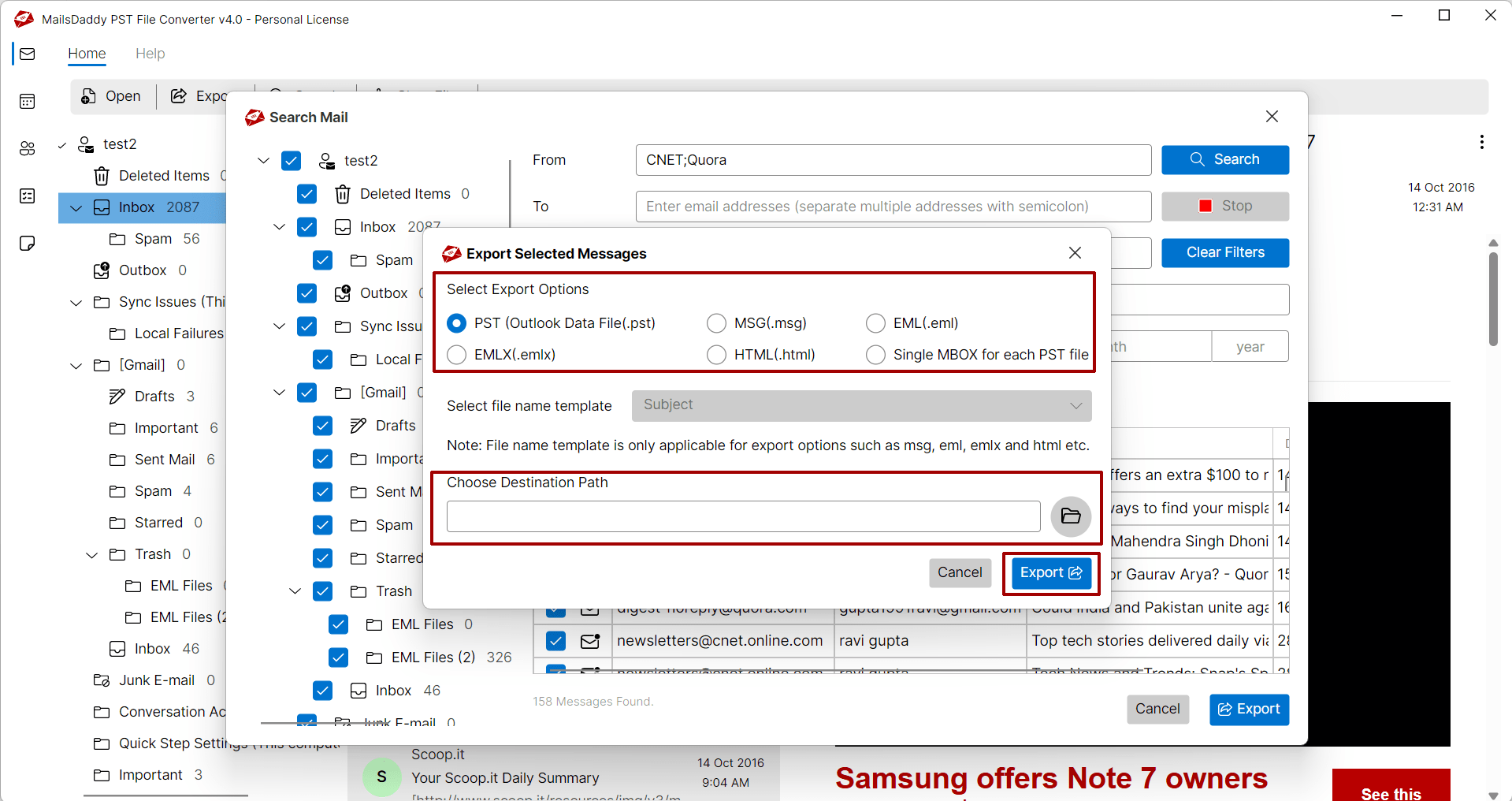
Now choose PST or any other desire mail format. Save the destination and hit on Export
Now choose PST or any other desire mail format.
;
Click on Ok button to import your mailbox into desire platform.
;
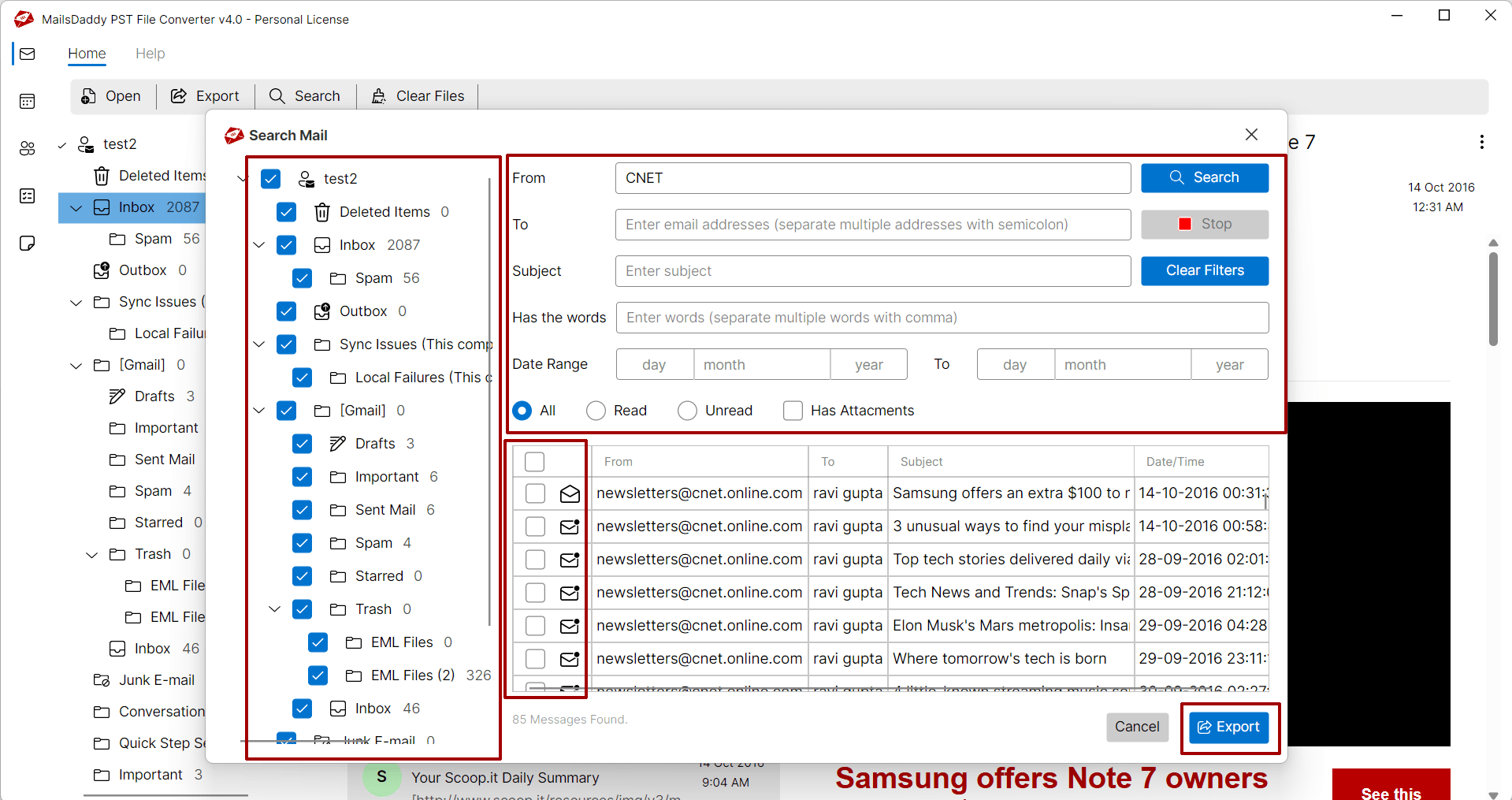
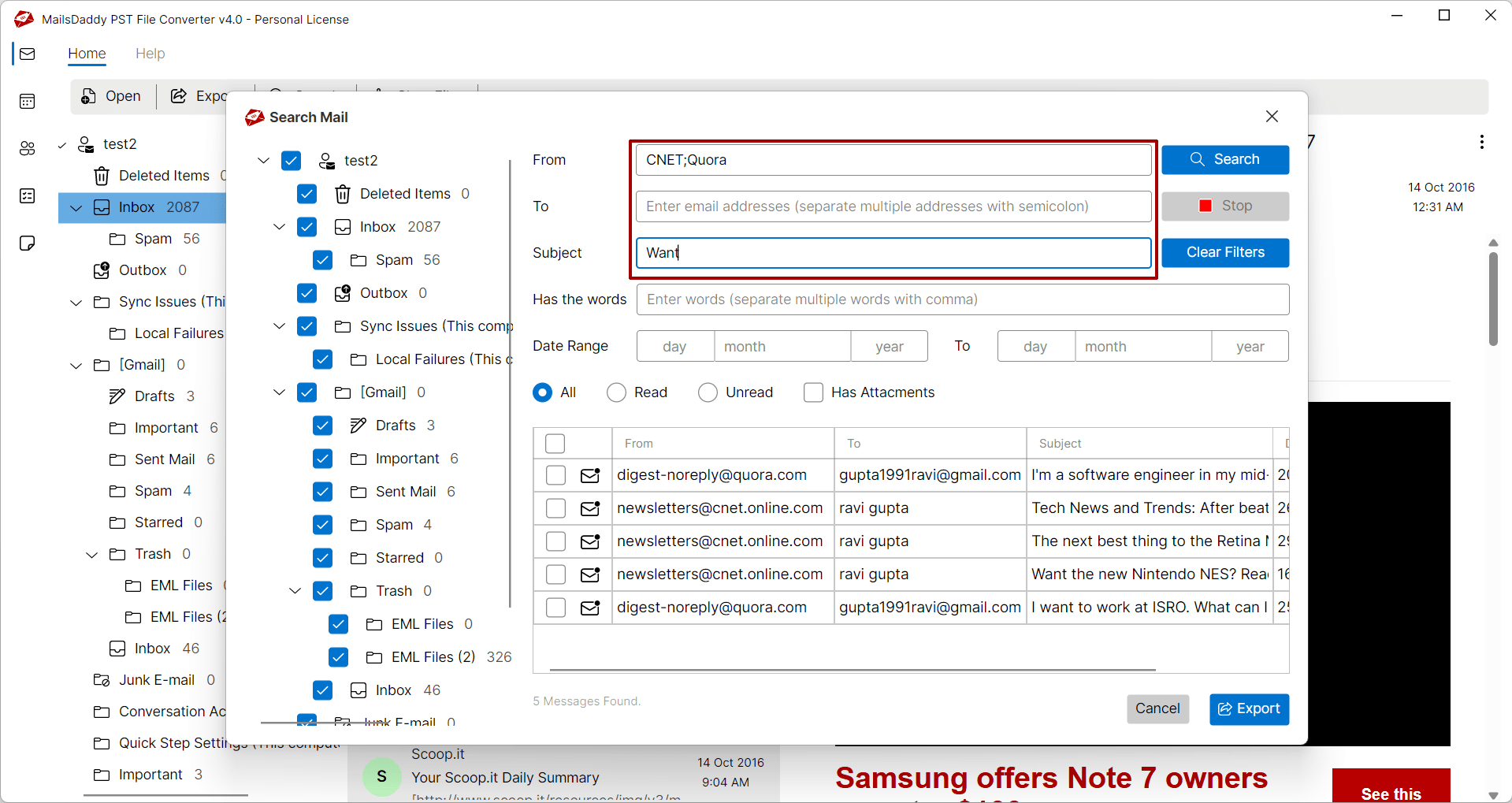
Advance Search Options:
Ready to Start with PST File Converter?
Download the free trial version to preview all mailbox items or buy the full license for unlimited conversion.