Step by Step Guide to Remove or Reset PST Password
Read the complete working process to unlock or reset Outlook PST password.
Remove PST Password (6 Steps)
Click on any screenshot to view full resolution.
Install and Launch Program
Install and launch the program on your Windows computer.
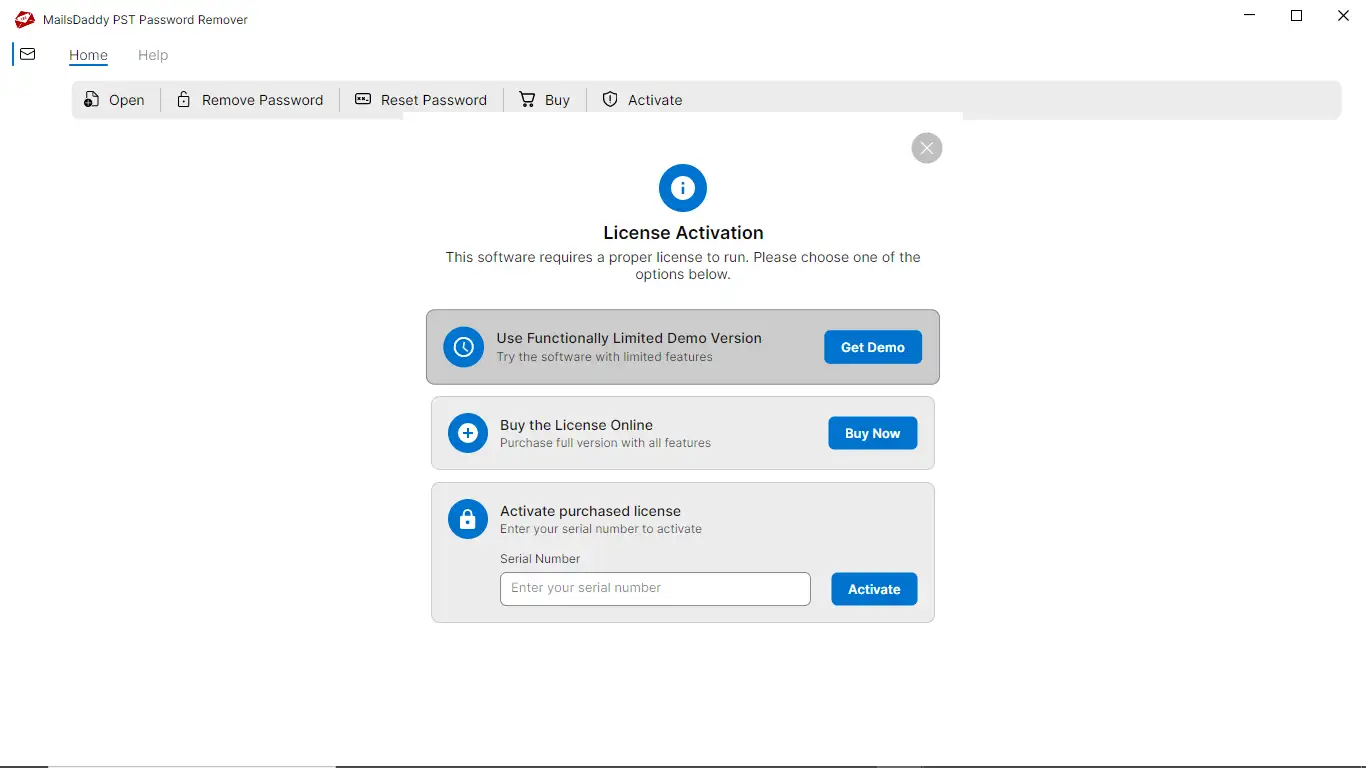
Get Demo or Activate License
Click the Get Demo button or enter a valid license to Activate the software.
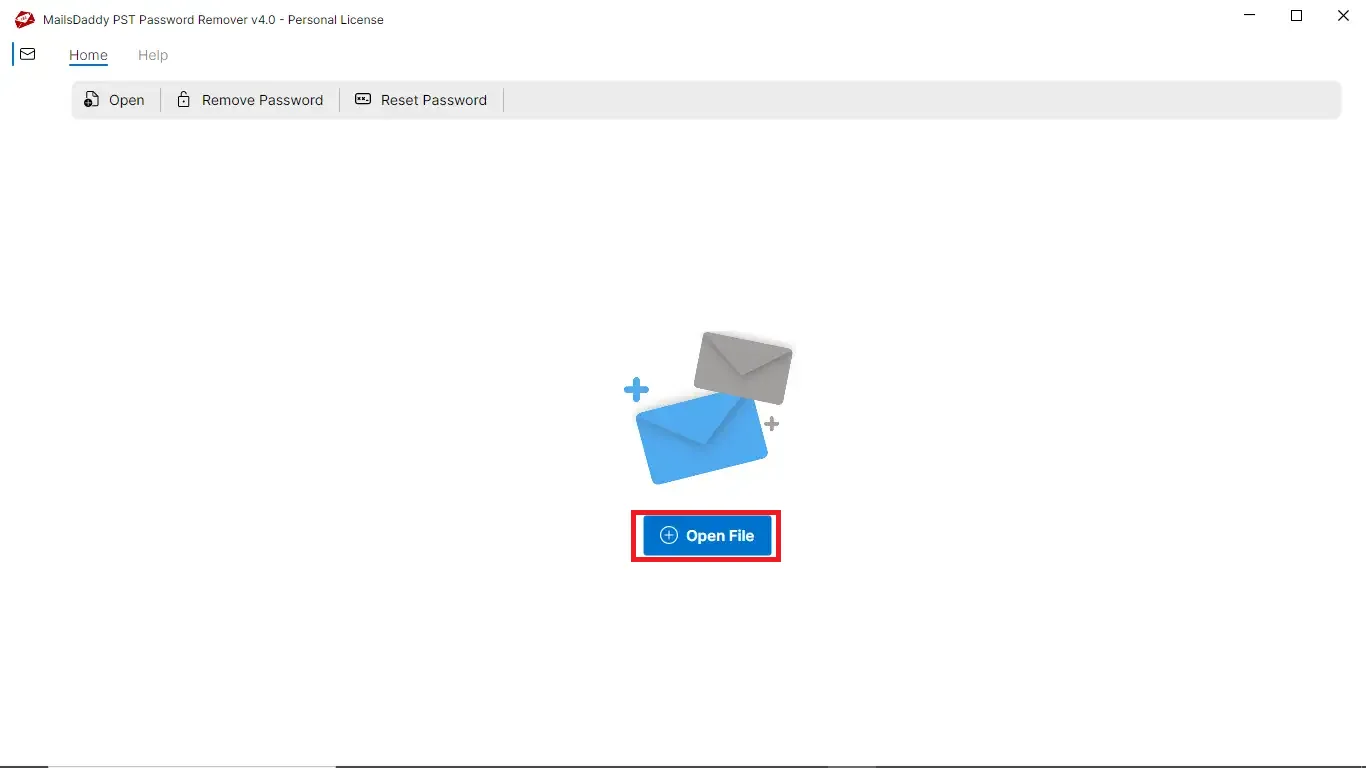
Open Password-Protected PST File
Click the Open File button to load the password-protected Outlook PST file.
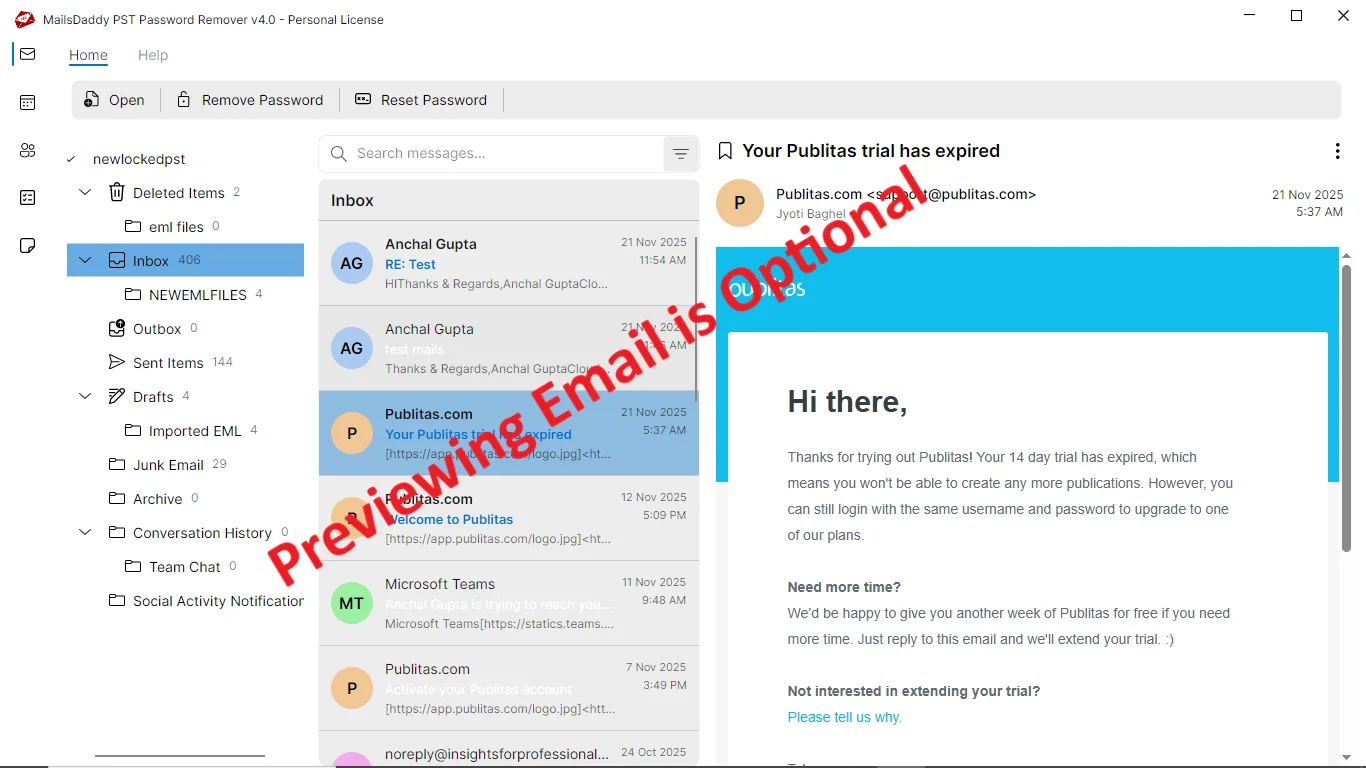
Preview PST Mailbox Items (Optional)
You can preview emails, contacts, calendars, and other items in the display pane. This step is optional.
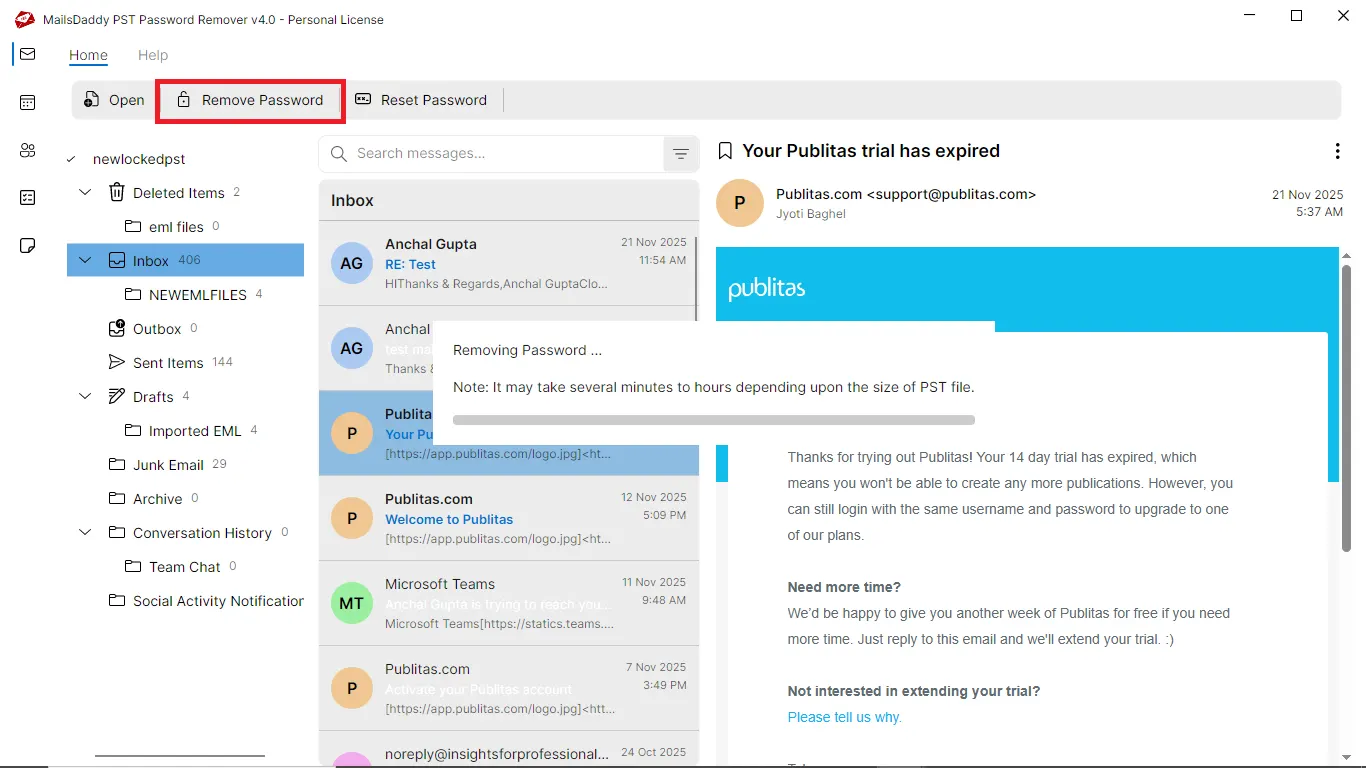
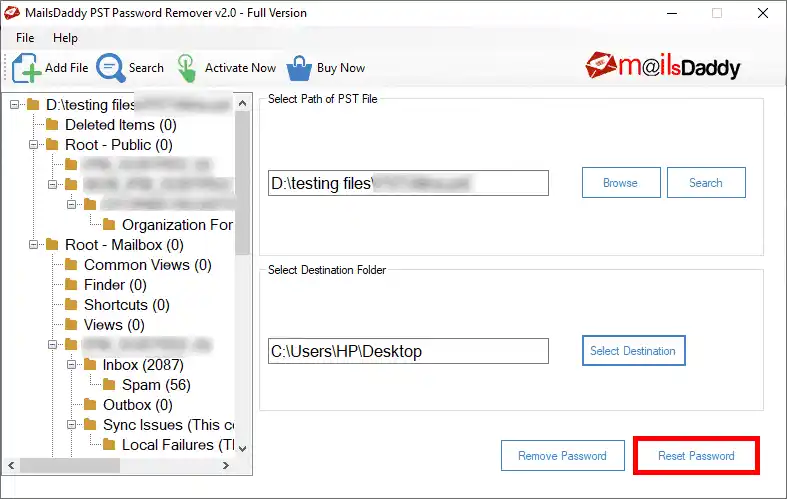
Click Remove Password
Click the Remove Password button. The application will start removing the password and create a new password-free PST file in the same destination.
Access Password-Free PST File
The process may take some time depending on the size of the PST file. Once a confirmation window appears, click the OK button and open the destination folder to access your password-free PST file.
Ready to Start with PST Password Remover?
Download the free trial version to preview all mailbox items or buy the full license for unlimited conversion.