
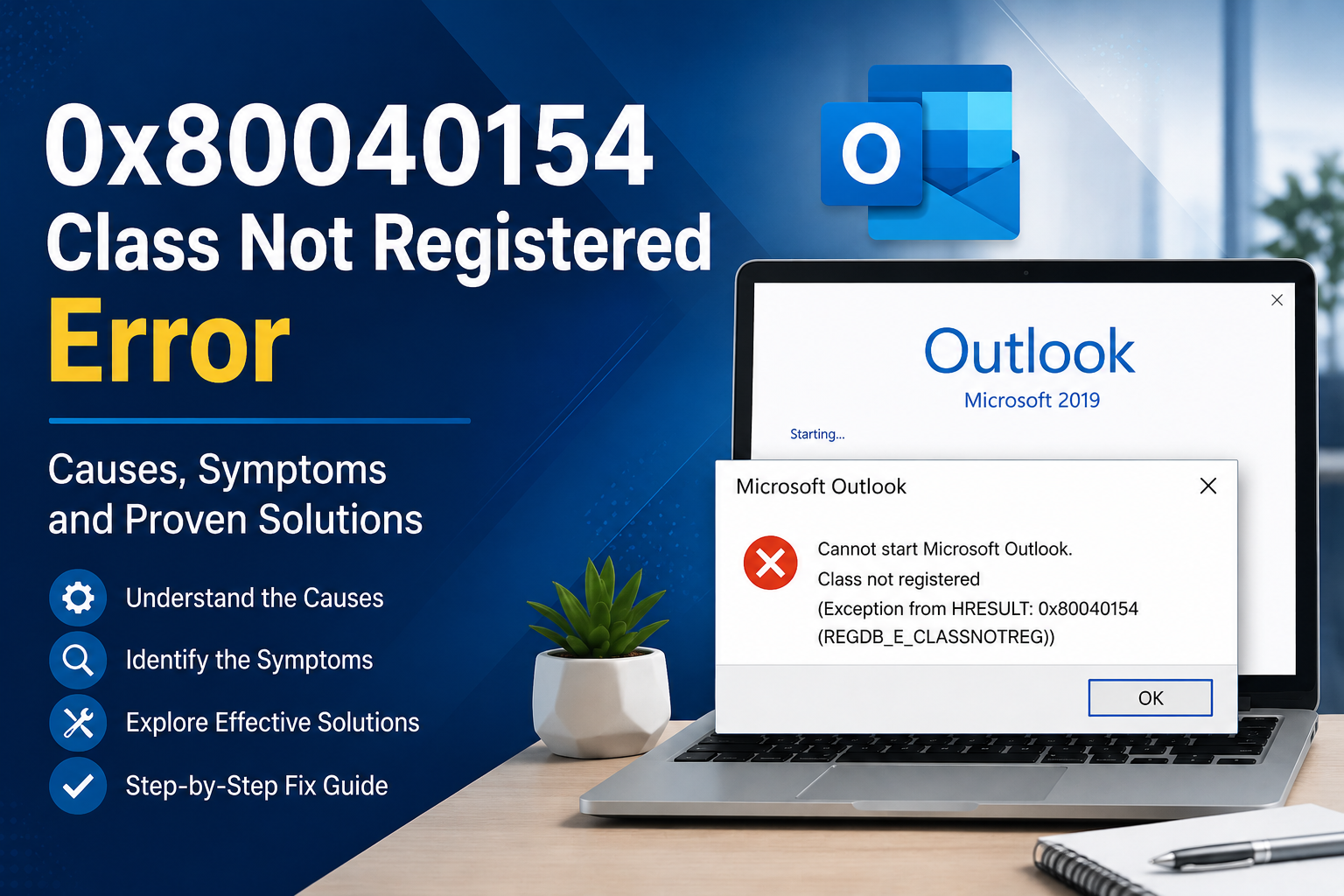
Microsoft Outlook users may occasionally encounter the 0x80040154 – Class Not Registered Error, which prevents Outlook from launching properly or causes issues while sending and receiving emails. This error is generally associated with damaged Outlook components, incorrect registry entries, corrupted profiles, or faulty Office installations.
In this article, we will explain the causes of the 0x80040154 Outlook error and provide effective methods to resolve it quickly.
What is the 0x80040154 – Class Not Registered Error?
The 0x80040154 error is a Windows COM (Component Object Model) error that appears when Outlook or another Microsoft Office application tries to access a required component that is either missing, unregistered, or corrupted.
The error message may appear as:
“Class not registered (Exception from HRESULT: 0x80040154 (REGDB_E_CLASSNOTREG))”
Common Causes of Outlook Error 0x80040154
Understanding the root cause helps in selecting the right solution. Some common reasons include:
1. Corrupted Microsoft Office Installation: Incomplete updates or damaged Office files can prevent Outlook components from registering correctly.
2. Damaged Windows Registry Entries: Incorrect registry modifications may remove or alter Outlook-related COM registrations.
3. Corrupt Outlook Profile: A damaged Outlook profile can trigger various startup and synchronization errors, including 0x80040154.
4. Missing DLL Files: Required Outlook or Office DLL files may become corrupted or unregistered.
5. Third-Party Add-ins Conflicts: Faulty Outlook add-ins can interfere with Outlook startup processes.
6. Corrupted PST or OST Files: If Outlook data files become damaged, Outlook may fail to access required objects and display the Class Not Registered error.
Methods to Fix 0x80040154 – Class Not Registered Error
Follow the solutions below in order until the problem is resolved.
Method 1: Restart Your Computer
Before applying advanced fixes, restart your system.
A simple reboot can reload Windows services and register temporary components correctly.
Method 2: Run Outlook in Safe Mode
Safe Mode launches Outlook without add-ins.
Steps:
- Press Windows + R
- Type:
outlook.exe /safe
- Click OK
If Outlook opens successfully, disable suspicious add-ins:
- Go to File → Options → Add-ins
- Select COM Add-ins
- Click Go
- Disable unwanted add-ins
- Restart Outlook normally
Method 3: Repair Microsoft Office
Repairing Office can restore missing or damaged Outlook components.
Steps:
- Open Control Panel
- Click Programs and Features
- Select Microsoft Office
- Click Change
- Choose Quick Repair
- If needed, perform Online Repair
After completion, restart your computer and check Outlook.
Method 4: Create a New Outlook Profile
A corrupted Outlook profile is a common reason for Outlook-related errors.
Steps:
- Open Control Panel >> Click Mail
- Select Show Profiles >> Click Add
- Create a new profile >> Configure your email account
- Set the new profile as default
Launch Outlook again and verify whether the issue is resolved.
Method 5: Re-register Outlook Components
Missing COM registrations can trigger the Class Not Registered error.
Steps:
- Open Command Prompt as Administrator.
- Navigate to the Office installation directory.
- Run Outlook registration command:
outlook.exe /regserver
This command re-registers Outlook components in Windows.
Method 6: Run System File Checker
Corrupted Windows system files may also generate the 0x80040154 error.
Steps:
- Open Command Prompt as Administrator.
- Execute: sfc /scannow
- Wait for the scan to complete.
- Restart the system.
Windows will automatically repair damaged system files.
Method 7: Update Microsoft Office
Using outdated Office versions can cause compatibility problems.
Steps:
- Open Outlook
- Go to File → Office Account
- Select Update Options
- Click Update Now
Install all available updates and restart Outlook.
Method 8: Repair Corrupted PST File Using ScanPST
If the error occurs due to damaged PST files, Microsoft’s Inbox Repair Tool can help.
Steps:
- Locate ScanPST.exe
- Browse and select the PST file
- Click Start
- Repair detected issues
- Open Outlook again
However, ScanPST may not repair severely corrupted PST files.
Method 9: Convert OST File to PST
In Exchange, Office 365, or IMAP environments, OST file corruption can also trigger Outlook errors. If the OST file becomes inaccessible or Outlook cannot synchronize mailbox data, converting the OST file into PST format is often the safest solution. A professional OST to PST Converter can recover emails, contacts, calendars, tasks, journals, and attachments from inaccessible OST files while preserving the original folder hierarchy. MailsDaddy OST to PST Converter offers a professional and reliable way to recover mailbox data and regain access to Outlook emails without data loss. It is is designed to recover and convert inaccessible, orphaned, or corrupted OST files into PST format while preserving the original folder hierarchy, email formatting, attachments, contacts, calendars, tasks, and other mailbox items.
Frequently Asked Questions
1: What does Outlook Error 0x80040154 mean?
The error indicates that Outlook cannot access a required COM component because it is missing, damaged, or not properly registered in Windows.
2: Can corrupted PST files cause 0x80040154?
Yes. Damaged PST files can prevent Outlook from accessing mailbox data and may trigger this error.
3: How do I fix Class Not Registered in Outlook?
You can repair Office, create a new Outlook profile, run Outlook in Safe Mode, re-register Outlook components, repair PST files, or update Office.
4: Is reinstalling Outlook necessary?
Not always. Most users can resolve the issue through Office repair, profile recreation, or data file repair without reinstalling Outlook.
Conclusion
The 0x80040154 – Class Not Registered Error in Outlook usually occurs due to corrupted Office components, damaged Outlook profiles, faulty registry entries, or inaccessible PST and OST files. By following the troubleshooting methods discussed above, you can effectively restore Outlook functionality and eliminate the error.
If the problem is linked to a damaged Outlook data file, repairing the PST file or converting an inaccessible OST file to PST can help recover important mailbox data without data loss. Regular maintenance and backups can significantly reduce the chances of encountering Outlook errors in the future.
Also Read: How to Fix 0x80040600 – Unknown Error in Outlook Data File