
EML (Electronic mail) file format supported by many email clients including Windows Live Mail, Mozilla Thunderbird, Apple Mail, and more. When you want to work with EML emails in MS Outlook, then you need to either convert or export EML files into the Outlook PST format. The PST format is specific to Outlook that can hold emails, attachments, contacts, calendar, and other mailbox information.
In this guide, we’ll describe how you can export EML files to PST format using appropriate methods. Also explain why we need this conversion.
Why export EML files to PST?
There are several reasons that exist to convert EML files from EML based email clients to Outlook PST format. Here we explain possible points of EML to PST conversion.
- Open EML emails directly within Microsoft Outlook.
- Combining emails from various email clients within Outlook.
- Saving email contents and attachments in one PST file.
- Transferring old Windows Live Mail emails to Microsoft Outlook.
- Managing several EML files via Outlook mailbox.
Method 1: Export EML to Outlook PST Using Drag and Drop
The drag-and-drop method is one of the easiest ways to import EML emails to Outlook. But still, this method is more suitable for importing small numbers of EML files as well as compatible Outlook settings.
Steps:
- Open the Microsoft Outlook application on your Windows machine.
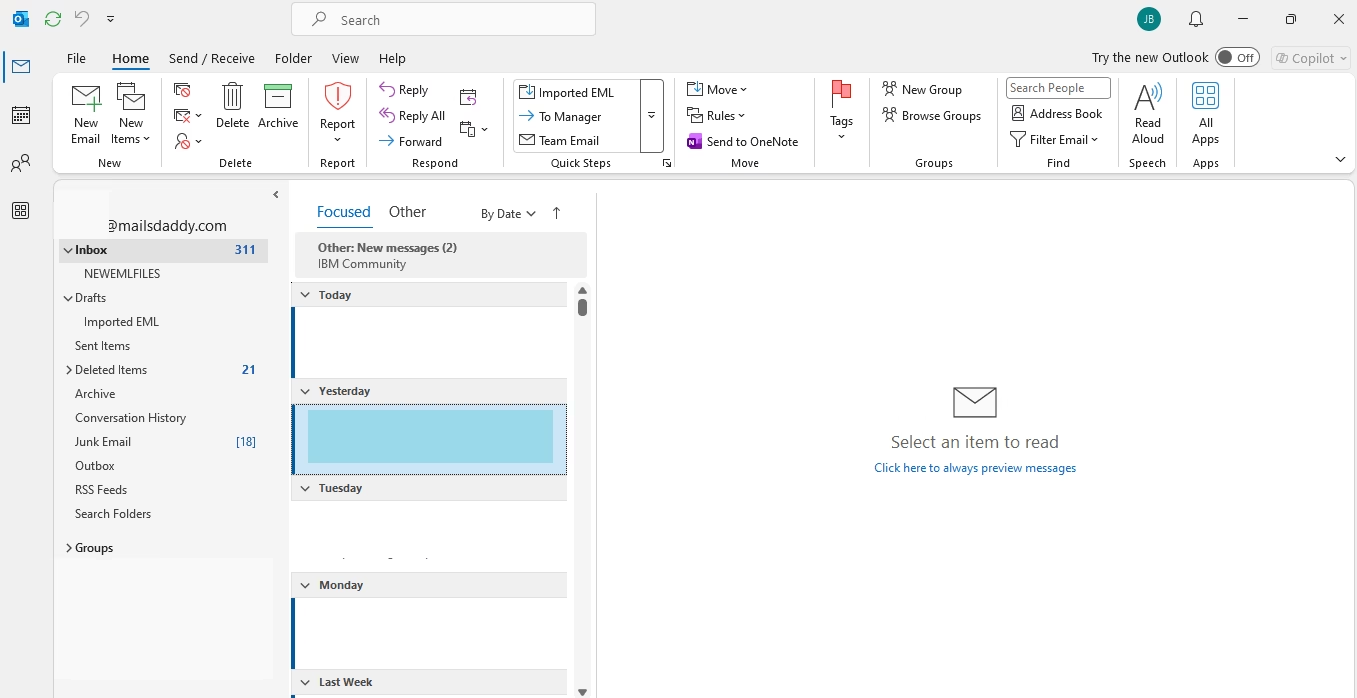
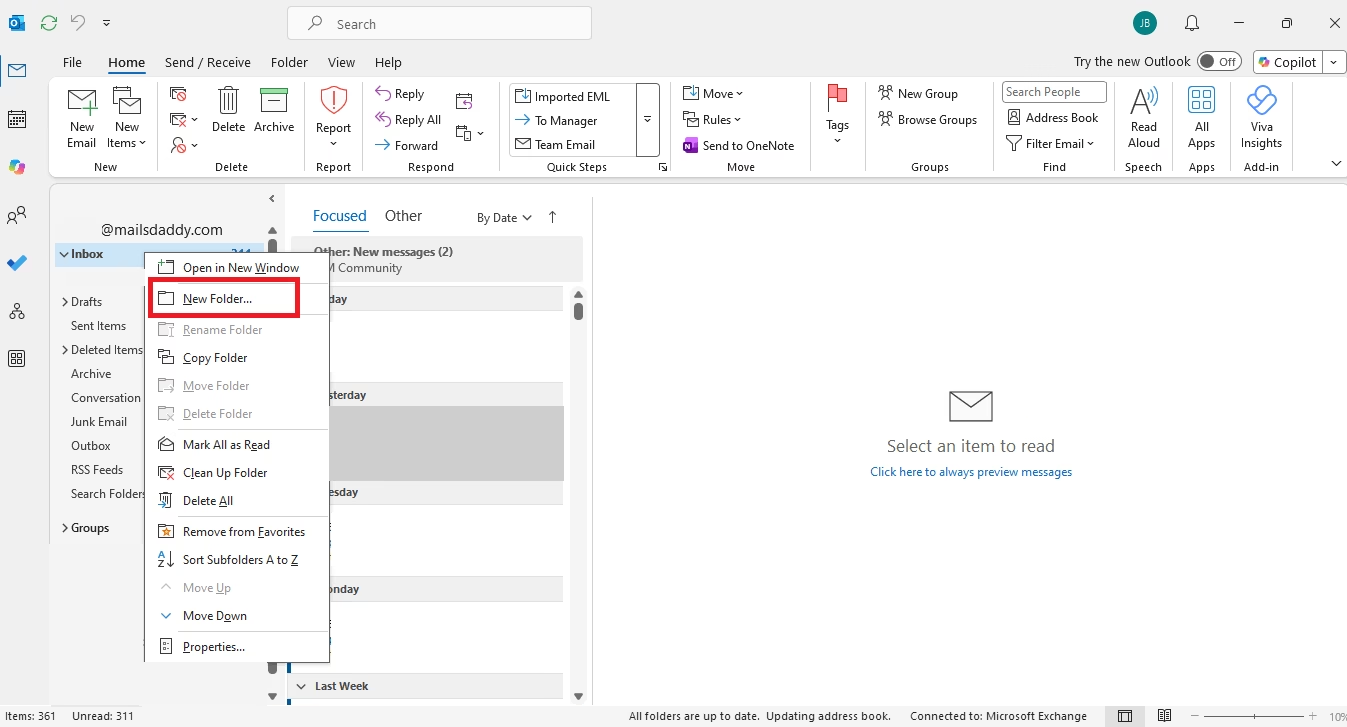
- Right-click and create a new folder inside your mailbox.
- Go to the folder where EML files are saved on your system.
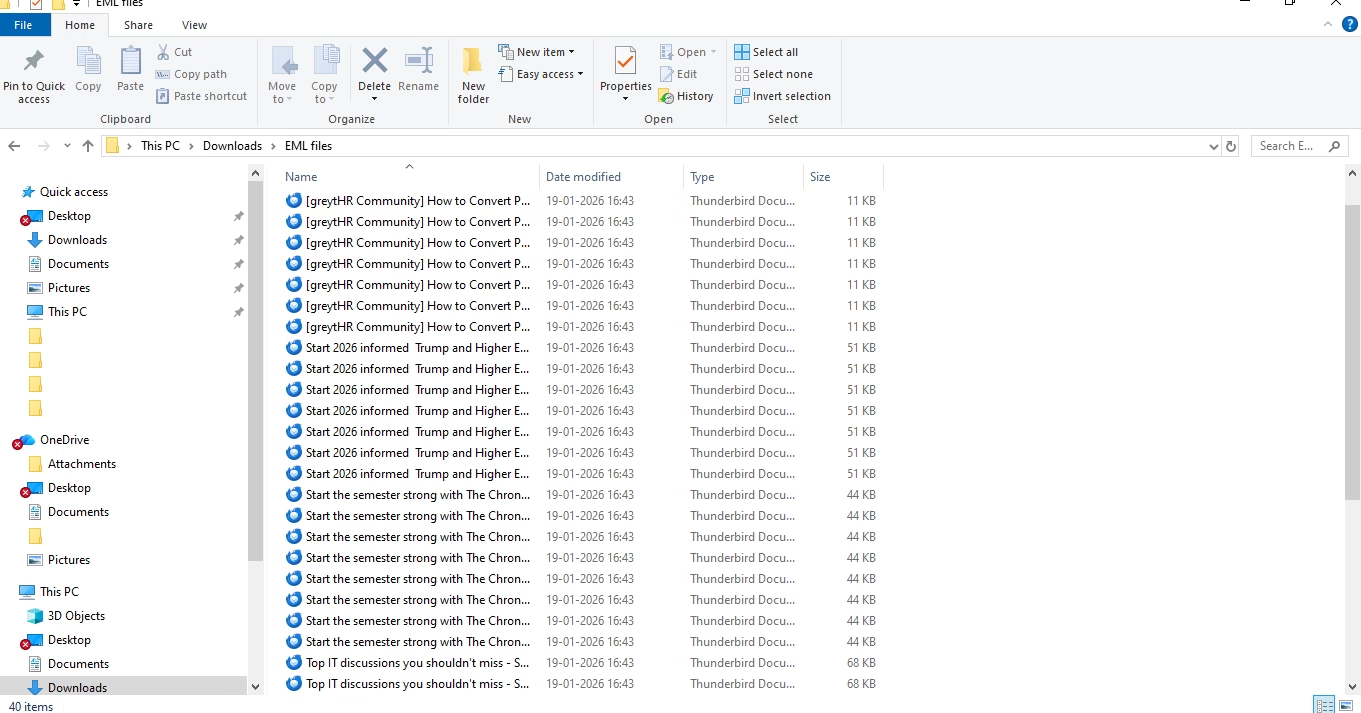
- Select the EML files, then drag and drop them into the created new folder in Outlook.
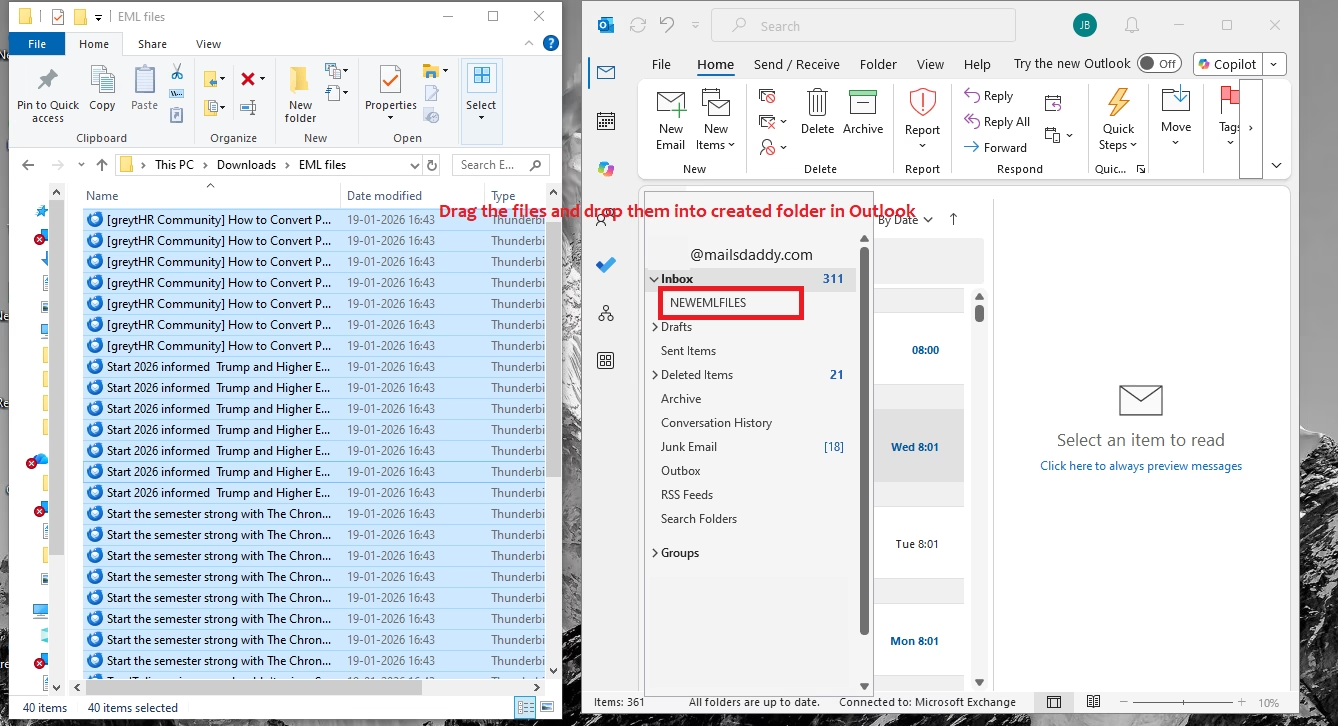
- All emails will be added to the desired folder.
Once the emails have been imported, use the Import/Export function in Outlook to export the mailbox folder to PST format.
Disadvantages
The drag-and-drop method is not a convenient way for importing thousands of EML files.
Method 2: Convert EML files to Outlook PST using Windows Live Mail
This method is used when your EML files are saved in Windows Live Mail. You can use its export tool to export emails to Microsoft Outlook.
Process A:
- Click on the File tab, then go to Export email and select Email messages.
- Now, choose the Microsoft Exchange option and click Next.
- Display a pop-up on your screen, click OK.
- Browse location and folders where you can save your emails and click Next.
- Select the folder which contains emails you want to export and click Next.
- Again, display a message pop-up, click OK and finish the process.
Process B:
Here, you can use the drag & drop method.
Considerations
This approach works well when you have pre-installed active Windows Live Mail applications. The process can be complex if you have standalone EML files and you don’t have access to Windows Live Mail profile.
Method 3: Open EML files into Outlook PST using Outlook Express
This is the third-last manual method to move EML files to Outlook PST by using Outlook. In this process, you can individually open EML files in Outlook and move them into the Microsoft Outlook folder. After this, export the folder as a PST file.
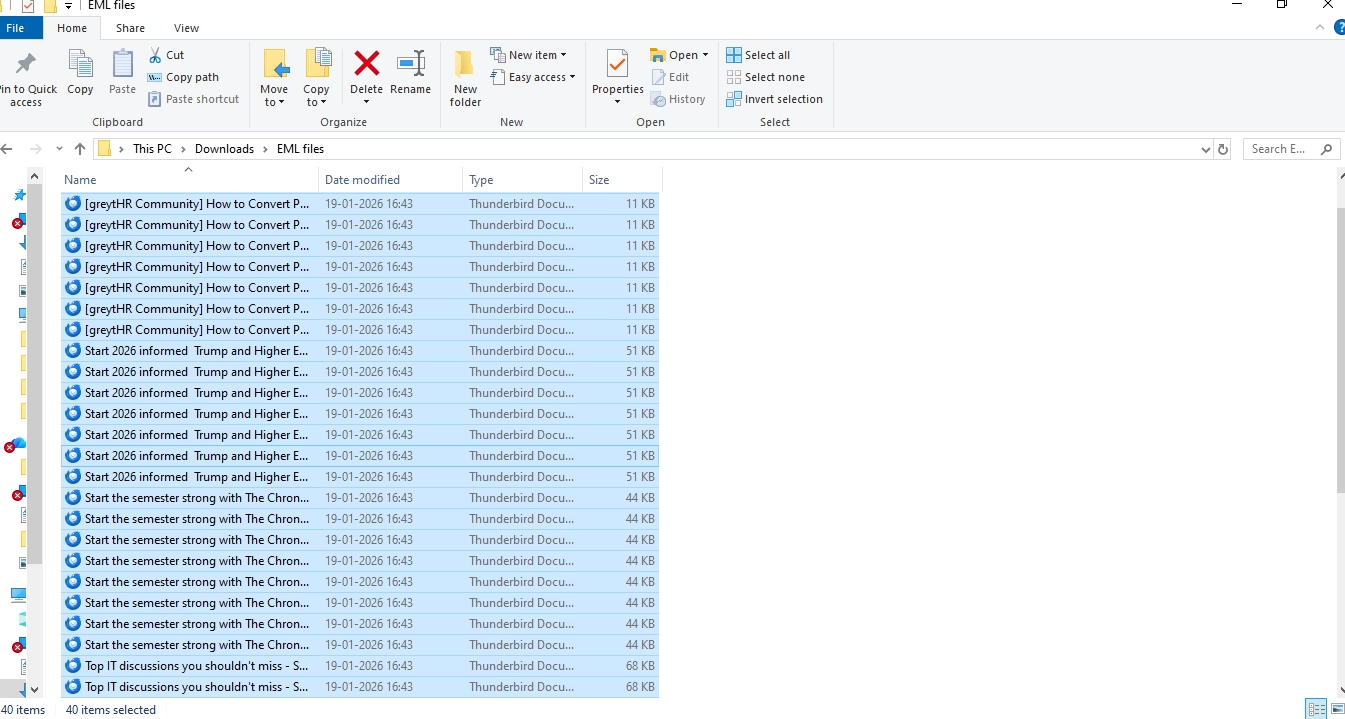
- Go to the folder where EML files are saved in your system.
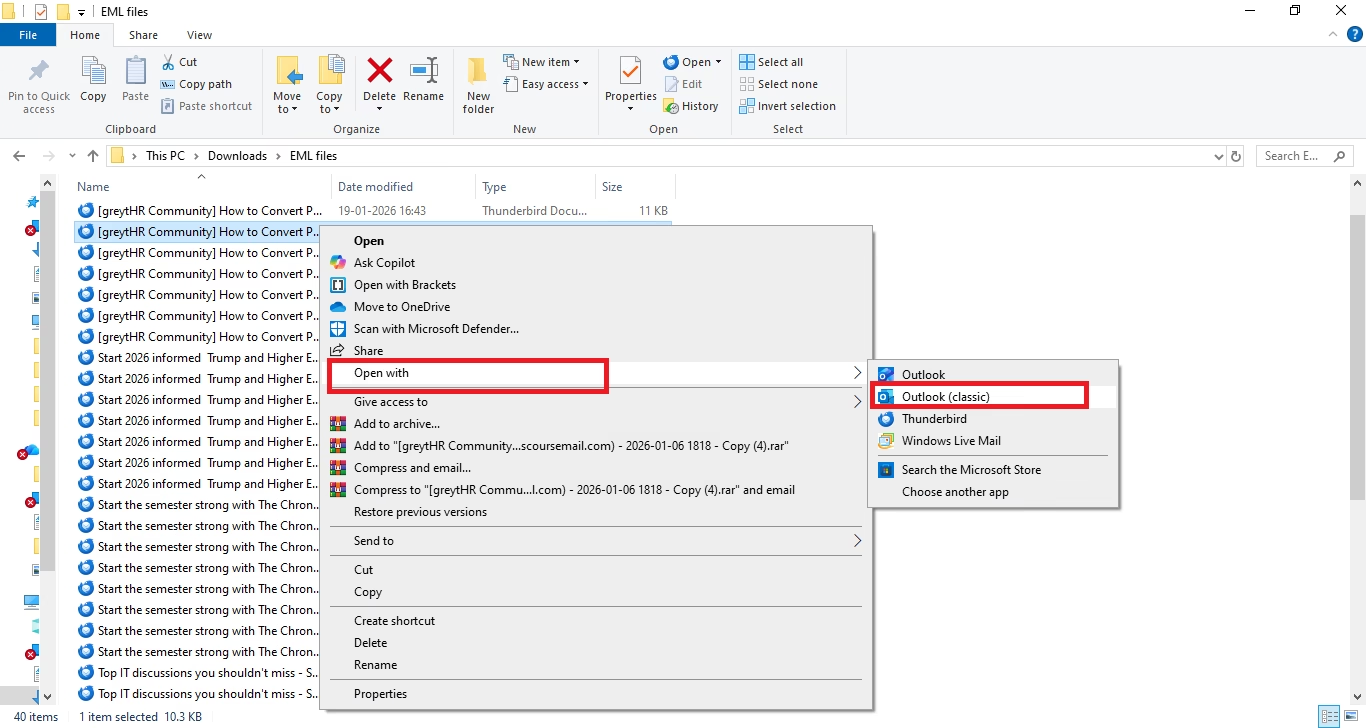
- Right-click on emails and open Microsoft Outlook.
- Now review the email message with attachments in Outlook.
- Again go to the EML folder where emails are saved and copy the email and paste it in the Outlook folder.
- Repeat this process for left emails.
- Once all the emails have arrived, click on the ‘File’ tab.
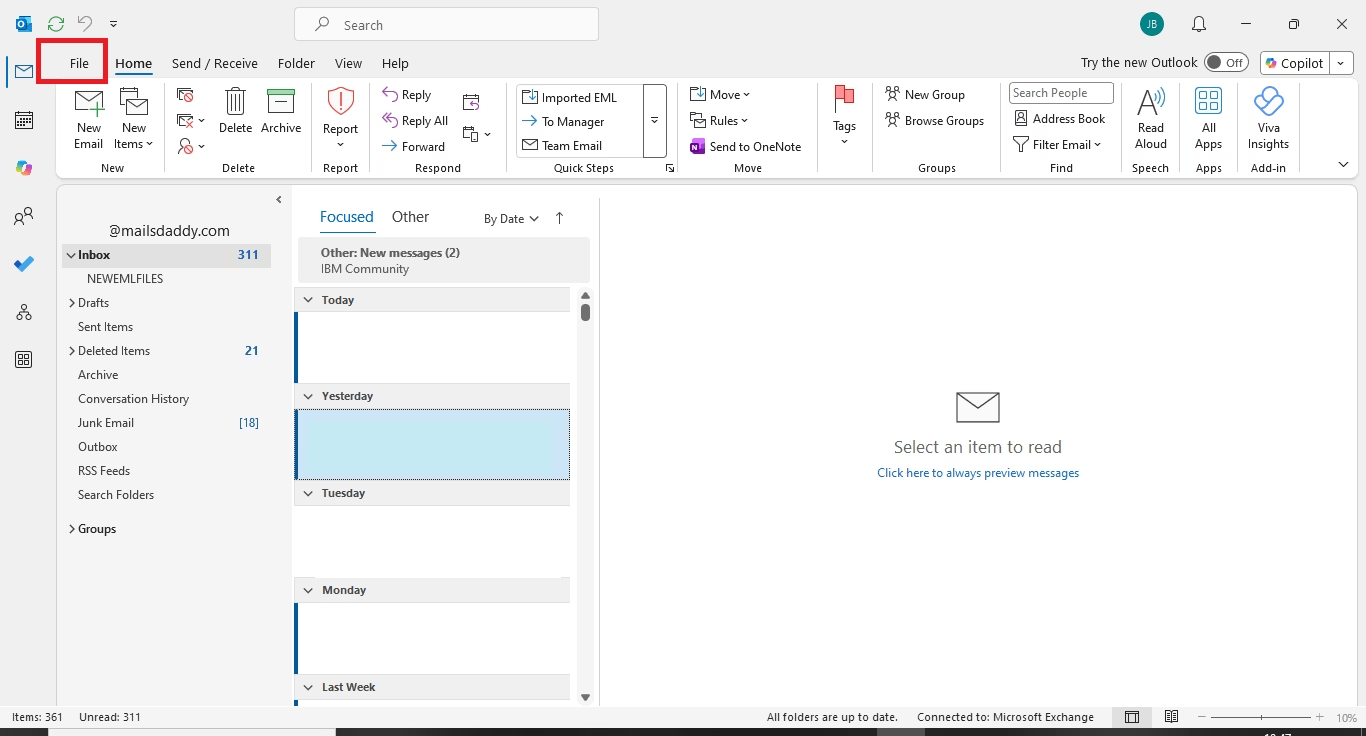
- Next, click on Open & Export > Import/Export to open Import and Export Wizard.
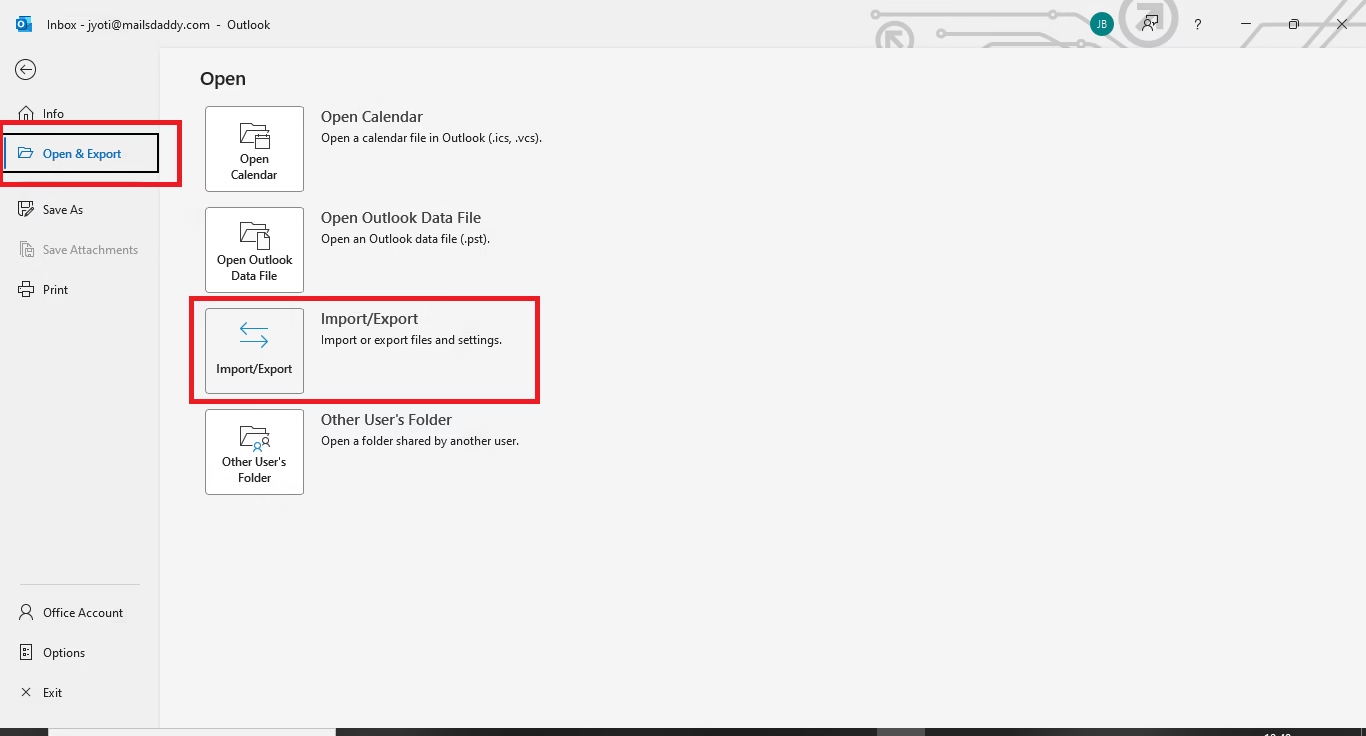
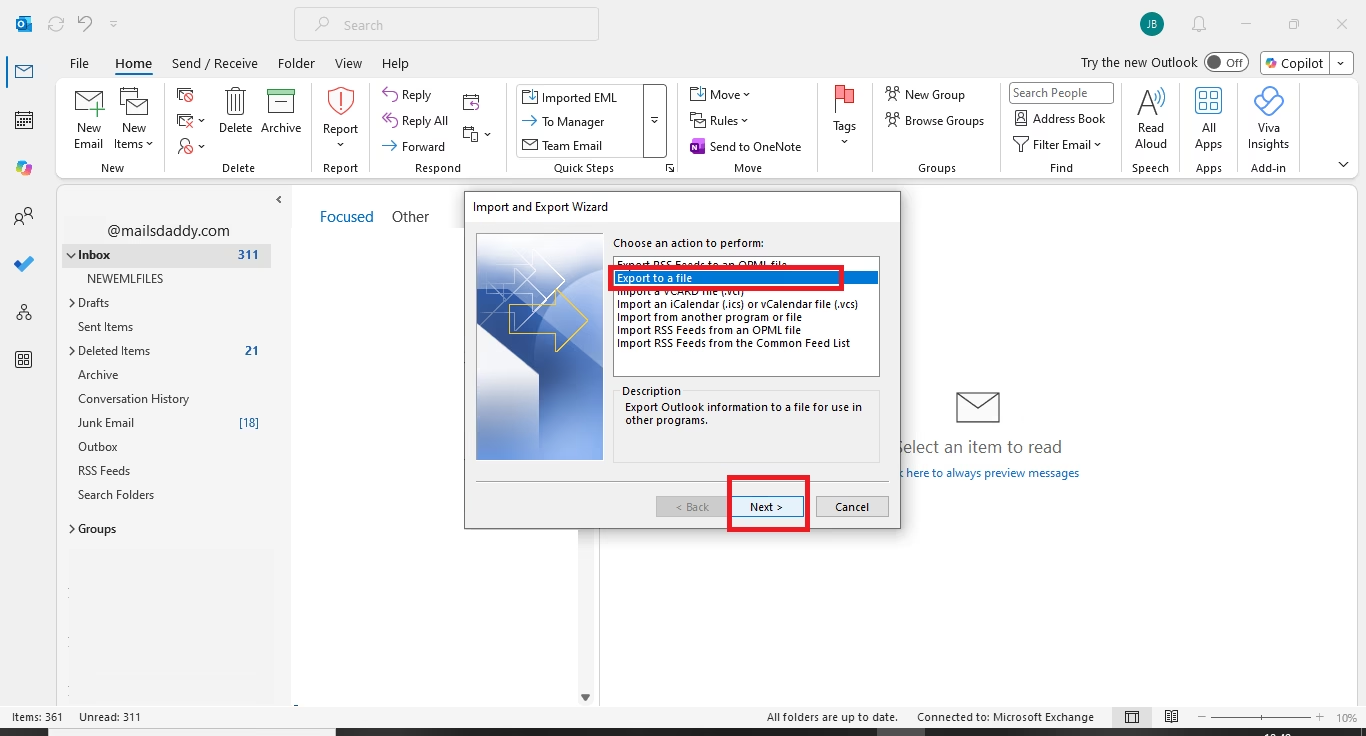
- Choose Export to a file and click Next.
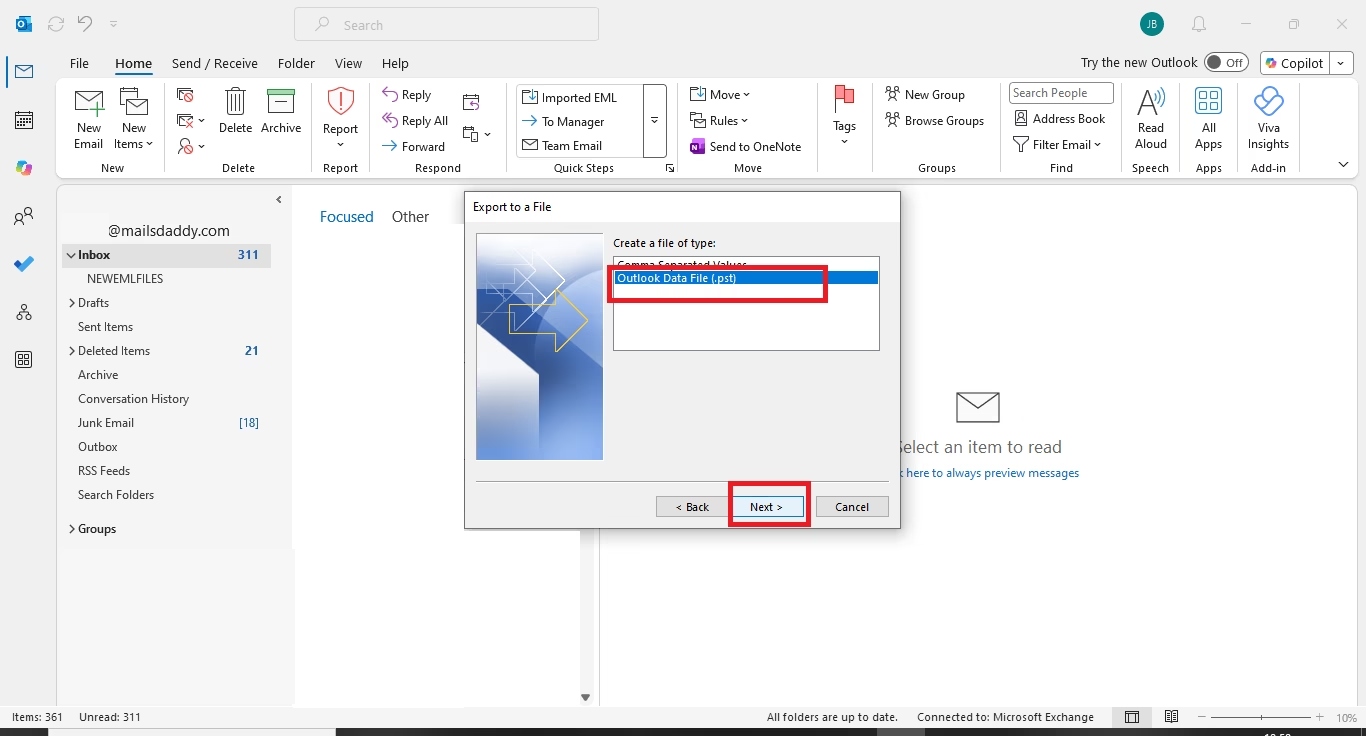
- Select Outlook Data File (.pst) and Next.
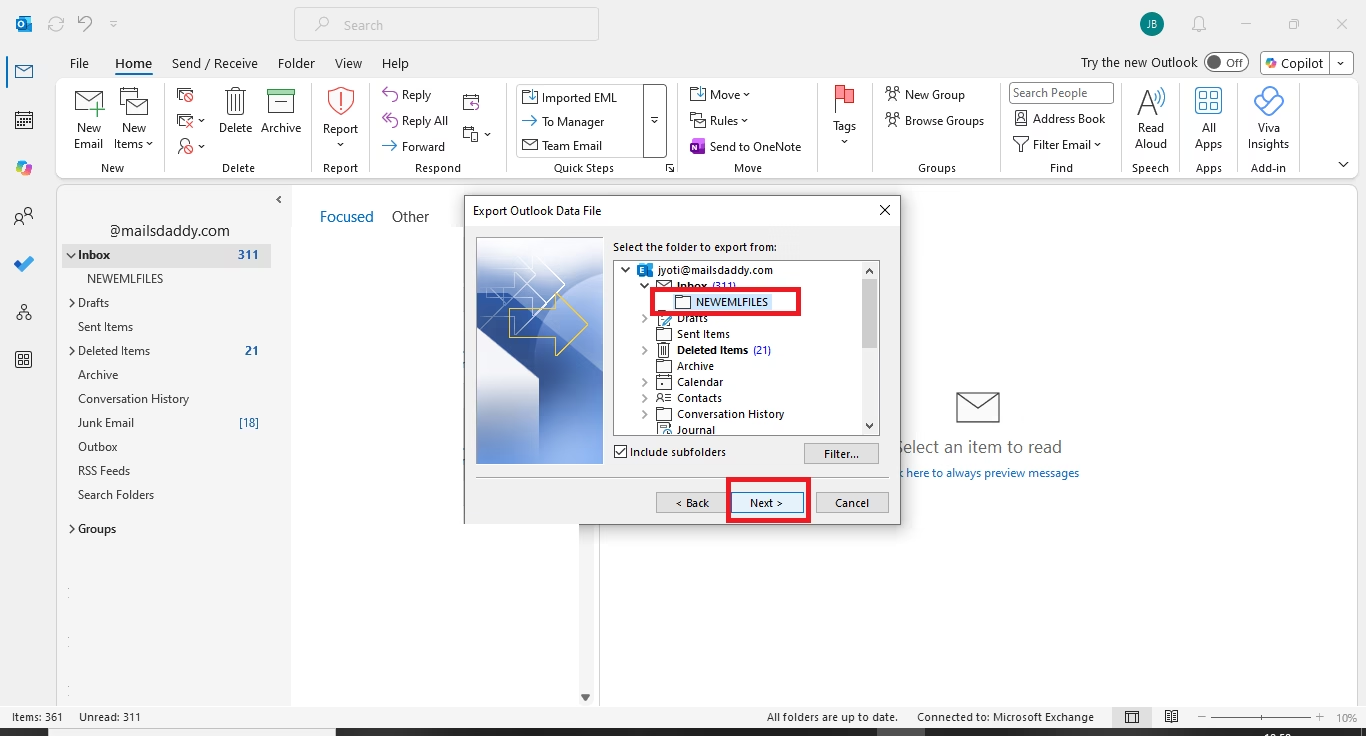
- Now, select the folder which you want to export and click Next.
- Browse the location to save the file and complete the process.
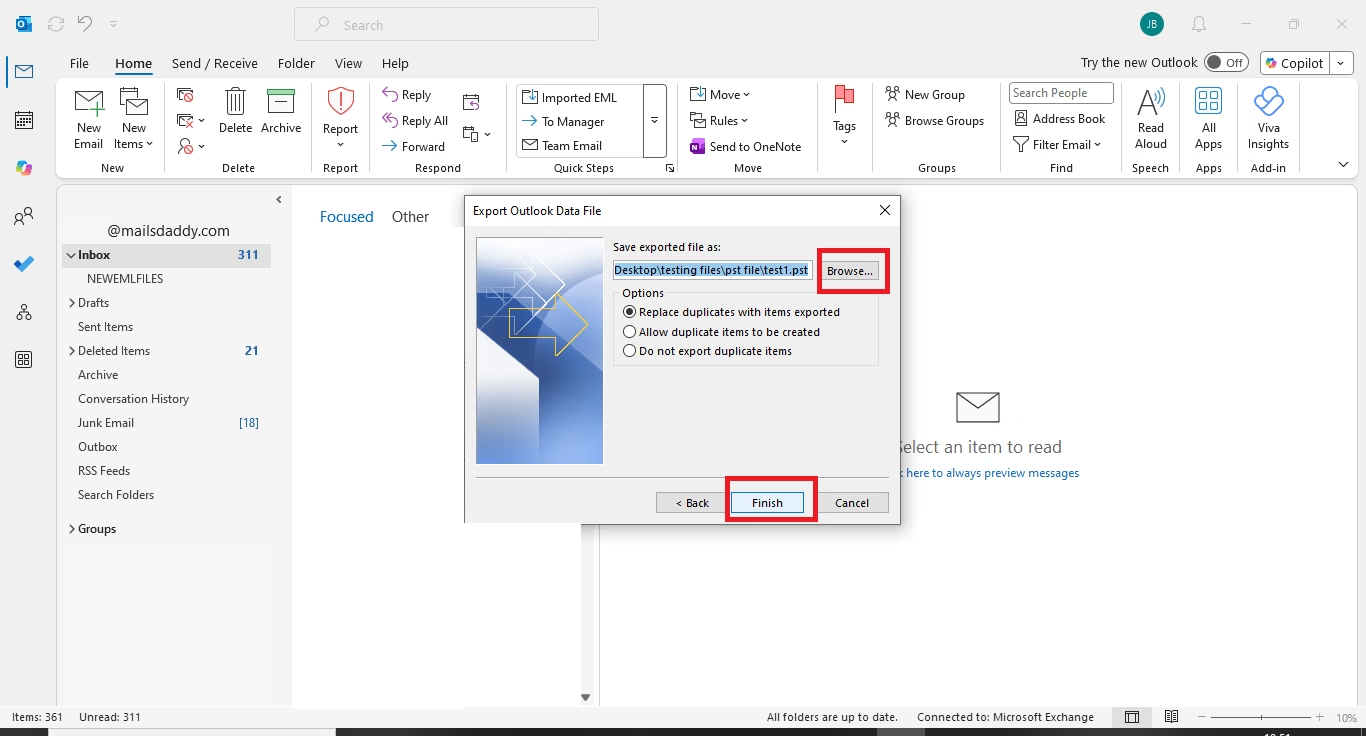
Limitations:
It can be a long process if you have a lot of data. This conversion process is best used for a few files, not for bulk emails.
Method 4: Import EML files to Outlook using Automated solution
When you need to convert thousands of EML files to PST without any complication, it is better to use the professionals trusted MailsDaddy EML to PST Converter. This software is specially designed for users to import multiple EML files to Outlook PST format in just a few clicks. It enables you to export EML files from Thunderbird, Outlook Express, Windows Live Mail, and other EML based email clients to Microsoft Outlook.
Here’s core features of MailsDaddy EML to PST Converter Software
- Users can perform bulk conversion at a time.
- Migrate EML files from many EML-based email clients.
- No file size limitation.
- Export EML files into MSG, EMLX, HTML, PDF, and other formats.
- Convert selected folder with original email formatting and folder hierarchy.
- Offers a simple interface and mailbox preview before conversion starts.
- Import specific emails using search and date filter features.
Working guide:
- Download the software from the official page of MailsDaddy EML to PST Converter.
- Install and run the tool into your system.
- Click on Open File and browse the EML files or folders.
- The tool scans the files and displays previews of complete mailbox content.
- Click Export and select the folders you want to export.
- Browse to the location where the log file will be saved.
- Next, click on the Export button to start the migration process.
Conclusion
There are several ways to do EML to PST conversion, but you need to pick the one that is right for you. Manual methods are easy to use like dragging and dropping emails, export EMl files using Windows Live mail and others. But these are time-consuming and risky for data missing when you have large-scale data.
For fast and simple conversion, use third tool like MailsDaddy EML to PST Converter software. It is designed for migrating large and bulk EML files to Outlook PST without losing any data. Perfect solution for individuals, IT administrators, and businesses to quickly export EML files to Outlook.
Read More: Windows Live to Outlook Converter

Jyoti is a digital marketing professional specializing in search engine optimization, content marketing, email management software, data migration, Microsoft Outlook, and cloud solutions. She also creates informative content and tutorials covering email migration, data recovery, Outlook, PST, EML, Office 365, and emerging trends in technology and online marketing.