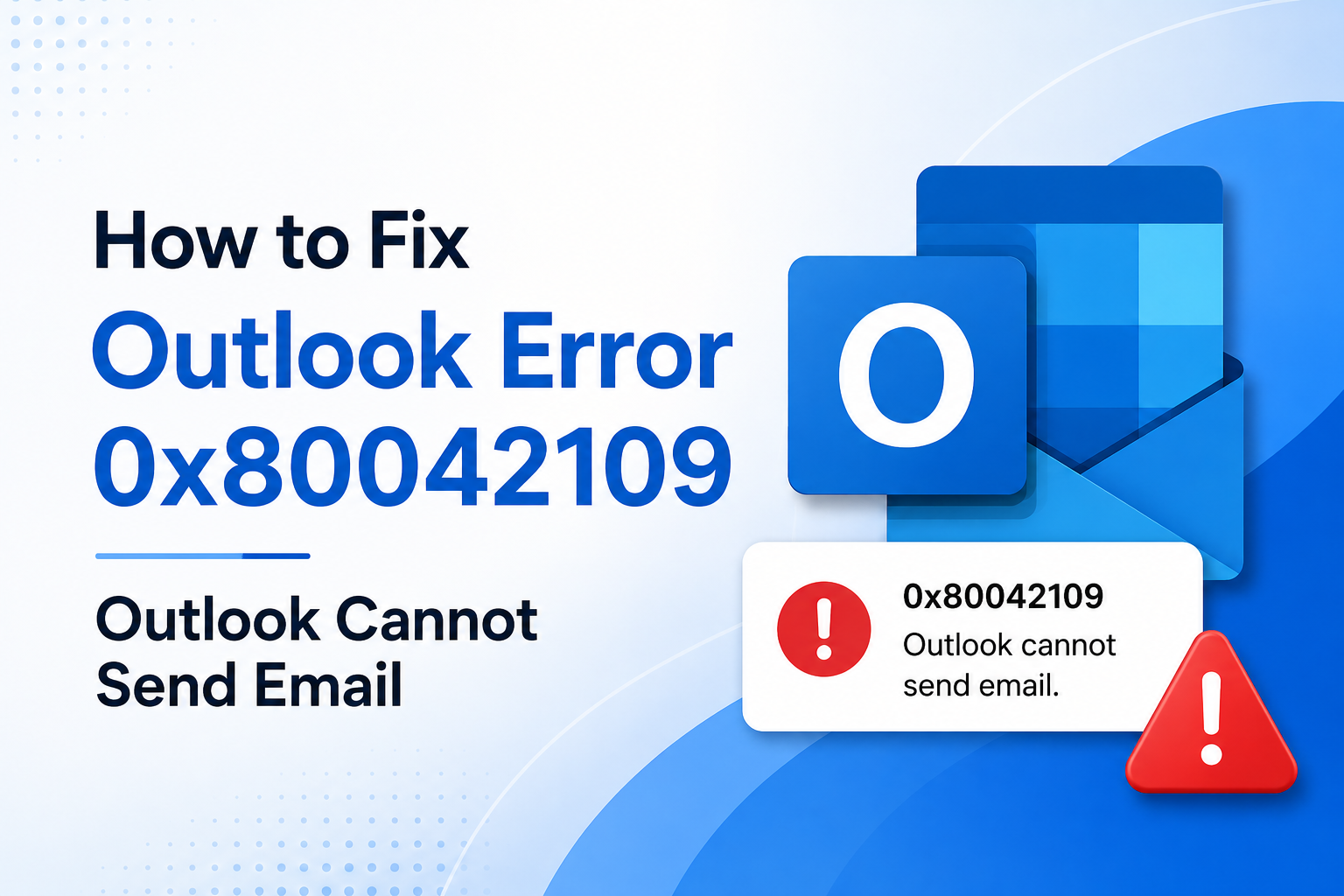
Microsoft Outlook is a widely used email clients for personal and business email communication. However, users sometime faces various send and receive errors that interrupt their workflow. One such issue is Outlook Error 0x80042109, which typically appears when Outlook is unable to send emails through the connected mail server.
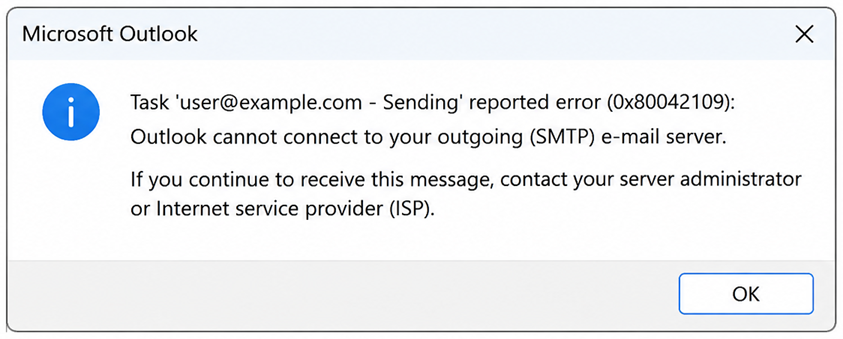
The complete error message often reads:
“Task ‘SMTP Server – Sending’ reported error (0x80042109): Outlook cannot connect to your outgoing (SMTP) email server.”
If you are facing this issue, don’t worry. In this article, we will explain the causes of Outlook Error 0x80042109, and methods resolve this erros when the problem persists.
What Causes Outlook Error 0x80042109?
Several factors can trigger this Outlook send/receive error, including:
- Incorrect SMTP server settings
- Poor or unstable internet connection
- Antivirus or firewall interference
- Corrupt Outlook profile
- Damaged PST file
- Outdated Outlook version
- Issues with the email hosting provider
- Large mailbox size causing synchronization problems
Understanding the root cause helps you apply the correct troubleshooting method.
Symptoms of Outlook Error 0x80042109
You may notice the following symptoms:
- Emails remain stuck in the Outbox.
- Outlook fails to send messages.
- Send/Receive process gets interrupted.
- SMTP connection errors appear repeatedly.
- Outlook performance becomes slow.
If any of these symptoms occur, follow the solutions below.
Methods to Fix Outlook Error 0x80042109
Method 1: Perfecty Verify Internet Connectivity
A weak internet connection may prevent Outlook from communicating with the SMTP server.
Steps:
- Open a web browser.
- Visit multiple websites.
- Restart your router if necessary.
- Try sending an email again.
If the problem is still continues, proceed to the next method.
Method 2: Properly Check SMTP Server Settings
One of the most common causes of Outlook Error 0x80042109 is incorrect outgoing mail server (SMTP) settings.
Steps:
- Open Outlook.
- Go to File > Account Settings > Account Settings.
- Select your email account. and cick Change.
- Verify:
- Outgoing Mail Server (SMTP)
- Port Number
- Encryption Method
- Username and Password
- Save the settings and test the account configuration.
You can obtain the correct SMTP settings from your email provider.
Method 3: Disable Antivirus Email Scanning
Some antivirus applications block Outlook’s SMTP communication.
Steps:
- Open your antivirus software.
- Locate Email Protection or Email Scanning.
- Temporarily disable the feature.
- Restart Outlook.
- Send a test email.
If the issue is resolved, configure Outlook as a trusted application.
Method 4: Disable Windows Firewall Temporarily
Firewall restrictions may block SMTP ports.
Steps:
- Open Control Panel.
- Navigate to Windows Defender Firewall.
- Select “Turn Windows Defender Firewall On or Off.”
- Temporarily disable it and test email sending.
If Outlook works, create an exception rule for Outlook instead of keeping the firewall disabled.
Method 5: Create a New Outlook Profile
A damaged Outlook profile can trigger connection issues.
Steps:
- Close Outlook and open Control Panel.
- Select Mail >> Click Show Profiles. >> Choose Add.
- Create a new profile.
- Configure your email account.
- Launch Outlook using the new profile.
Many users successfully resolve Outlook Error 0x80042109 through this method.
Method 6: Repair Outlook Installation
A corrupted Office installation may affect Outlook functionality.
Steps:
- Open Control Panel >> Click Programs and Features.
- Select Microsoft Office >> Click Change.
- Choose Quick Repair >> If needed, run Online Repair.
Restart the computer after completion.
Method 7: Repair PST File Using ScanPST
Corruption within Outlook data files can cause send and receive errors.
Steps:
- Close Outlook.
- Locate ScanPST.exe on your system.
- Run the Inbox Repair Too >>Browse and select your PST file.
- Start scanning >>Repair detected issues.
- Open Outlook again.
If the PST file is severely damaged, ScanPST may not completely fix the problem.
What If Outlook Error 0x80042109 Still Exists?
Sometimes users try every manual method but still receive the same error. This generally indicates deeper PST corruption or mailbox damage that Outlook’s built-in repair utility cannot handle effectively. In such situations, a professional Outlook repair solution becomes necessary.
Smart Solution to Fix Outlook Error 0x80042109
When manual troubleshooting fails, using a specialized PST repair tool is often the safest and fastest option.
MailsDaddy PST Repair Tool
The MailsDaddy PST Repair Tool is designed to repair severely corrupted Outlook PST files and recover mailbox data without data loss.
Key Features
- Repairs damaged PST files efficiently.
- Recovers emails, contacts, calendars, notes, and tasks.
- Supports large PST files.
- Preserves folder hierarchy and email formatting.
- Recovers permanently deleted mailbox items.
- Compatible with all Outlook versions.
- Simple and user-friendly interface.
How It Helps Resolve Error 0x80042109
If the error occurs because Outlook cannot access mailbox data properly due to PST corruption, repairing the PST file using MailsDaddy PST Repair Tool restores mailbox integrity.
The MailsDaddy PST Repair Tool is a professional solution designed to repair corrupted Outlook PST files with high accuracy. Whether the PST file is affected by unexpected system shutdowns, virus attacks, oversized mailbox issues, or Outlook crashes, the software can efficiently recover mailbox data without altering its original structure. It thoroughly scans the damaged PST file and restores emails, contacts, calendars, tasks, notes, journals, and other mailbox items while maintaining folder hierarchy and data integrity. One of the key advantages of the MailsDaddy PST Repair Tool is its ability to handle severely corrupted PST files that the built-in ScanPST utility cannot repair. The software provides a preview of recoverable items before saving them, allowing users to verify the data recovery process.
Once the data file becomes healthy, Outlook can communicate correctly with the SMTP server and send emails normally. After replacing the damaged PST file, many Outlook send/receive issues, including Error 0x80042109, are resolved successfully.
Conclusion
Outlook Error 0x80042109 – Outlook Cannot Send Email is usually caused by SMTP configuration issues, profile corruption, firewall restrictions, or PST file damage. Start with manual troubleshooting methods such as checking SMTP settings, repairing Outlook, and creating a new profile.
However, if the problem continues even after trying all manual fixes, the underlying cause is often a corrupted PST file. In such cases, using a professional solution like MailsDaddy PST Repair Tool can repair the damaged mailbox data and restore normal Outlook functionality without risking data loss.

Somit Vishwakarma is a technology writer specializing in email management, data migration, Microsoft 365, Outlook, cloud technologies, & software solutions. His areas of expertise include email migration, data backup, recovery, and cloud data management. He also writes informative tutorials covering Python, programming, & emerging technology trends.