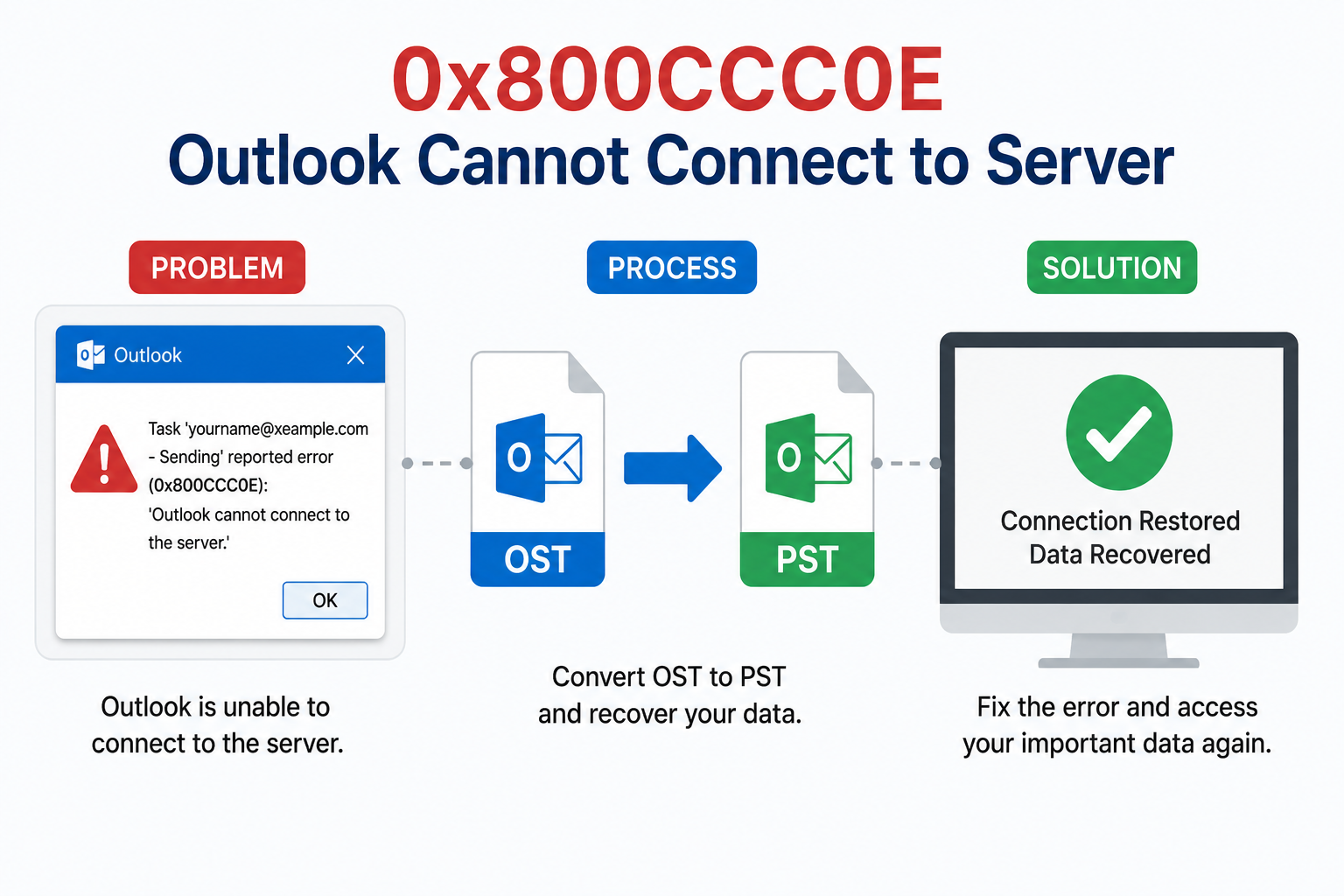
The 0x800CCC0E Outlook cannot connect to server error is one of the most common issues faced by Microsoft Outlook users when the application fails to connect to the mail server. This error can interrupt sending and receiving emails, affecting productivity and email communication.
This article explains the causes of the 0x800CCC0E – Outlook cannot connect to server error and provides step-by-step solutions. It also covers advanced recovery methods like how to and recover OST files safely.
What is Error 0x800CCC0E in Outlook?
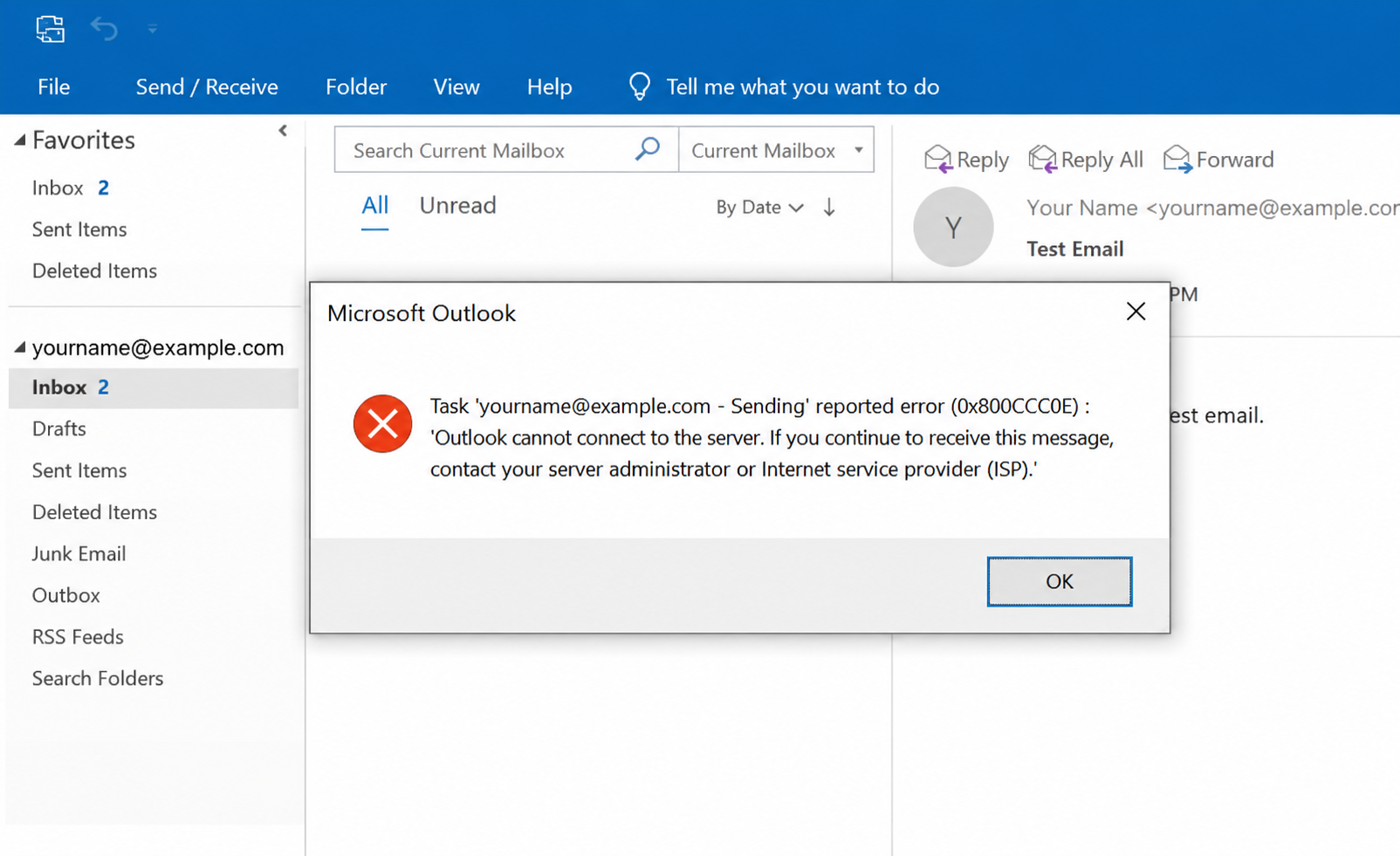
The error code 0x800CCC0E generally appears when Outlook is unable to connect to the mail server (IMAP, POP3, or SMTP). The full message may look like:
“Task ‘[email protected] – Sending’ reported error (0x800CCC0E): Outlook cannot connect to the server.”
This means Outlook is facing a connectivity issue between your email client and the server.
Common Causes of 0x800CCC0E Outlook Error
Understanding the root cause helps in fixing the issue faster. Some common reasons include:
1. Incorrect Server Settings: Wrong incoming/outgoing server details (IMAP/POP/SMTP) can block connectivity.
2. Firewall or Antivirus Blocking Outlook: Security software may block Outlook’s connection to the mail server.
3. Internet Connectivity Issues: Unstable or no internet connection can trigger this error.
4. Corrupted Outlook Profile: A damaged Outlook profile can prevent proper communication with the server.
5. SMTP Port Issues: Incorrect port numbers or SSL settings can also cause connection failures.
6. Add-ins Conflict: Faulty Outlook add-ins may interfere with normal operations.
How to Fix 0x800CCC0E Outlook Cannot Connect Error
Here are the most effective troubleshooting methods:
Solution 1: Check Internet Connection
Make sure your system is connected to a stable internet network. Try opening a website to confirm connectivity.
Solution 2: Verify Email Account Settings
Incorrect settings are a major reason for the 0x800CCC0E error.
- Go to Outlook Settings
- Open Account Settings
- Verify:
- Incoming mail server (IMAP/POP)
- Outgoing mail server (SMTP)
- Username & password/app-password
- Port numbers (995, 993, 465, 587 depending on provider)
Read more: Outlook Error 0x8004210b
Solution 3: Disable Antivirus or Firewall Temporarily
Sometimes antivirus software blocks Outlook’s connection.
- Disable firewall for a short time
- Check if Outlook starts working
- If yes, add Outlook as an exception
Solution 4: Start Outlook in Safe Mode
Safe Mode disables add-ins.
Press:
Windows + R → outlook.exe /safeIf Outlook works fine, remove problematic add-ins.
Solution 5: Create a New Outlook Profile
A corrupted profile can be fixed by creating a new one:
- Go to Control Panel
- Click Mail
- Select Show Profiles
- Create a new profile
- Set it as default
Solution 6: Fix SMTP Settings
Ensure SMTP authentication is enabled:
- Outgoing server requires authentication ✔
- Correct port (usually 587 or 465)
- SSL/TLS enabled if required
When Data is Not Opening – OST File Problem
Sometimes this error is linked with a deeper problem:
Your OST file becomes inaccessible or corrupted.
In this case, simple fixes may not work. You may need to recover OST files and move data into a safe format.
Best Solution to Convert OST to PST
When OST file is damaged or Outlook is not syncing properly, the safest solution is to convert OST to PST format.
PST files can be easily opened in Outlook and are not linked to any server.
Use MailsDaddy OST to PST Converter
To make recovery easy, you can use MailsDaddy OST to PST Converter. It is a simple and powerful tool designed to handle Outlook data issues.
Why MailsDaddy Tool is Helpful:
- Easily convert OST to PST without data loss
- Recover emails, contacts, calendars, and attachments
- Works even if Outlook is not opening
- Supports corrupted and orphaned OST files
- Keeps original folder structure safe
- Fast and simple process
Read more: Free Convert PST to Thunderbird MBOX
Final Thoughts
The 0x800CCC0E Outlook error is usually caused by simple issues like internet or settings. Most of the time, it can be fixed easily. But if the problem is related to a damaged OST file, then the best solution is to convert OST to PST using MailsDaddy OST to PST Converter. It helps you recover OST files safely and quickly without losing important emails.
Read more: Outlook Error 0x80070002
Read more: Fix Outlook Error 0x80040119

Mohit Keshari is a digital marketing professional at MailsDaddy Software, specializing in content strategy and SEO for email data recovery, conversion, and cloud migration solutions. His work bridges technical depth and accessibility — breaking down complex processes like PST/OST file management, Exchange Server migration, and Microsoft 365 mailbox imports into clear, actionable guidance for IT administrators and everyday users alike.
Outside of work, Mohit enjoys traveling and dancing, and brings the same curiosity and energy from exploring new places onto the page in his writing.