
Are you an Outlook Live user? If so, you might be experiencing passkey errors. This post will help you resolve them.
Passkeys are designed to make signing in to Outlook Live (Outlook.com) faster and more secure. However, many users have encountered difficulties when trying to sign in using passkeys, such as error messages, authentication failures, or issues with the sign-in screen.
This article explains the common causes of Outlook Live passkey login problems, common error messages, and provides step-by-step solutions.
What Is a Passkey in Outlook Live?
A passkey is a password-less sign-in method for Microsoft accounts that uses your device’s built-in security, such as:
- Fingerprint
- Face recognition
- Device PIN
- Hardware security key
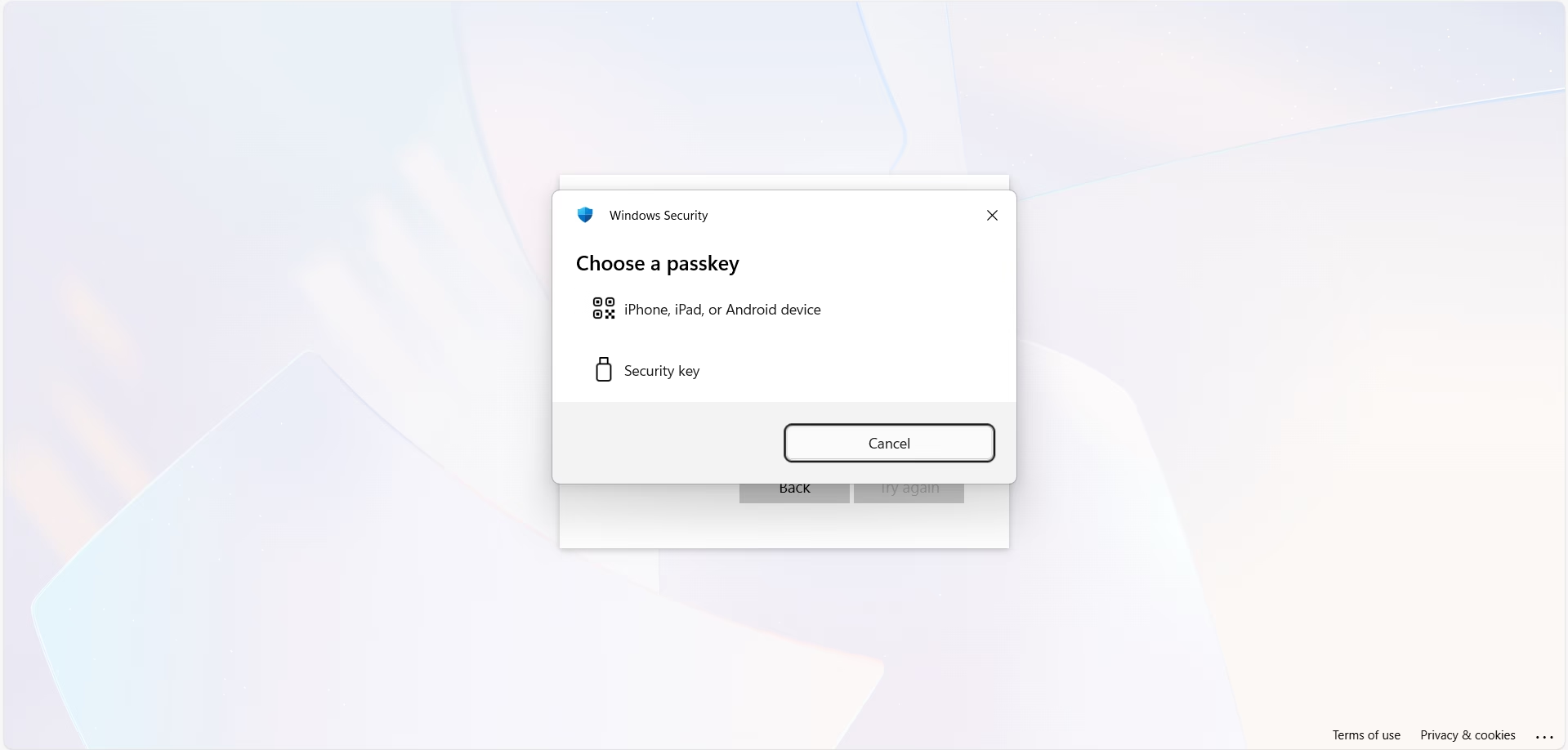
Passkeys are tied to a specific device or synced through supported browsers and operating systems. When you have already setup it then it will show a popup like this:
How to Fix Outlook Live Passkey Login Issue?
If you haven’t set a passcode but are still experiencing the same problem when logging into Outlook, you can follow the steps below to fix it. Additionally, there are some common reasons for login failures, such as:
1. Invalid or Deleted Passkey
Ensure that you are using right passkey. If it was removed, corrupted, or created on a device you no longer use, Outlook Live may fail to authenticate.
2. Browser Compatibility Problems
Outdated browsers can block passkey prompts, especially on Safari or older Chromium versions.
3. Cached Credentials or Corrupted Cookies
I’ve shared the first fix option below, which addresses the reason for the authentication failure. This is because old login data saved in your browser can cause problems with passkey authentication.
4. Cross-Device Authentication Failure
When using your phone to approve sign-ins on your computer, the verification sometimes fails due to Bluetooth or network issues. Several users have encountered this problem, so I can say that it doesn’t always work reliably.
5. Wrong profile or System Update
Check for system updates, device security settings, and incorrect PC profiles, as these can also cause invalid passkey issues.
So, if you’re having trouble logging into Outlook.live, you’ll need to be patient. Follow the solutions below one by one to try and fix the problem.
Solution: Outlook Live Passkey Login Problems
Fix 1: Clear Browser Cache and Cookies
If you haven’t cleared your browser’s cache and cookies in a long time, this can also cause login problems. Deleting them is necessary to ensure a secure login.
- Go to your browser’s history and delete all cookies and cached files.
Note: Do not delete saved passwords if you have them stored in your browser.
- Restart your browser and try signing in again.
Another option is to use incognito/private mode. If the problem persists, try other solutions.
Fix 2: Try a different browser
If you have more than one browser on your PC, you can try logging in with a different browser, just make sure it’s updated. Microsoft Edge and Google Chrome are good options.
Fix 3: Remove and recreate your passkey
If you can access your Microsoft account, you can recreate or remove it.
Note that this requires you to have two-factor authentication enabled.
- Go to Microsoft Account > Security settings
- Click on “Manage how I sign in“
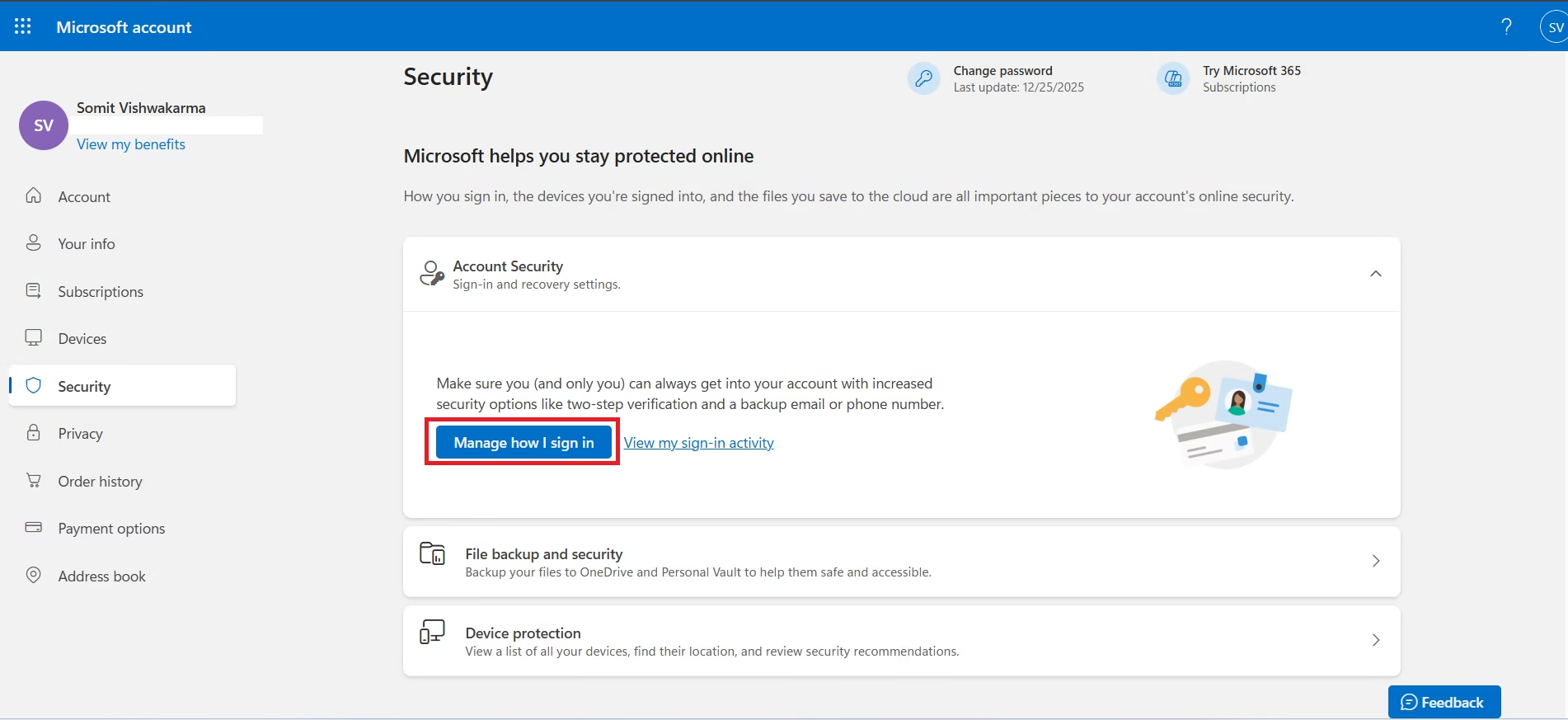
- Go to the Passkey section and remove the existing passkey.
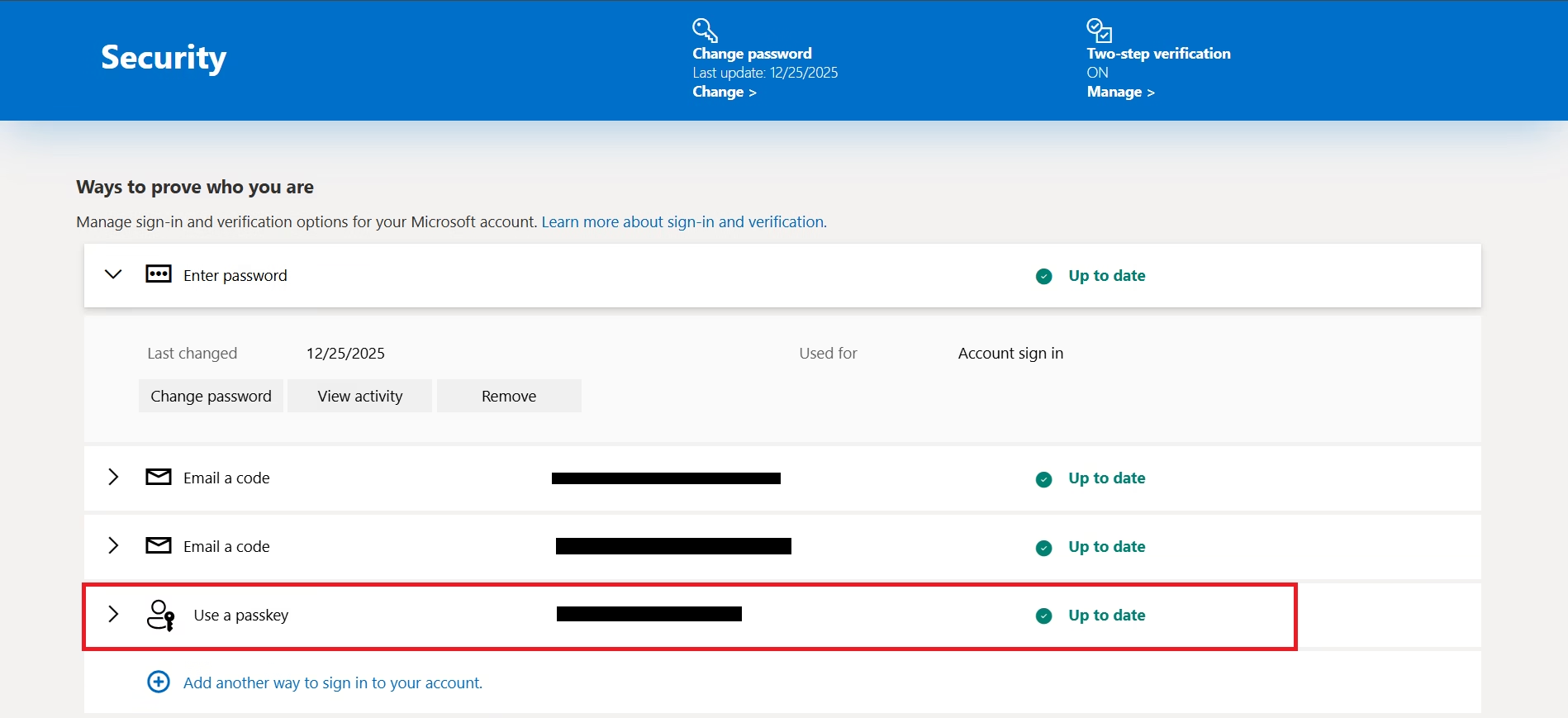

- Click on “Add another way to sing in to your account“. It will helps you to create a new passkey on your current device
- Sign in to Outlook Live again
There is now a new authentication link between your account and device.
Fix 4: Check Device and Bluetooth Settings
If you’re using your phone to verify sign-in, make sure your phone has an internet connection enabled.
If you receive a prompt to turn on Bluetooth, enable it on your phone.
Use the correct device to scan the QR code.
Fix 5: Use a Different Sign-in Method
If you are unable to follow any of the above steps, your final option is to use an alternative sign-in method.
Cancel the passkey window.
Choose “Sign in another way“.
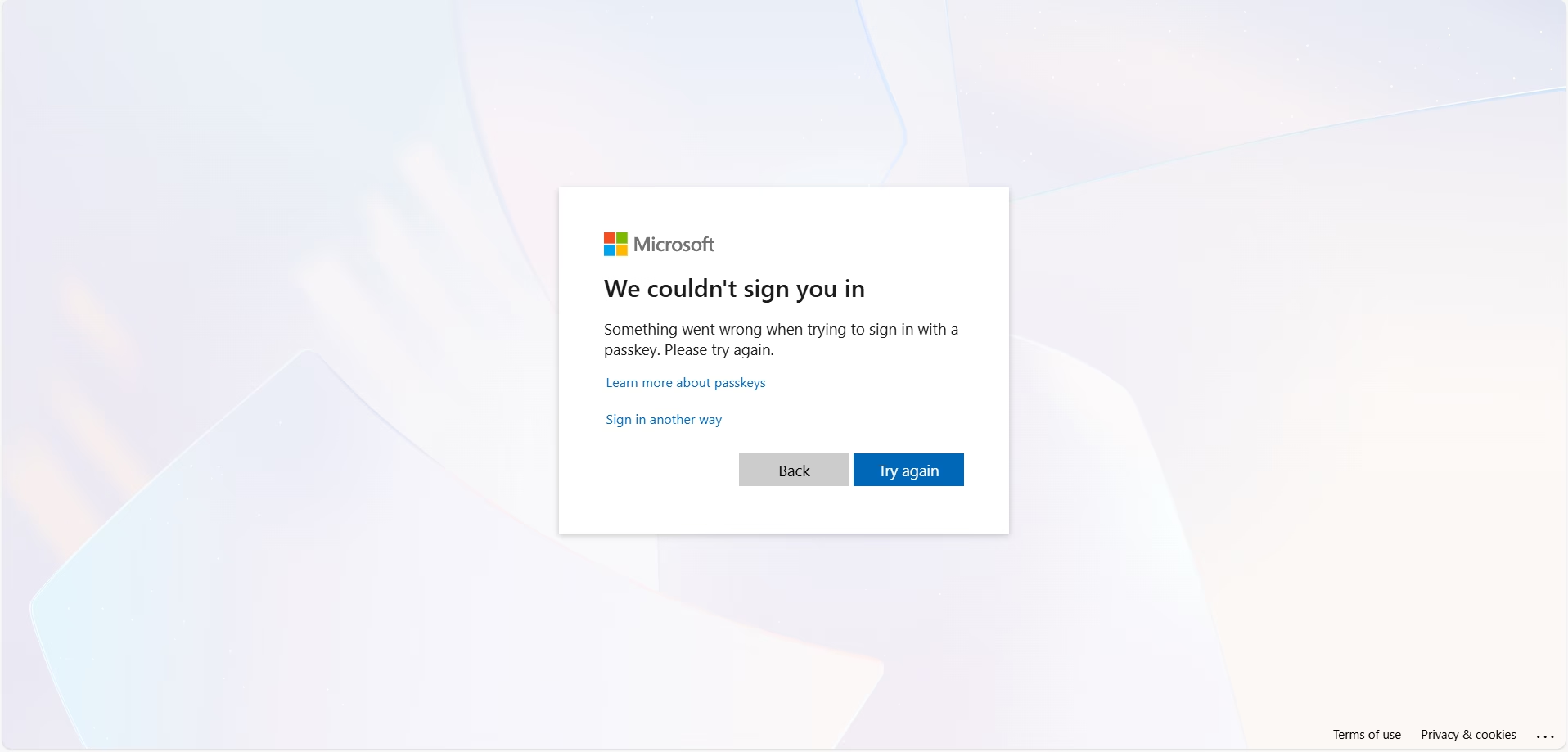
Log in using your password or a one-time security code.
You can disable the passkey as the default sign-in method later, or remove it by following the previous steps.
Final Thoughts
Passkeys, designed by Microsoft, offer a secure and faster way to log in by bypassing traditional passwords. While it’s not yet fully functional for everyone, it promises to be a quicker and more secure login method in the future. Outlook Live passkey login issues can often be resolved by clearing browser data, recreating the passkey, or changing the sign-in method. Hopefully, this post will help you troubleshoot these problems yourself.

Somit Vishwakarma is a technology writer specializing in email management, data migration, Microsoft 365, Outlook, cloud technologies, & software solutions. His areas of expertise include email migration, data backup, recovery, and cloud data management. He also writes informative tutorials covering Python, programming, & emerging technology trends.