
Email has become the backbone of every business. From client conversations to internal approvals, almost everything important lives inside your mailbox. That’s why losing access to your Office 365 mailbox data, even for a few hours, can feel like a small disaster. Many people assume that because their mailbox lives in the cloud, Microsoft automatically keeps a full backup of it. Unfortunately, that’s not entirely true. Microsoft focuses on uptime and infrastructure, not long-term data recovery from accidental deletion, ransomware, or compliance issues.
This is exactly why taking a regular backup of your Office 365 mailbox is so important. In this article, we’ll walk you through the different methods available, their strengths, their limitations, and a reliable tool that makes the whole process much simpler.
Why Backup Office 365 mailboxes?
There are several cases in which a local backup will come in handy:
- Accidental loss – a user or someone from your company intentionally or unintentionally deletes important emails forever or gets access to an administrator account.
- Retention policies limitations – Microsoft 365 retention policies have certain limitations and settings that cannot be regarded as a backup solution.
- Employees offboarding – It is necessary to make a backup of a leaving employee’s mailbox while his/her license is being deleted.
- Prevent ransomware attacks – Ransomware and phishing attacks get into the database, infect it and encrypt your confidential data. Due to this user are unable to access their data.
- Email migrations – a migration to another tenant, and another email service is easier if you have a backup.
Now let’s get acquainted with the free methods at our disposal.
How to Backup Office 365 mailboxes for free?
The scenarios mentioned above highlight why backing up your Office 365 account is essential. Now, we will explore several free methods to save Office 365 emails in PST format. Whether you wish to save data from a single account or back up an entire business email setup into a separate PST file, this process is applicable in all such situations. However, before proceeding, it is important to understand the limitations and requirements associated with the backup method.
Method 1: Using Microsoft Outlook Export
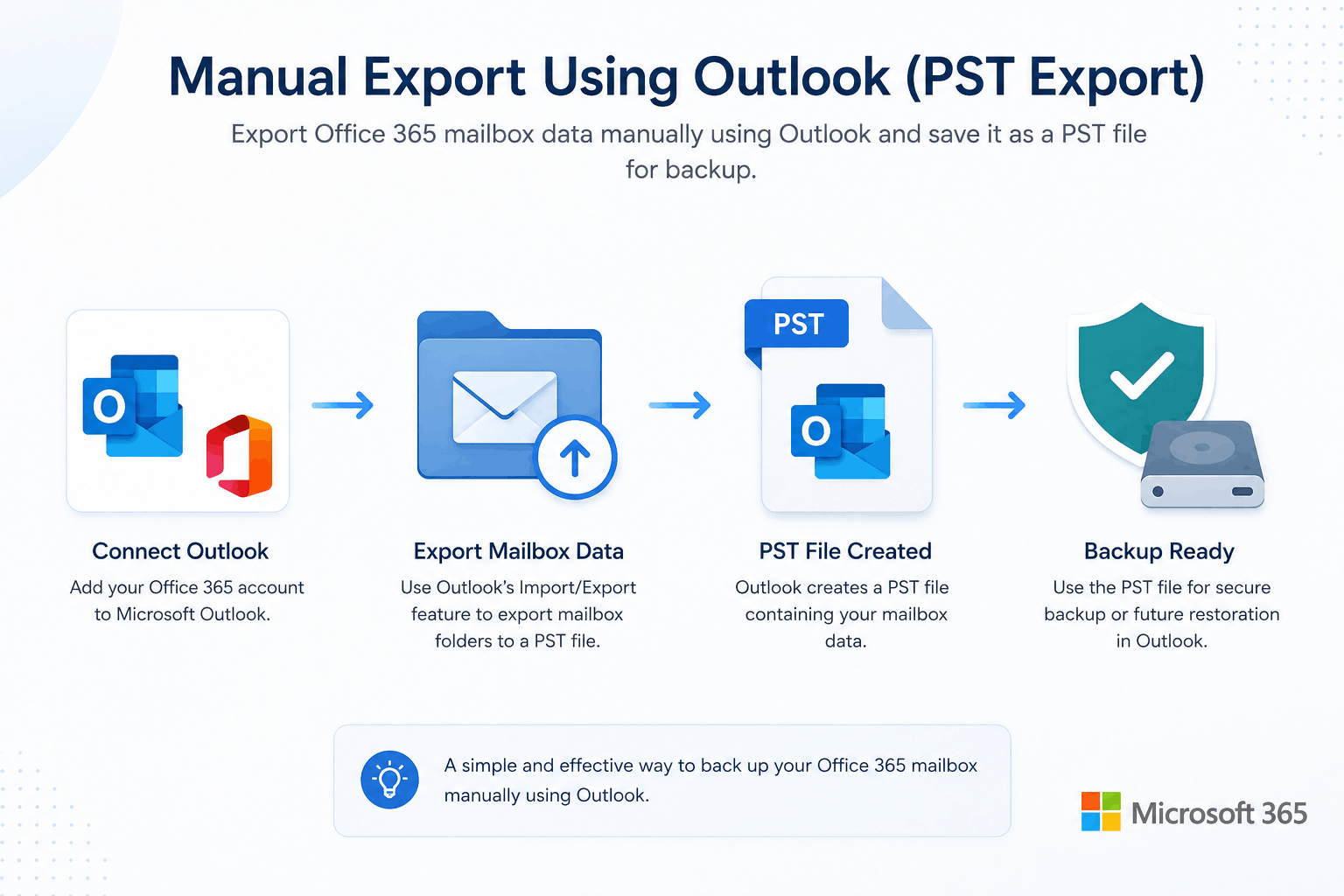
Microsoft Outlook is the simplest way to take backup of Office 365 mailboxes. With this method you can open or read the emails in your mailbox when you are offline, and it is suitable for few mailbox backups.
- Open the Outlook application on your system and configure it with M365 login credentials.
- Go to File tab then Open & Export and click on Import/Export option.
- Now select Export to a File, then click on Next button to save Office 365 emails.
- Choose Outlook Data File (.pst) and click Next.
- Here select the mailbox or specific folders which you want to backup.
- Choose a location on your system where you want to save and click on the Finish button.
Limitations:
- For multiple mailboxes, it is slow and time consuming process.
- There is no automation or scheduling
- The risk of PST file corruption is high over time
- If you’re looking for an organisation with thousands of users, then this is not for you.
Read more: Google Workspace to Office 365 Migration
Method 2: Using Microsoft Purview eDiscovery tool
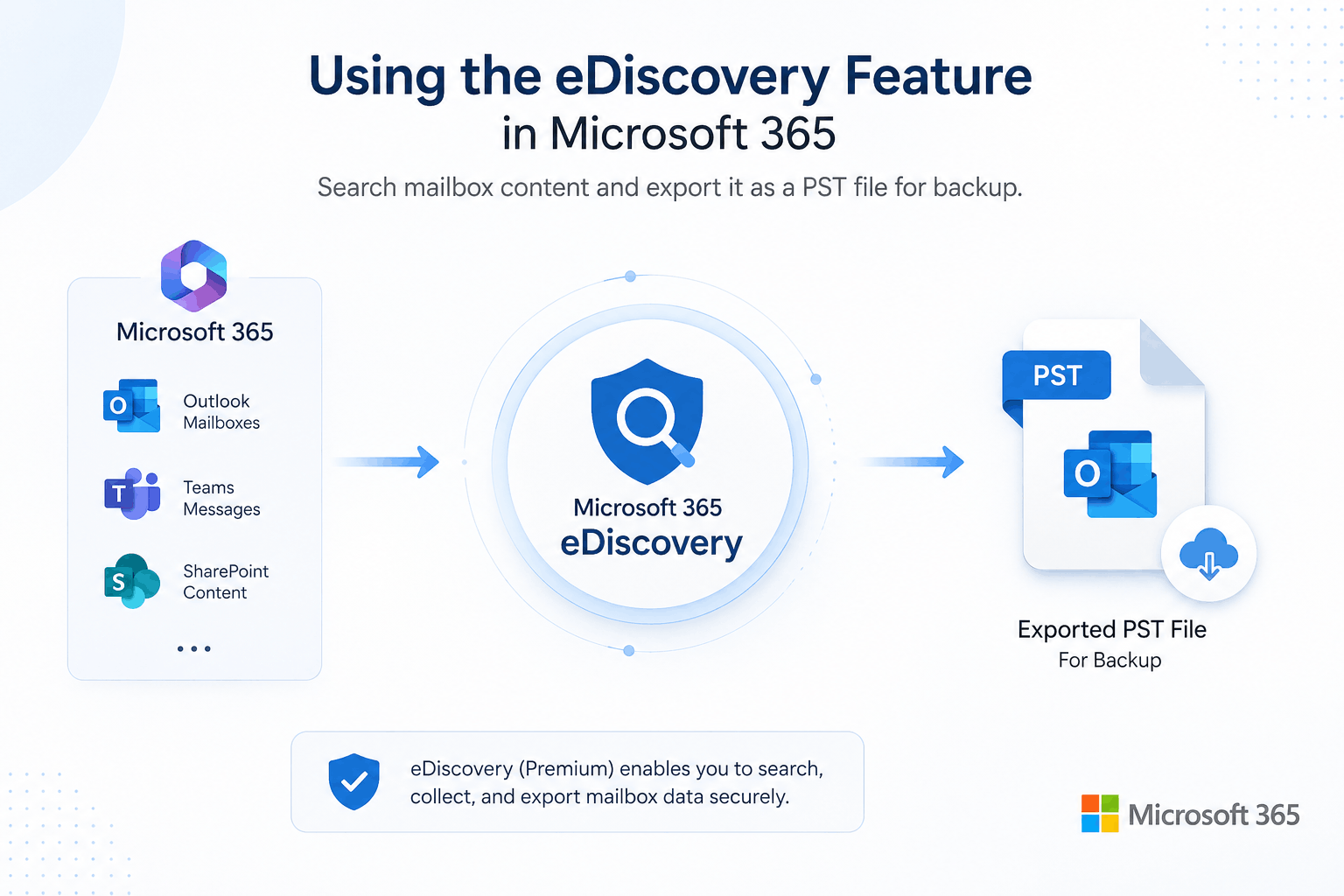
Microsoft Purview eDiscovery tool is mostly used to backup organization mailboxes from Office 365 to PST. The content search feature inside the MS Purview eDiscovery is the most capable method for large enterprise. This is a technical and long process to save Microsoft 365 emails in local drive.
- Sign in to the Microsoft Purview portal with a Microsoft 365 admin account that has eDiscovery permissions.
- Click Settings, and then click Roles and Scopes > Role Groups.
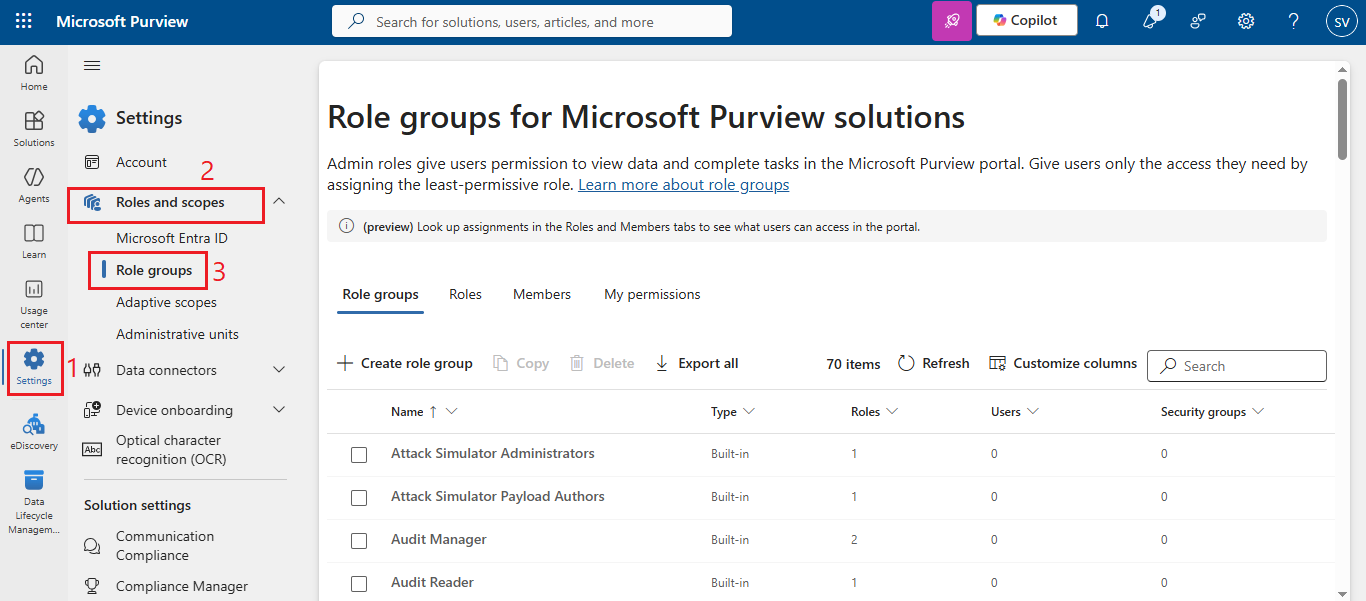
- Find the eDiscovery Manager, and then click Edit.
- Add Administrator and Managers using search box.
- Review the details, select Save and confirm the success message. Click Done.
- Click Solutions, and then click eDiscovery.
- In addition, navigate to Content Search and click Create a Search.
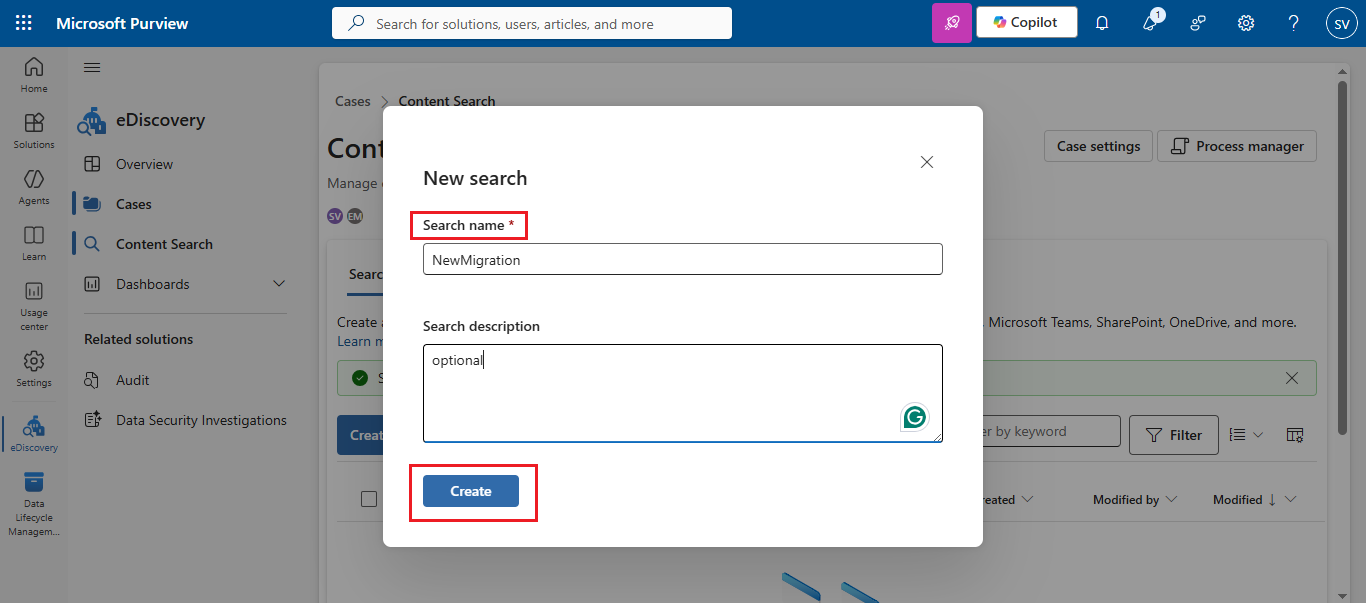
- Type a unique search name and an optional description, and then click Create.
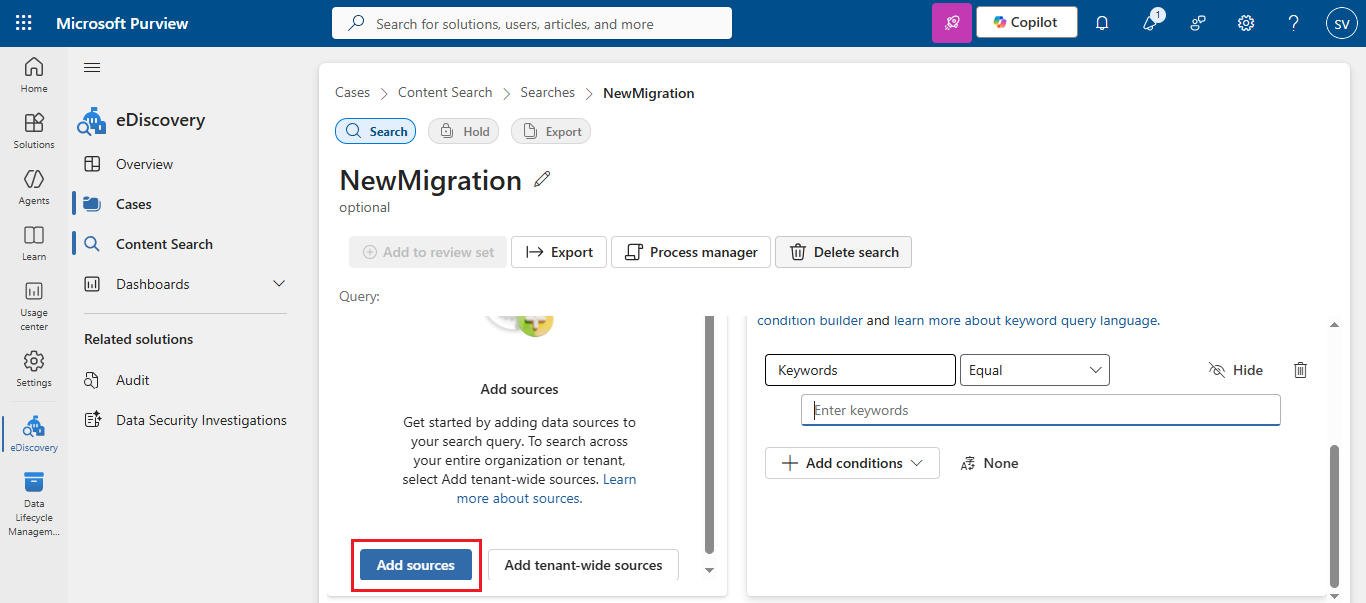
- Click Add Sources, To add the mailbox you want to search.
- Find the user whose mailbox you want to export, select the user, and click Manage.
- Choose Mailboxes only (you can add Sites if needed ) and then click Save.
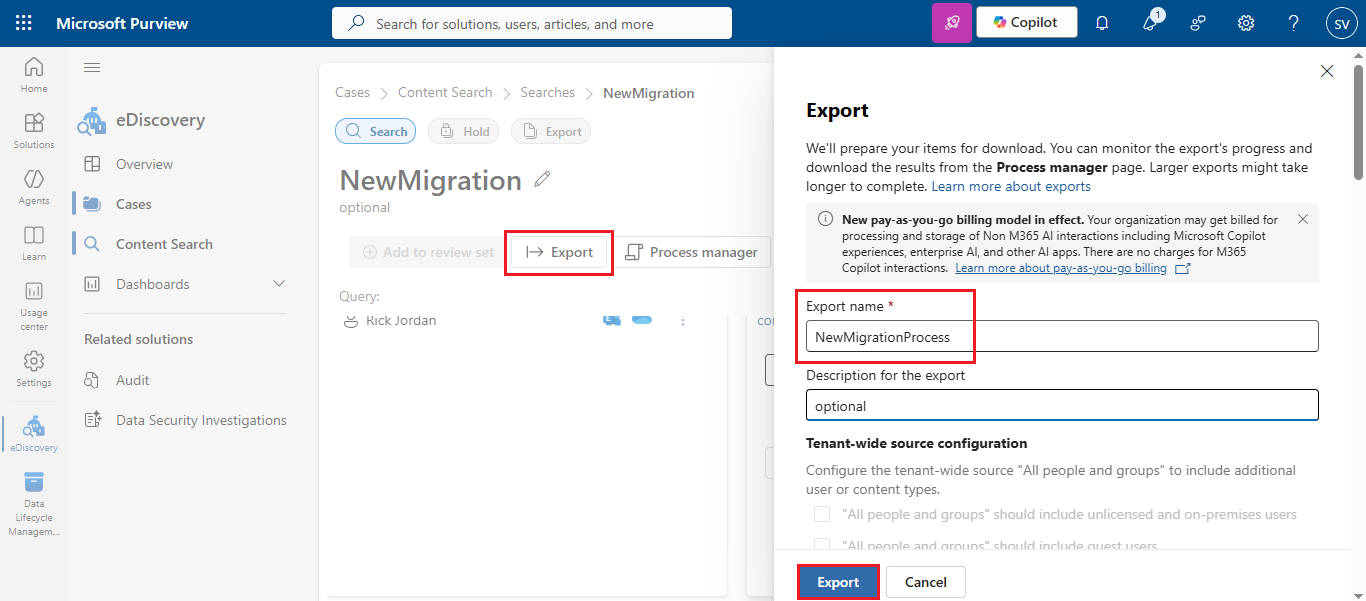
- Go to the Export, specify a name for the export and (optionally) a description, and click the export button.
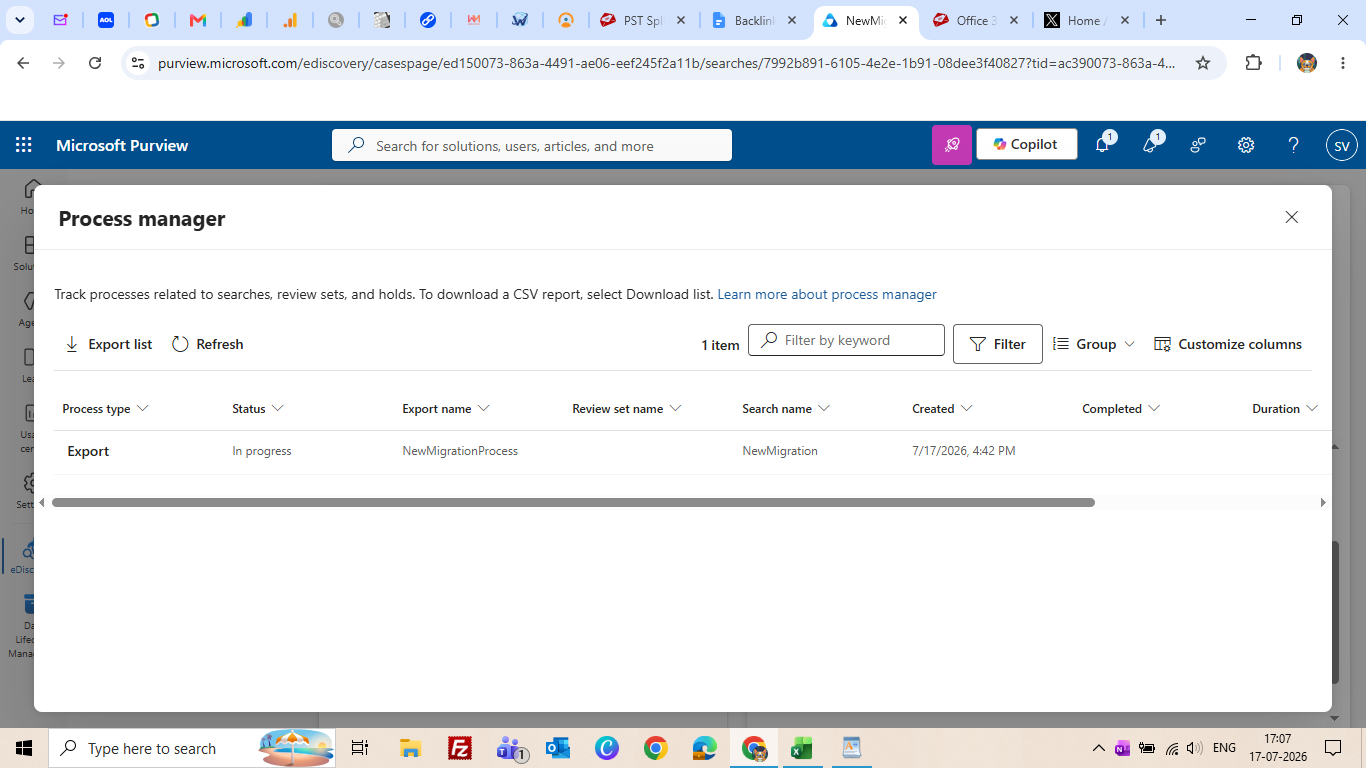
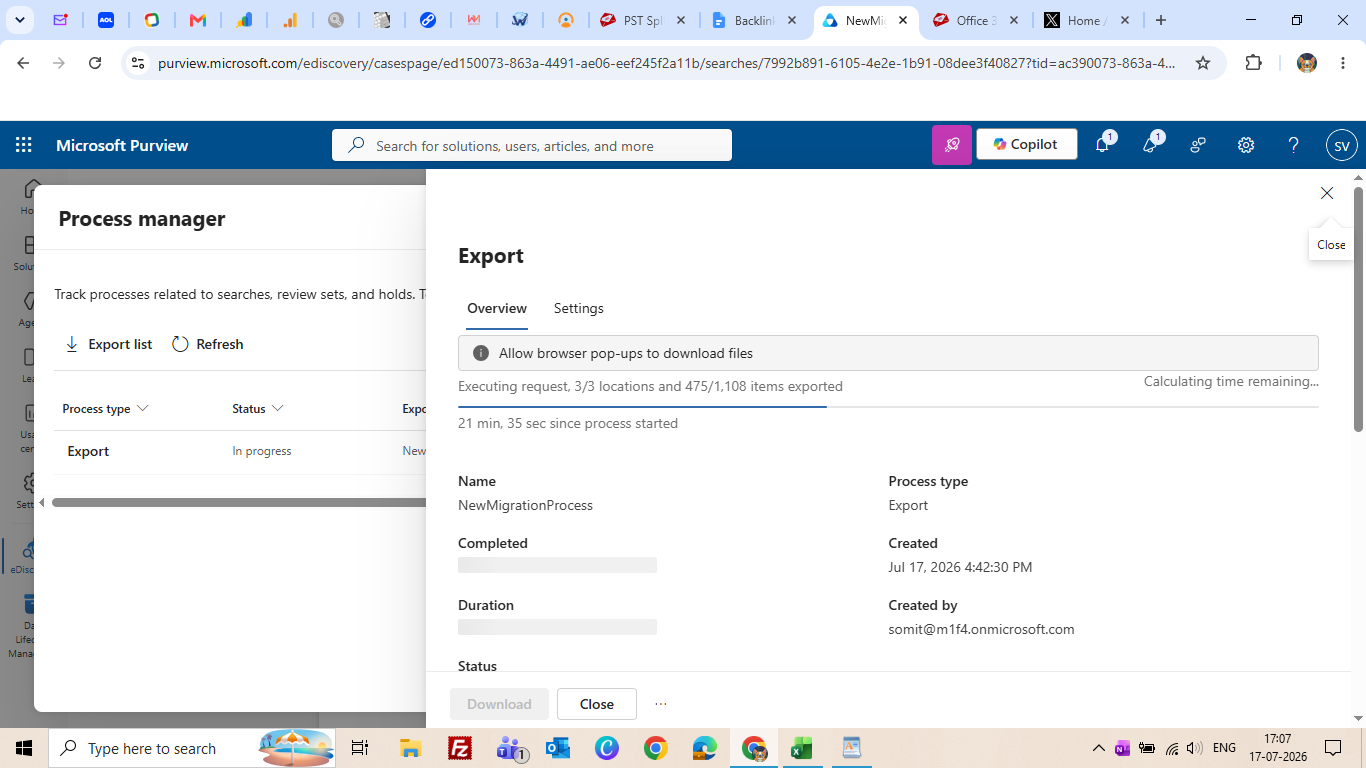
- To track the progress of export you can go to Process manager.
- After the export is finished, Open the completed migration process. Scroll down and click Download to save the PST file. The exported mailbox will be downloaded as a ZIP file.
- Unzip the file and load the pst file straight into Microsoft Outlook.
Limitations:
- It is requird a E3 or E5 license
- The setup is bit complicated, not recommended for beginners
- It is not generally designed as a backup solution, more for search and litigation.
Method 3: Using PowerShell Exchange Online Method
PowerShell with Exchange Online is the third one native method of Microsoft, which is a command-line approach and gives you more control. In this method, install the Exchange online Management module and connect it with administrator credentials.
After logging in, administrators can access mailbox data, search mailboxes, export emails, or automated mailbox management tasks using PowerShell command. You can use this method for bulk operations and automation, but it does not provide direct ways to export Office 365 mailboxes to PST.
Limitations:
- It requires advanced technical knowledge
- Scripts can be broken by Microsoft updates
- Difficult for non-technical users to handle this method
- Can not see live backup status of users
Alternative Solution for Backup Office 365 mailbox
You can export multiple Office 365 mailbox data including emails, contacts, calendars, and other things in one go. MailsDaddy Office 365 Backup tool is designed for IT professionals, business users, to take backup of the entire Office 365 mailbox without losing any data and time.
It enables users to convert their Office 365 mailbox data into PST, MSG, EML, and MBOX formats. MailsDaddy introduces their Backup tool with enhanced features like backup of bulk mailboxes, selected mailboxes, export contacts only in VCF file formats, and calendars in ICS formats. Additionally, it is compatible with all Outlook and Windows editions.
Top Features
- Built for Individual and Enterprise level backup
- Easily export selected admin, user, and shared account.
- Allow saving Primary, In-place archive, shared and Group mailbox.
- Export data into PST, EML, MSG, and MBOX file format
- Exclude empty and desire folders.
- Use Date filter to move mailbox between two time period.
- Re-sync mailbox anytime.
Read more: How to Export MBOX to PST
Conclusion
Microsoft offers robust native methods for Office 365 mailboxes, enabling users to export or download mailbox data to their local systems. These methods ranging from Outlook Export to Microsoft Purview eDiscovery involve multiple steps to create a mailbox backup. Choosing the right method depends entirely on your specific needs, such as data security requirements and the number of mailboxes requiring backup.
If you are looking for a method that avoids complex, multi-step processes or time-consuming procedures, you might consider an automated solution. The MailsDaddy Office 365 Backup Tool is an excellent choice for users seeking to back up Office 365 mailboxes without any data loss.

Somit Vishwakarma is a technology writer specializing in email management, data migration, Microsoft 365, Outlook, cloud technologies, & software solutions. His areas of expertise include email migration, data backup, recovery, and cloud data management. He also writes informative tutorials covering Python, programming, & emerging technology trends.