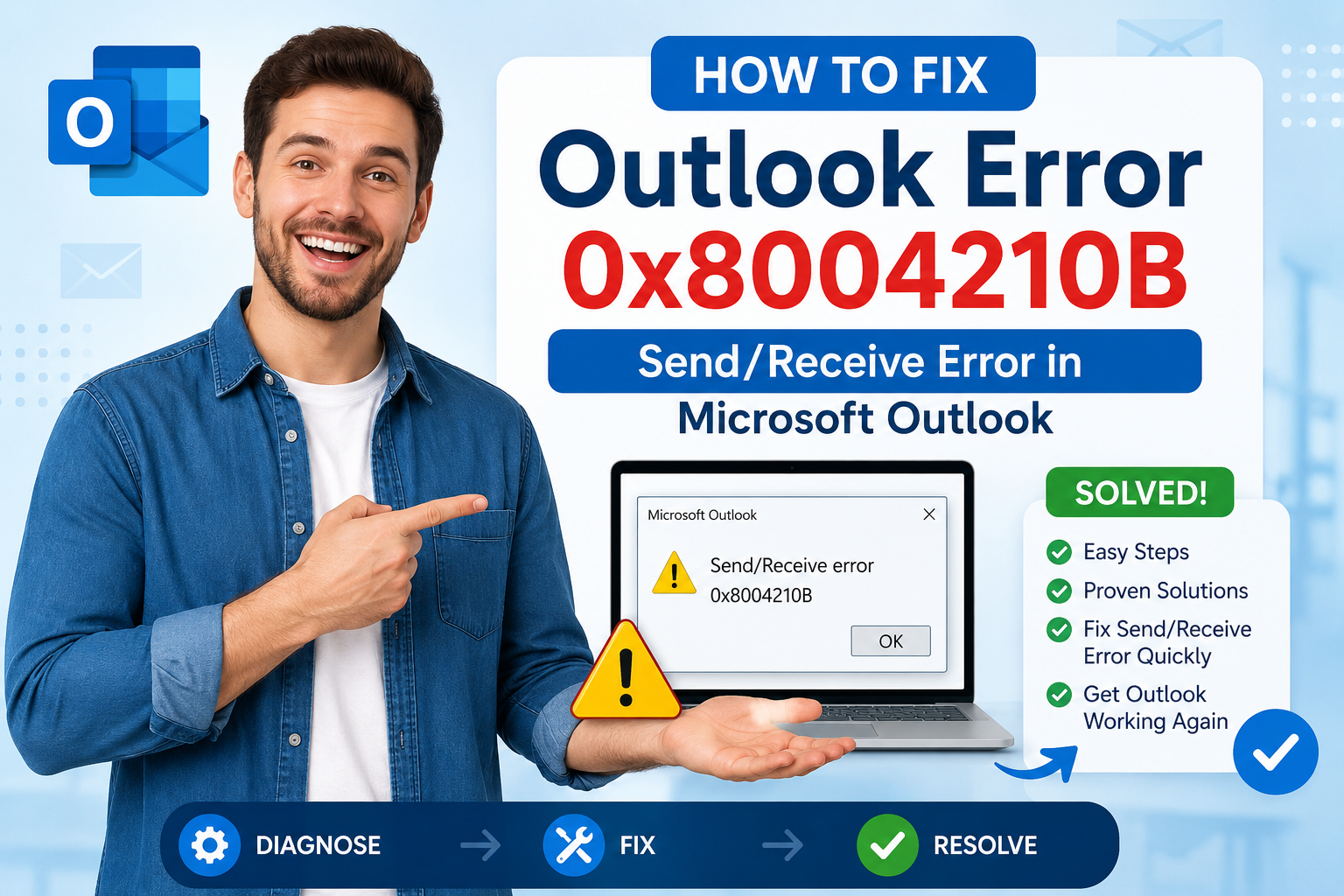
Microsoft Outlook is one of the most widely used email clients for business and personal communication. While it offers reliable email management, users occasionally encounter send and receive issues that interrupt their workflow. One such common problem is Outlook Error 0x8004210B – Send/Receive Error.
This error generally appears when Outlook is unable to send or receive emails from the configured email server. In many cases, the problem is caused by emails stuck in the Outbox, an unstable internet connection, damaged Outlook data files, antivirus interference, or a corrupted Outlook profile.
In this guide, you’ll learn the possible causes of Outlook Error 0x8004210B, manual methods to resolve it, and a professional solution for repairing damaged Outlook data files.
What is Outlook Error 0x8004210B?
The Outlook Send/Receive Error 0x8004210B usually appears during the synchronization process. Outlook may display an error message similar to:
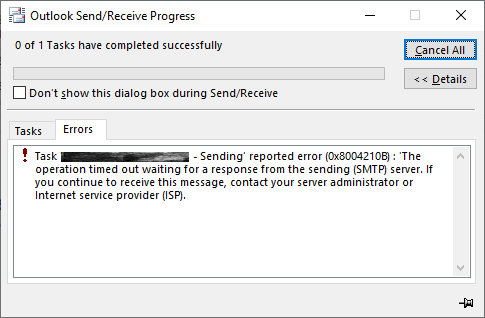
The error prevents Outlook from successfully sending or receiving emails and may continue appearing every time the Send/Receive process starts.
Common Causes of Outlook Error 0x8004210B
Several reasons can trigger this Outlook error, including:
- Stuck or oversized emails in the Outbox
- Corrupted Outlook profile
- Damaged PST or OST file
- Incorrect SMTP or IMAP/POP server settings
- Slow or unstable internet connection
- Antivirus or firewall blocking Outlook
- Large Outlook mailbox size
- Corrupt Outlook add-ins
- Temporary server connectivity issues
- Improper Outlook shutdown
Identifying the root cause helps determine the most effective troubleshooting method.
Manual Methods to Fix Outlook Error 0x8004210B
Before using any advanced solution, try these manual troubleshooting methods.
Method 1: Check Your Internet Connection
A poor or unstable internet connection is one of the most common reasons behind send/receive failures.
Steps:
- Verify that your internet connection is active.
- Open a website in your browser to confirm connectivity.
- Restart your router if necessary.
- Open Outlook and try sending the email again.
If the connection is stable but the error persists, continue with the next solution.
Method 2: Remove Emails Stuck in the Outbox
Large attachments or interrupted email transmissions can leave messages stuck in the Outbox.
Steps:
- Open Outlook.
- Click Send/Receive.
- Select Work Offline.
- Open the Outbox folder.
- Delete or move the stuck email to Drafts.
- Disable Work Offline.
- Restart Outlook.
Try sending a new test email.
Read more: Outlook Error 0x80040600
Method 3: Verify Email Account Settings
Incorrect SMTP or incoming server settings often generate send/receive errors.
Steps:
- Open Outlook.
- Go to File > Account Settings > Account Settings.
- Select your email account.
- Click Change.
- Verify:
- Incoming server
- Outgoing SMTP server
- Port numbers
- Encryption settings
- Click Test Account Settings.
- Save the changes.
Ensure all settings match those provided by your email service provider.
Method 4: Create a New Outlook Profile
A corrupted Outlook profile frequently causes send/receive errors.
Steps:
- Close Outlook.
- Open Control Panel.
- Select Mail.
- Click Show Profiles.
- Click Add.
- Create a new Outlook profile.
- Configure your email account.
- Set the new profile as default.
- Launch Outlook.
Many users find that creating a fresh profile resolves synchronization problems.
Method 5: Repair Outlook Data File Using ScanPST
If the PST file becomes corrupted, Outlook may experience send/receive failures.
Steps:
- Close Outlook.
- Locate ScanPST.exe on your computer.
- Browse to your Outlook PST file.
- Click Start.
- Repair any detected errors.
- Open Outlook again.
ScanPST works well for minor corruption but may not recover severely damaged Outlook files.
Professional Method to Fix Outlook Error 0x8004210B
If none of the manual methods resolve the issue, the Outlook data file may be significantly damaged. In such cases, a professional Outlook repair solution provides a more reliable recovery process.
MailsDaddy PST Repair Tool is designed to repair corrupted Outlook PST files without altering mailbox data. It can recover emails, contacts, calendars, journals, tasks, notes, and attachments while maintaining the original folder hierarchy.
Key Features
- Repairs severely corrupted PST files
- Recovers deleted Outlook emails
- Restores contacts, calendars, notes, and tasks
- Preserves folder structure and formatting
- Supports large PST files
- Compatible with all major Outlook versions
- Saves repaired data into a healthy PST file
Steps to Use the Professional Tool
- Install and launch the PST Repair software.
- Browse and select the corrupted PST file.
- Start the scanning process.
- Preview the recoverable mailbox items.
- Choose the destination location.
- Save the repaired PST file.
- Open the repaired PST in Microsoft Outlook.
This method is especially useful when ScanPST fails or the Outlook file has extensive corruption.
Tips to Prevent Outlook Error 0x8004210B
Following good Outlook maintenance practices can reduce the likelihood of encountering send/receive errors.
- Keep Outlook updated.
- Avoid sending extremely large attachments.
- Archive old mailbox data regularly.
- Compact large PST files.
- Close Outlook properly before shutting down Windows.
- Keep antivirus software updated.
- Create regular backups of Outlook data.
- Verify email server settings after password changes.
- Remove unnecessary Outlook add-ins.
- Monitor mailbox size periodically.
Read more: Free Method to Convert MBOX to PST
Conclusion
Outlook Error 0x8004210B – Send/Receive Error is commonly associated with stuck emails, incorrect account settings, Outlook profile corruption, or damaged PST files. In many situations, removing emails from the Outbox, checking SMTP settings, repairing the Outlook profile, or using ScanPST can resolve the problem.
However, when the Outlook data file itself is corrupted, manual methods may not be sufficient. A professional solution such as MailsDaddy PST Repair Tool offers a dependable way to repair damaged PST files, recover mailbox data, and restore normal Outlook functionality with minimal effort.

Mohit Keshari is a digital marketing professional at MailsDaddy Software, specializing in content strategy and SEO for email data recovery, conversion, and cloud migration solutions. His work bridges technical depth and accessibility — breaking down complex processes like PST/OST file management, Exchange Server migration, and Microsoft 365 mailbox imports into clear, actionable guidance for IT administrators and everyday users alike.
Outside of work, Mohit enjoys traveling and dancing, and brings the same curiosity and energy from exploring new places onto the page in his writing.