

Microsoft Outlook is the most popular, reliable, and effective desktop-based email client used by many professionals in the world. The reason why Outlook is widely used is that it offers a lot of convenience as compared to other desktop-based email clients. Operating MS Outlook is very easy and without any technical support, any novice user can use it.
MS Outlook stores the entire mailbox data in two file formats- OST and PST. Sometimes users enter the password in Outlook to make their data highly secure which is good but if for some reason the user forgets the password or wants to change Outlook password then what they should do. In this article, we will discuss complete process about how to change MS Outlook and PST file password reset.
Method of Changing Password in Outlook
It is very useful and important queries so read the article properly and follow the entire step. Because if you forgot the password of Outlook you will not be able to access your mailbox data.
- Manually Method to Reset Outlook Password
- Third-party solution to change Outlook PST password
Manual Method of Changing Password in Outlook PST – Firstly we will discuss the manual way because it is a free method to change the Outlook password. In the manual part, we will describe changing the password of MS Outlook and Outlook.com (Outlook Web App).
Reset Password of MS Outlook
In MS Outlook version 2007 & earlier edition-
- Firstly, run “MS Outlook” on your device and click on the “File” option
- In the File tab click on the “Account Settings” option then hit on the “Update Password” option.
- Now in the new dialog box, you can change and reset the password of Outlook as per your requirement.
- And the last click on the “OK” button.
How to Change Password in Outlook version 2010, 2013, 2016, or 2019?
In the latest version of MS Outlook, some features and settings are updated. So if you have an updated version of MS Outlook then follow the below methods to Change your Password on Microsoft outlook. These steps work only if your account is set up via IMAP or POP.
- Open “MS Outlook” and click on the “File” option and select the “Info” tab
- Click on the “Account Settings” option and select the “Manage Profiles” option.
- Now hit on the “Email Accounts” option and in the open new dialog box click on the “Change” button.
- In the change account window, select the “Login information” section and click the “Next” option.
- Wait until the process is completed, when it fully checked then they will start appearing green.
- And last clicking the “Close” button to exit the Window.
By using these simple steps you can quickly reset and update the Outlook Password in any edition.
Change the password of Outlook.com or Outlook Web App
To change the web Outlook password, follow these simple steps-
- Log in to your Outlook.com account.
- Now hit on Account Manager and click on the View Account option.
- In the view account box, click on the Password option that appears from the left pane.
- In the open new dialog box, you can enter your old password to update and create a new password
This is a complete manual process to reset Outlook password. If your desktop Outlook connect using Microsoft 365 or Outlook.com then first change the password in cloud then a pop-up is automatically open to change it. Now let us talk “How to change PST file password” using manual and third-party tool.
How to reset PST file password?
Follow the steps below to add or reset the password for a PST file. To change the password, ensure that you have the old password.
- Open Microsoft Outlook.
- Click on the File tab.
- Select Account Settings, then click Account Settings again from the menu.
- Go to the Data Files tab.
- Click on the Outlook Data File (.pst) which password you want to change.
- Click Settings.
- Click Change Password.
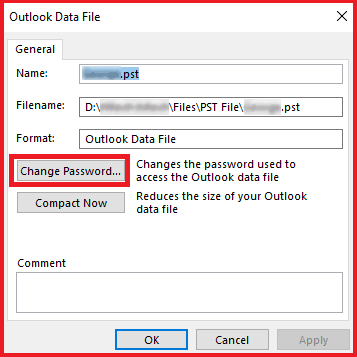
- Type your existing password in the Old password box. To set a password, you can leave it blank.
- Type your new password in the New password and Verify password boxes.
- Click OK to save the new password.
Third-Party Solution to Reset or Remove Password
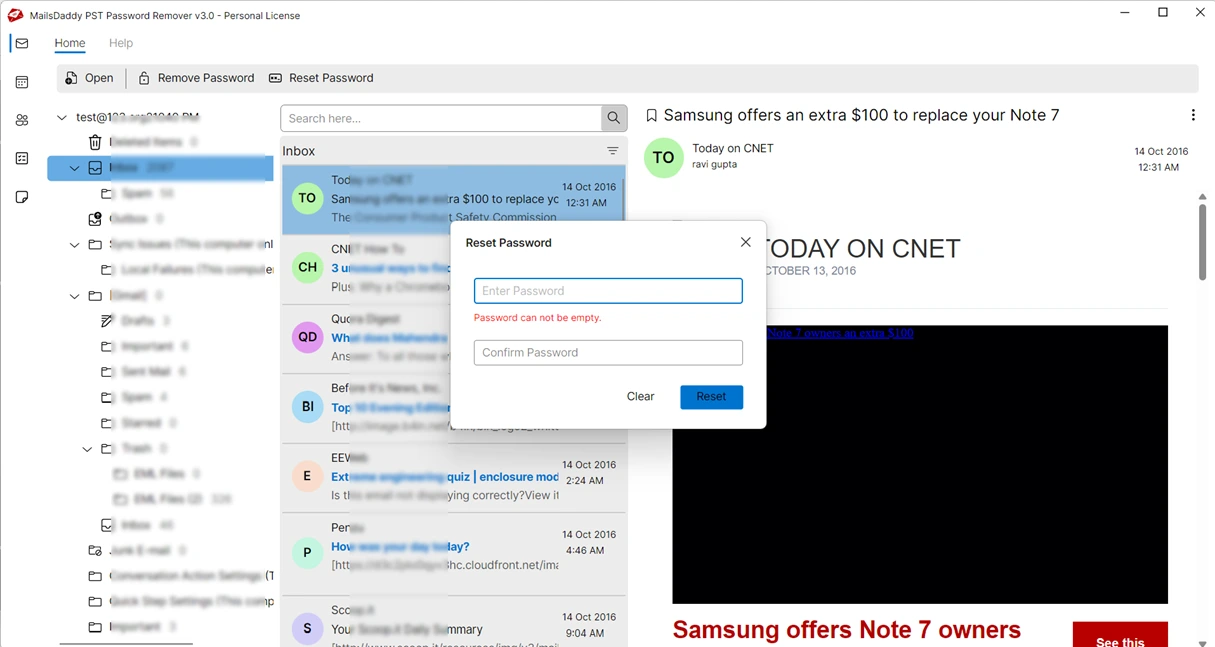
There are many third-party applications available on the Internet. Here we will talk about, one of the most popular utilities that recover and reset Outlook file passwords easily i.e. MailsDaddy PST Password Remover. This single application is the best for changing password in Outlook. It is the most trusted single wizard software that supports all versions of MS Outlook and quickly changes and resets passwords. Outlook Password Remover software comes with a precise and simple GUI interface so that any technical or non-technical user can operate it easily.
Conclusion
In this article, we have clearly explained both methods for changing Outlook and PST file passwords. With the help of this post, you will be able to easily change your Outlook and PST passwords. You can choose and use whichever method suits your needs. If you encounter any issues or have questions, please let us know; we will do our best to resolve them as soon as possible.
Read more:
How to migrate MBOX to Outlook 2016?
Extract Attachments from Outlook PST

Somit Vishwakarma is a technology writer specializing in email management, data migration, Microsoft 365, Outlook, cloud technologies, & software solutions. His areas of expertise include email migration, data backup, recovery, and cloud data management. He also writes informative tutorials covering Python, programming, & emerging technology trends.