

Do you want to migrate your MBOX file to Office 365 platform without paying any money? If yes then you are in right place. Here I will share with you a free manual technique that will help you to import MBOX files to Office 365 account quickly.
MBOX format is the best email storage Mailbox file that contains all emails in a single file. Most of the email clients like to save email messages in MBOX files such as Apple Mail, Eudora, Entourage, Thunderbird, PocoMail, Opera Mail, Webmail, Postbox, etc.
Office 365 is the latest and remarkable cloud-based service provided by Microsoft. It comes with different Microsoft subscription packages that enable users to use MS Word, MS Excel, MS PowerPoint, MS Access, Outlook Mail, Exchange Online, SharePoint, Skype, OneDrive storage, etc.
Reason for Migrating MBOX File into Office 365
- Office 365 is a cloud base service and MBOX files are supported by multiple email clients (online and portable).
- Users often face a variety of problems in MBOX files, while Office 365 Outlook does not encounter any errors.
- Office 365 provides multiple advanced features so that users can be engaged and work with multiple applications in one place.
- In Office 365, users can easily complete their work from anywhere and at any time, just the user should have internet connectivity.
- Compare to MBOX files supported by email clients, Office 365 supported multiple languages.
- Office 365 provides high data security compare to MBOX files supported by email clients.
Get Free MBOX to Office 365 Migration tool to import MBOX to Office 365 cloud platform
- Unlimited Conversion
- 100% Secure Output
- Complete Migration
Freeware method to Import MBOX file to Office 365
Using manual techniques users can transfer MBOX files to Office 365 without investing money. For this users have to properly follow the below-given steps so that easily got accurate results.
Users can not directly import MBOX files into Office 365 so first users have to convert MBOX files to Outlook PST format then they can transfer PST Files into Office 365.
Step 1:- Convert MBOX Files into PST Format:
For Older Version of MS Outlook
- If you already have an MBOX file available then it is a good thing otherwise, export the MBOX file from the MBOX file supporting the email clients.
- After that Install Eudora Email Client and Visit on Eudora Saving MBX file directory & move your MBOX file here.
- Now change the extension of your mailbox from MBOX to MBX, like- name.mbox to name.mbx.
- Now open Microsoft Outlook and choose the File tab.
- After that choose the Import Export Tool and select “import internet mail and address“.
- Now go for Eudora (2x, 3x, 4x pro, and light) and click on Next.
- After that browse the file location to import the .mbx file and enable “Do not import duplicate item”
- At last confirm the mailbox where you want to import this .pst file and click the “Finish” button.
For New Version of MS Outlook:-
Eudora mailboxes do not allow users to import .mbx files in the latest version of MS Outlook. So users have to configure Gmail with an MBOX-based email client, then configure Outlook with the same Gmail Id. For this users have to use the IMAP protocol for email migration in both processes. Learn manual way to export MBOX to PST format for free
Step 2: Import PST File to Office 365 cloud manually
- Hit on Download & install the Azure AzCopy storage tool and also copy the SAS URL.
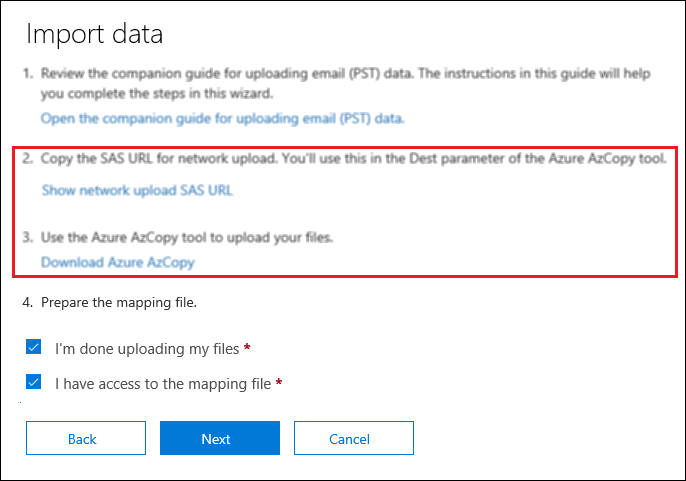
- Now visit where your Microsoft Outlook PST files or folder are located and provide the sharing to share the got Network Path.
- After that Run the Azure AzCopy Tool application and type the below-given command:
AzCopy.exe /Source:<Location of PST files> /Dest:<SAS URL> /V:<Log file location> /Y
- Now Create Mapping File of Imported Outlook PST
- In the next, enable both options of Prepare the mapping file and Click on Next.
- After that select “+ Select mapping file” to import the created CSV file and hit on validate to start validating.
- After validating the process completely click on the save option.
- After that, a new window “import” will open, here click on the “import to Office 365” option.
- Now, wait till the MBOX to Office 365 migration process is over.
Direct method to Import MBOX file to Office 365
We have looked at manual methods for importing MBOX files into Office 365 one by one. However, organizations often possess numerous data files and folders that need to be migrated simultaneously to a specific email account.
MailsDaddy MBOX to Office 365 migration tool is a highly popular and reliable application for migrating mailboxes in bulk. This software supports all MBOX-based email clients such as Thunderbird, Apple Mail, Entourage, SeaMonkey, and Gmail MBOX—and facilitates seamless importation to the Exchange Online platform. It supports various mailbox types, including primary, shared, group, and in-place archive mailboxes. Furthermore, the application features both automated and manual login options, enabling organizations to securely access and import all MBOX data files simultaneously. A trial version is available, allowing users to migrate up to 20 emails per folder. It is compatible with all 32-bit and 64-bit Windows operating systems.
Conclusion
It is a completely manual process of MBOX to Office 365 migration, in which, the user has to go through a long path. Here I have tried to tell you the exact procedure so that you can get the exact result. If you want a quick result, use the MailsDaddy MBOX to Office 365 migration tool. It allows importing MBOX files to Office 365 default, In-place archive and shared mailboxes in a few simple clicks.
Read: How to convert WebMail to Outlook?
Read: Yahoo Backup in Local drive

Somit Vishwakarma is a technology writer specializing in email management, data migration, Microsoft 365, Outlook, cloud technologies, & software solutions. His areas of expertise include email migration, data backup, recovery, and cloud data management. He also writes informative tutorials covering Python, programming, & emerging technology trends.