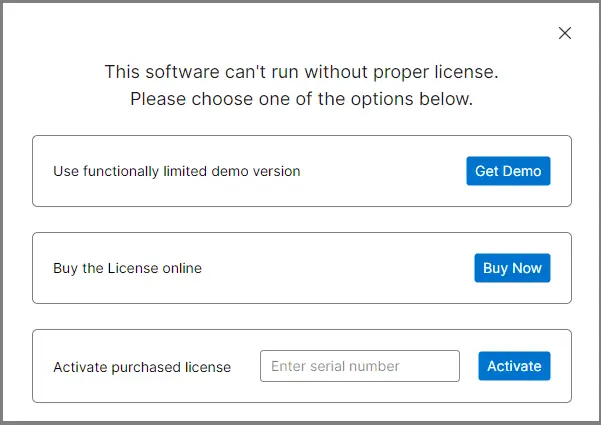
Step 1: First, Download and install the MailsDaddy PST to AOL mail migration Tool on your Windows system. Launch the software and either click on Try Demo or activate it using a valid license key. The application will restart automatically.
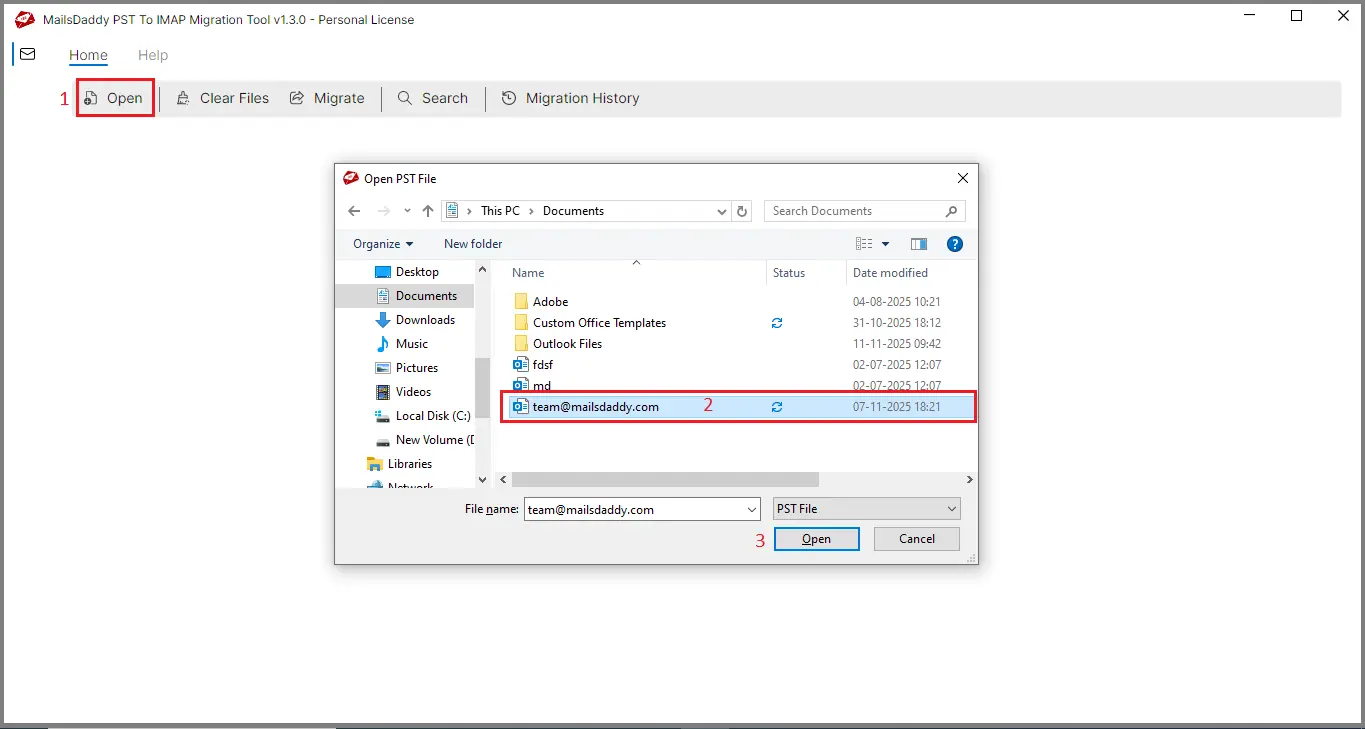
Step 2: Click the Open PST option and browse to select the Outlook PST file you want to migrate to AOL mail.
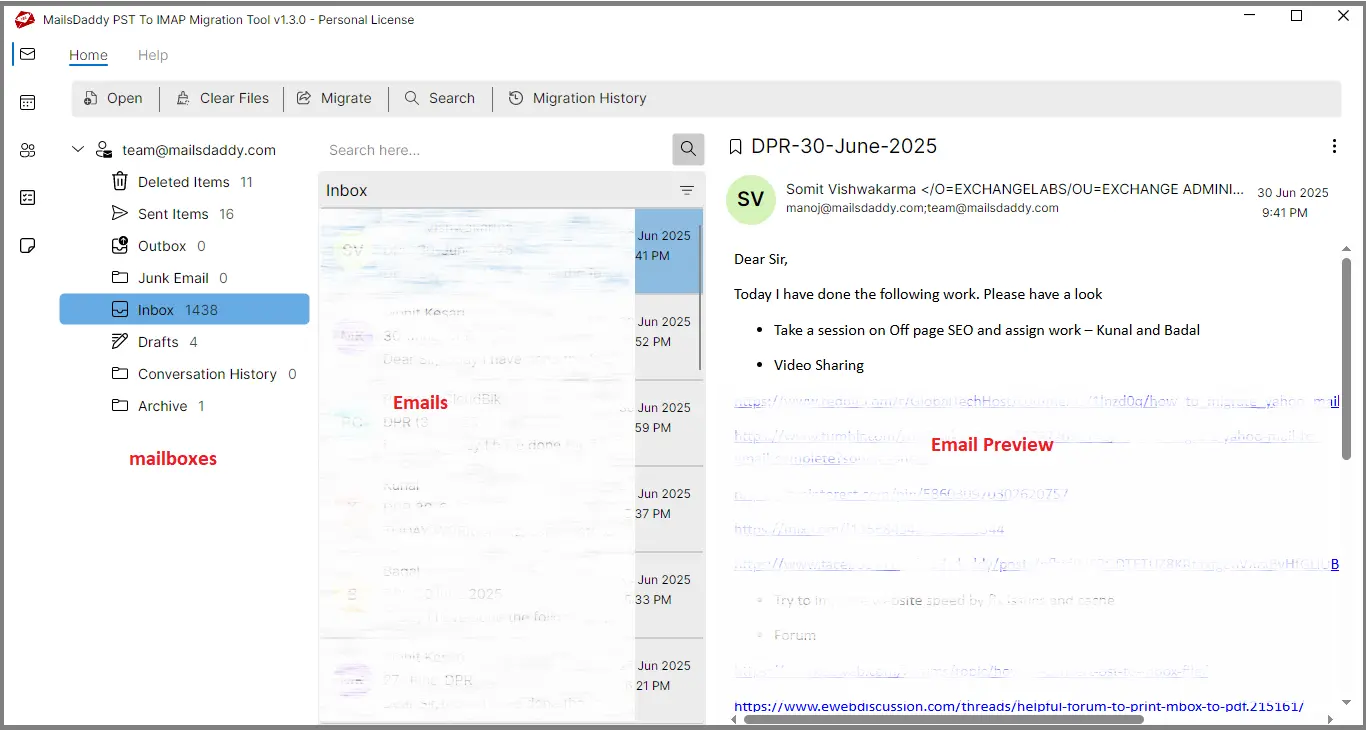
Step 3: The tool will scan the selected PST file and display all emails, folders, and mailbox items in the preview panel.
Step 4: Go to the Migration section and choose either all folders or specific folders you wish to transfer.
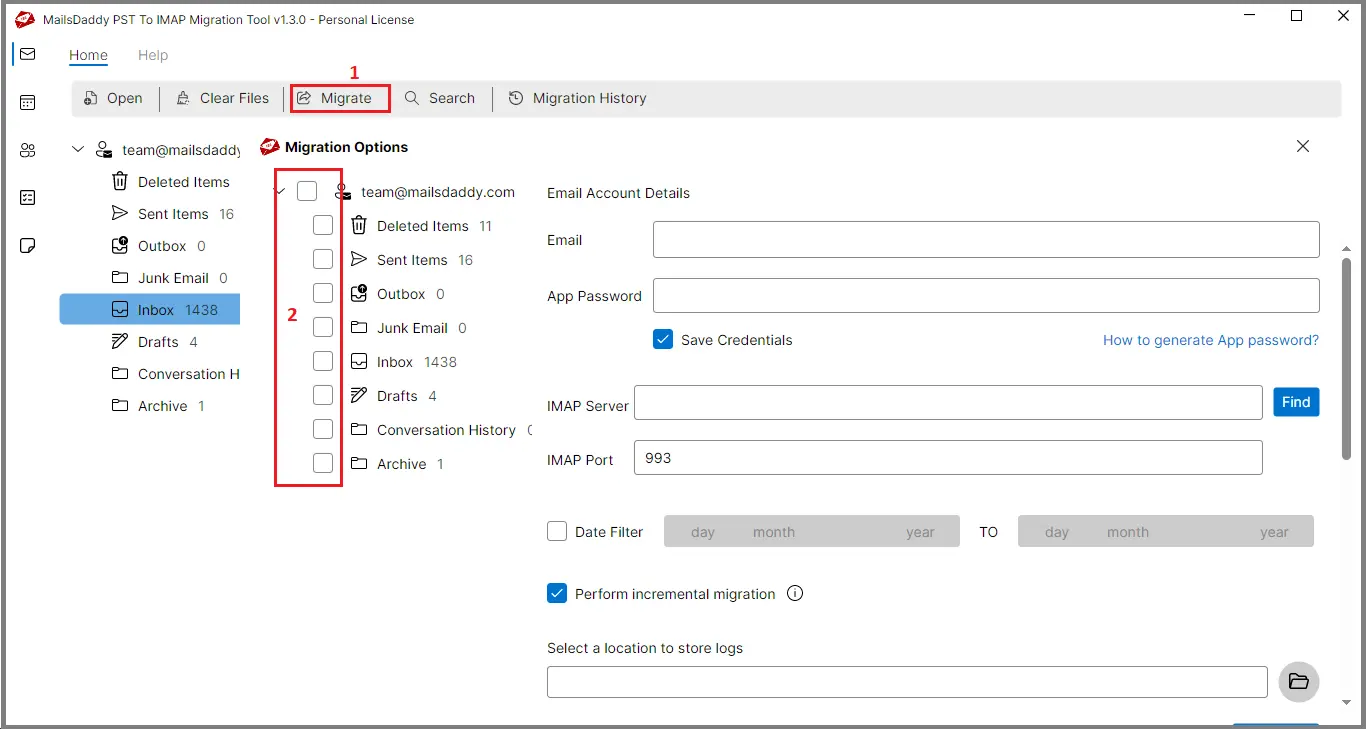
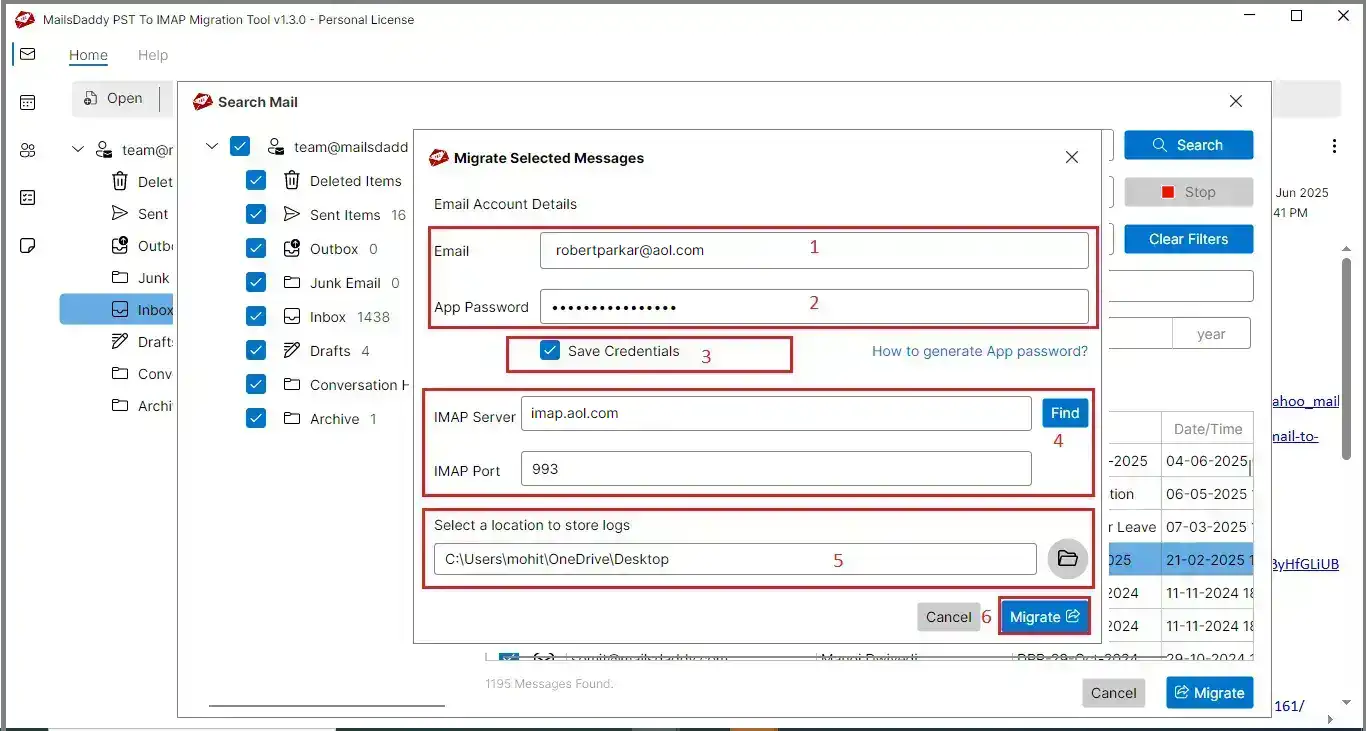
Step 5: Enter your AOL mail email address and app password. If you are unsure how to generate an app password, use the built-in help option for guidance.
Step 6: Enable the option to save login credentials if you plan to perform future migrations, or leave it disabled if not required.
Step 7: The PST to AOL software automatically detects the AOL mail IMAP server settings. If they are not displayed, click the Find Server option to fetch them.
Step 8: If needed, apply the date filter to migrate emails from a specific time range; otherwise, proceed without using this option.
Step 9: To avoid duplicate emails, enable the Incremental Migration feature, which skips emails that already exist in your AOL mail account.
Step 10: Choose a location on your system to save the migration log report for future reference.
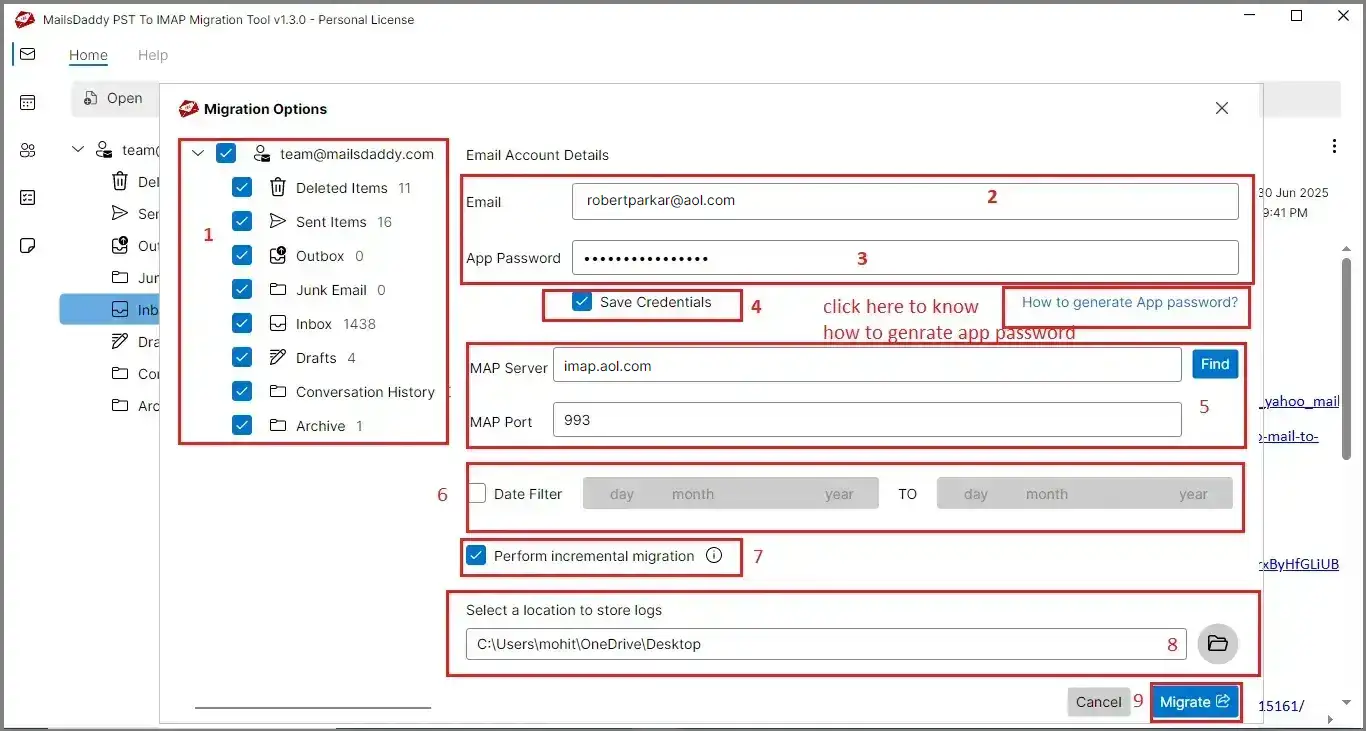
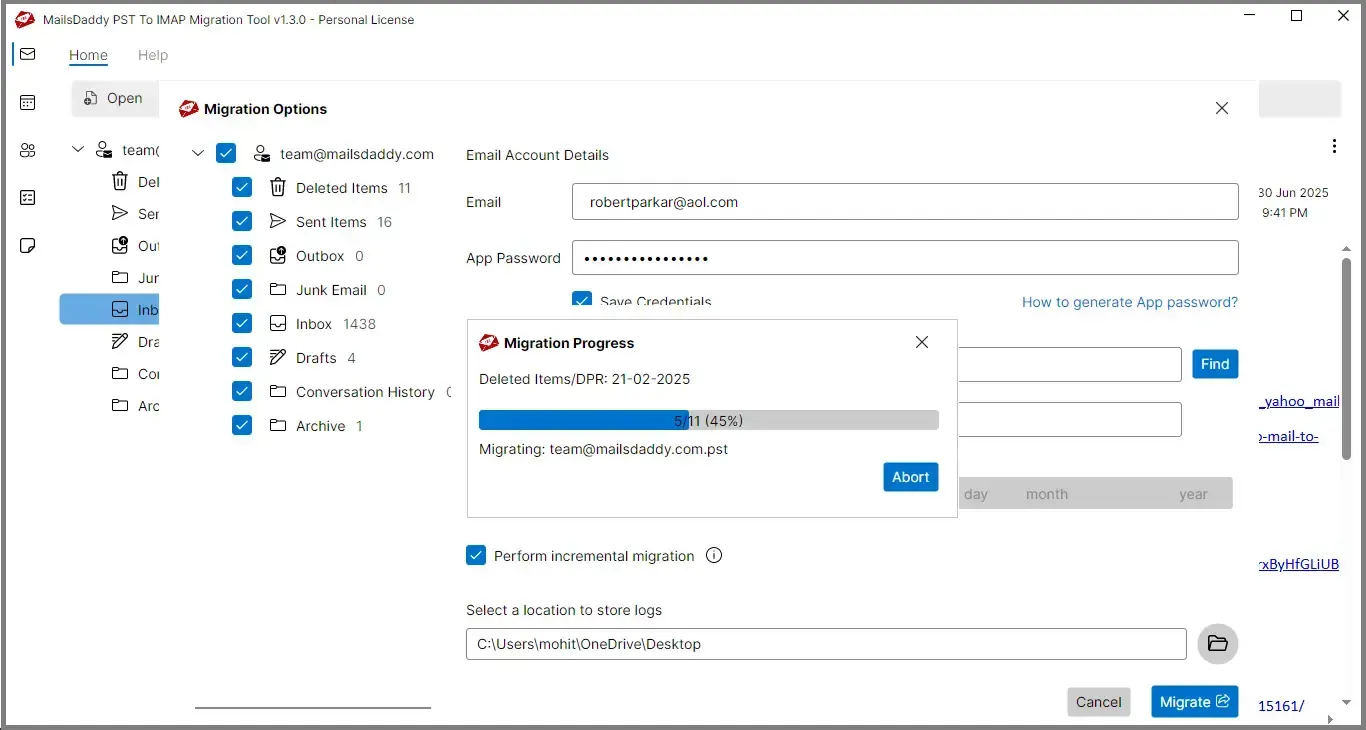
Step 11: Finally, click the Migrate button to start the upload PST to AOL mail migration process and wait until it completes successfully.
This will show you all the filtered data, but you need a valid license to migrate the filtered data.
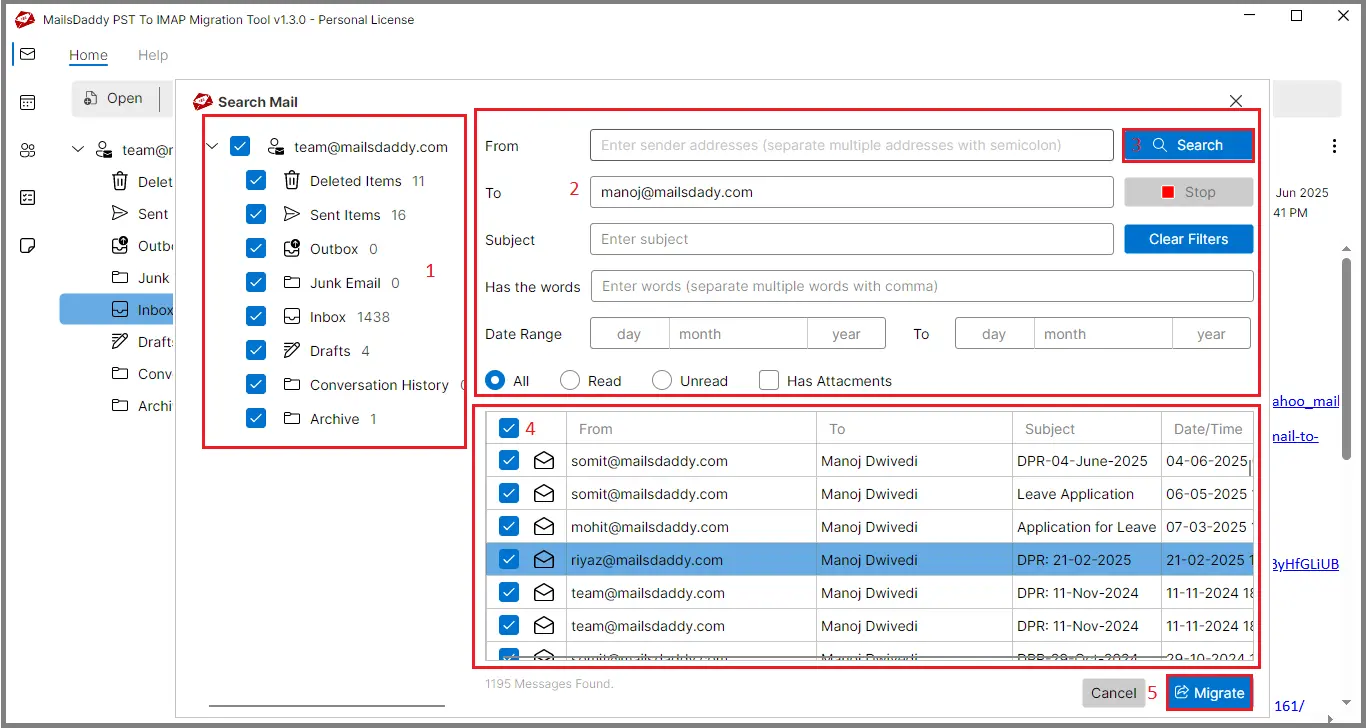
Step 1: To import only selected data from a PST file into AOL mail, open the Search tab in the software.
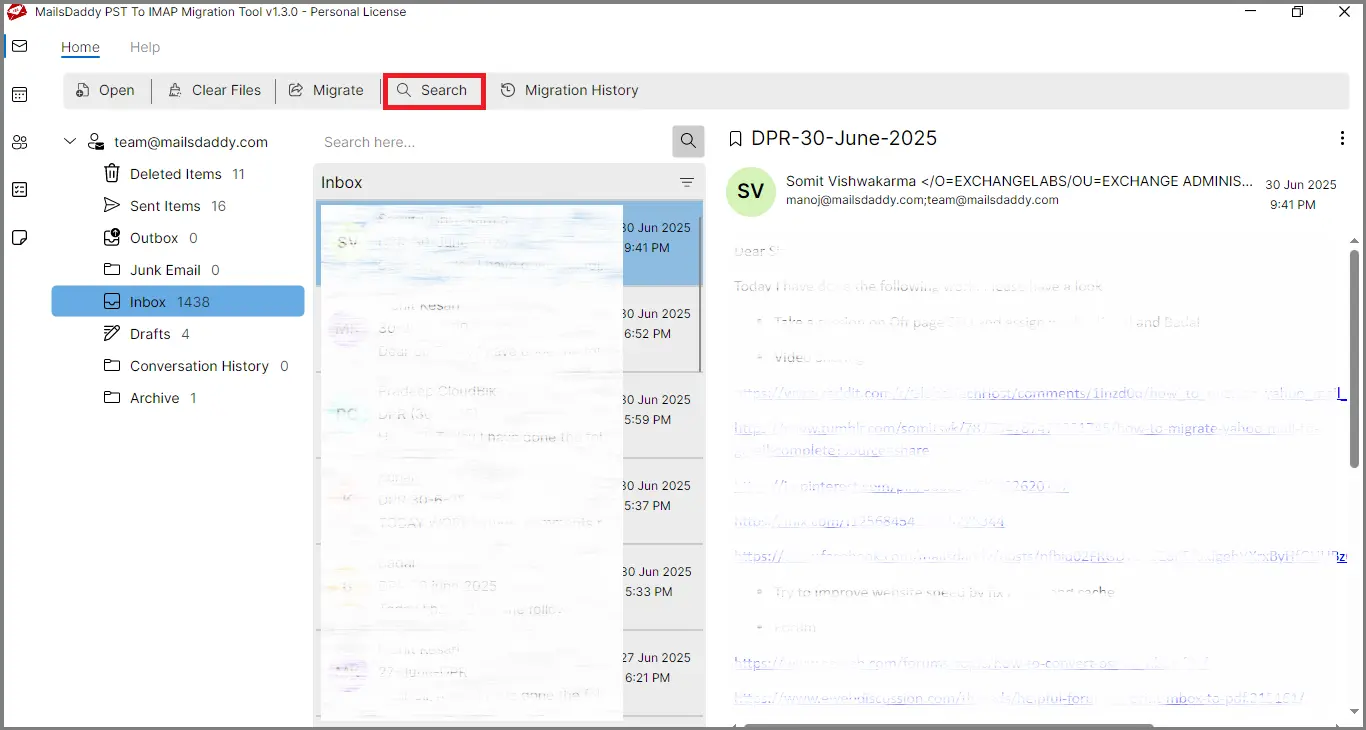
Step 2: From the left panel, choose either specific folders or all folders. Apply the required filter options such as From, To, Subject, keyword, date range, or other criteria, then click Search.
Step 3: All matching emails will appear in the results section. You can double-click on any email to view its detailed preview.
Step 4: Select the emails you want to migrate and click the Migrate button.
Step 5: Enter your AOL mail login credentials, verify the IMAP server settings, choose a location to save the log report, and click Migrate to begin the upload PST to AOL mail migration.
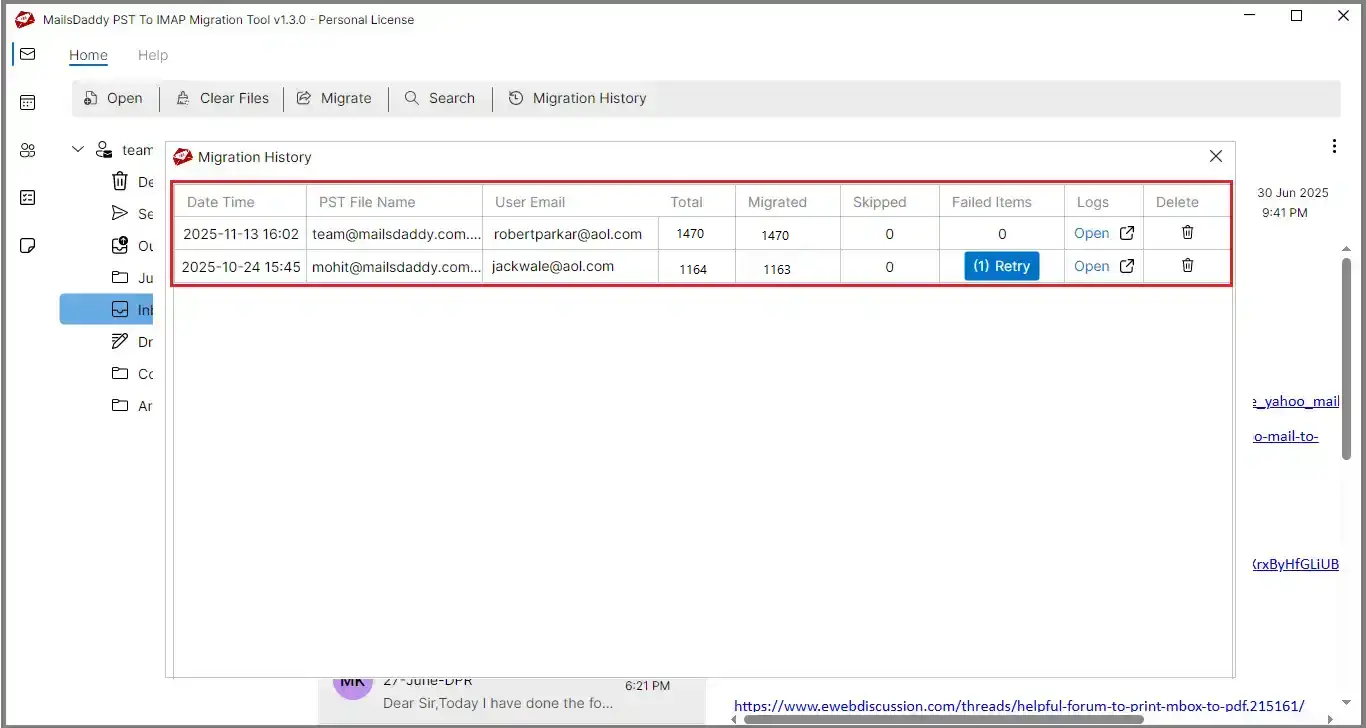
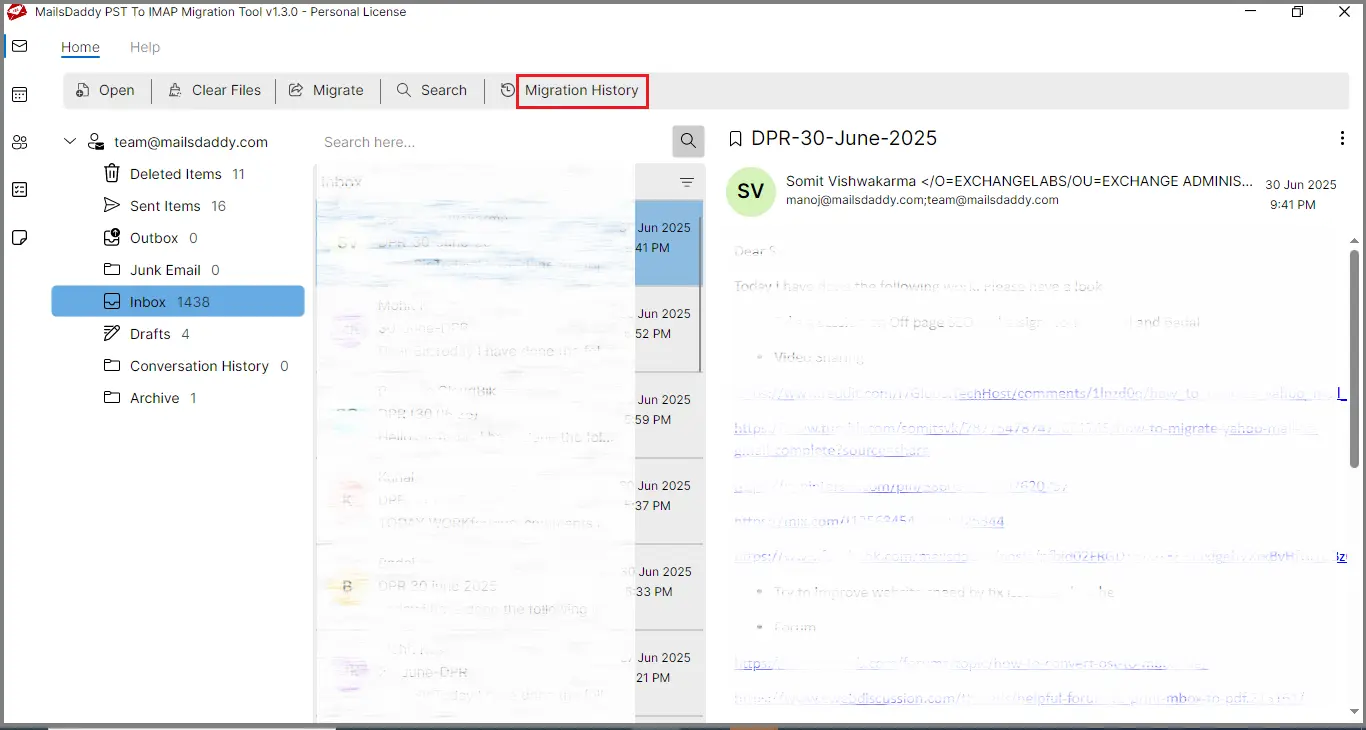
Step 1:Once the migration is complete, open the Migration History section to review the process details. Here, you can view the migration start time, selected PST file name, AOL mail account details, total number of emails, successfully migrated items, skipped messages, and any failed emails.
Step 2: If any emails fail to migrate, select them and click the Retry option. Recheck your login credentials and other required settings, then click Migrate again to complete the remaining migration.